Alarms
The Cordatus alarm system turns AI detections into notifications. You describe the situation you care about — a person in a restricted area, five vehicles queuing at the gate, someone crossing a virtual line — and Cordatus notifies you through the channels you choose and stores the event so you can review it later.
Everything lives under Alarms in the left menu:
| Page | Purpose |
|---|---|
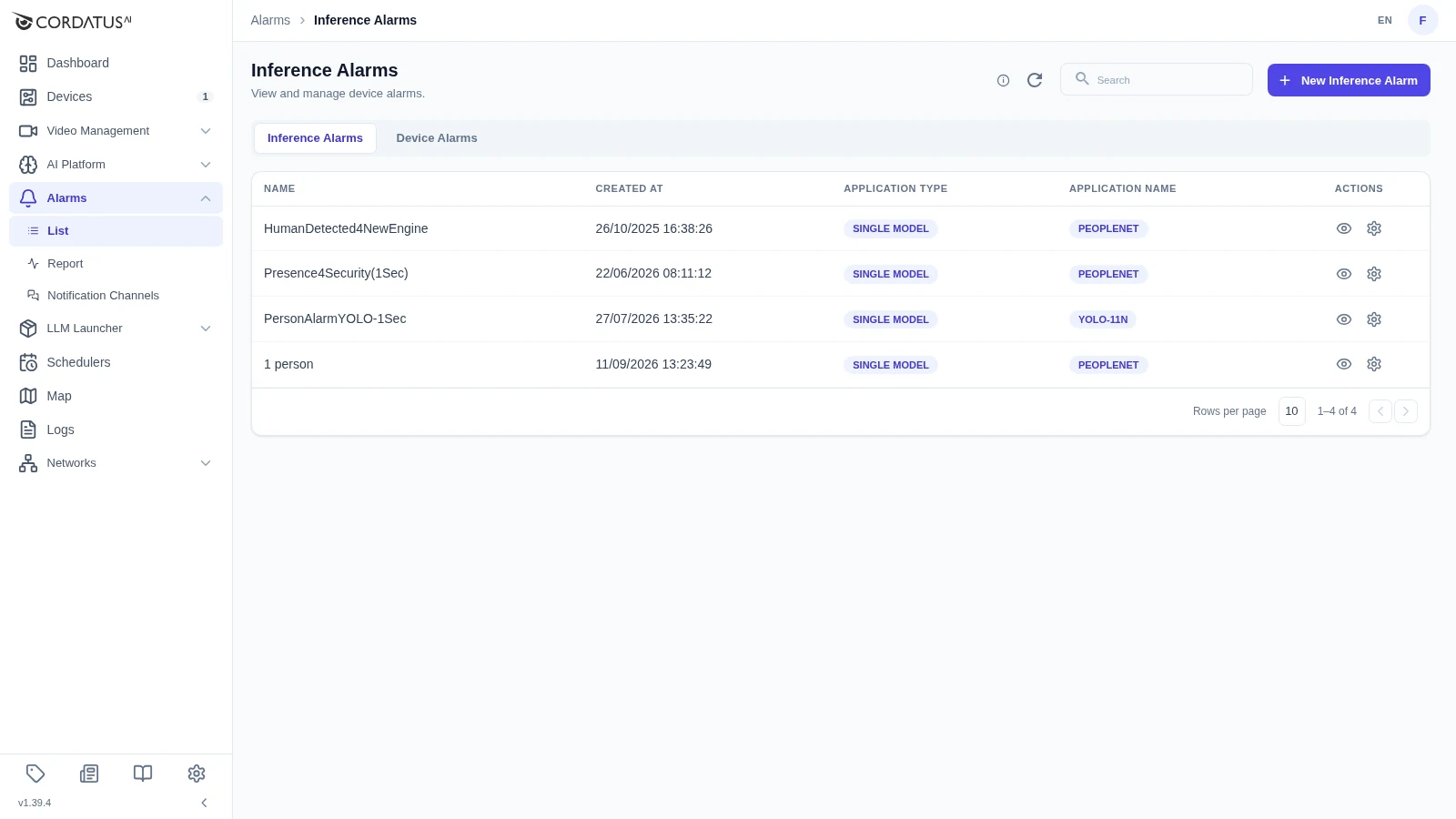
| List | Define and manage alarms. Two tabs: Inference Alarms and Device Alarms. |
| Report | Review the alarms that were actually triggered, with video. See Watching Alarm Records. |
| Notification Channels | Manage where notifications are delivered. |
Alarm Types
| Type | Where it is defined | When it triggers |
|---|---|---|
| Inference alarm (model-based) | Alarms → List → Inference Alarms | When a model or pipeline detects the classes described in the alarm rules. Defined once, then attached to any compatible job. |
| Analytic-based alarm | On a running job, inside the analytic rule you draw | When an object behaves in a certain way — crosses a line, enters an ROI, moves in a direction. |
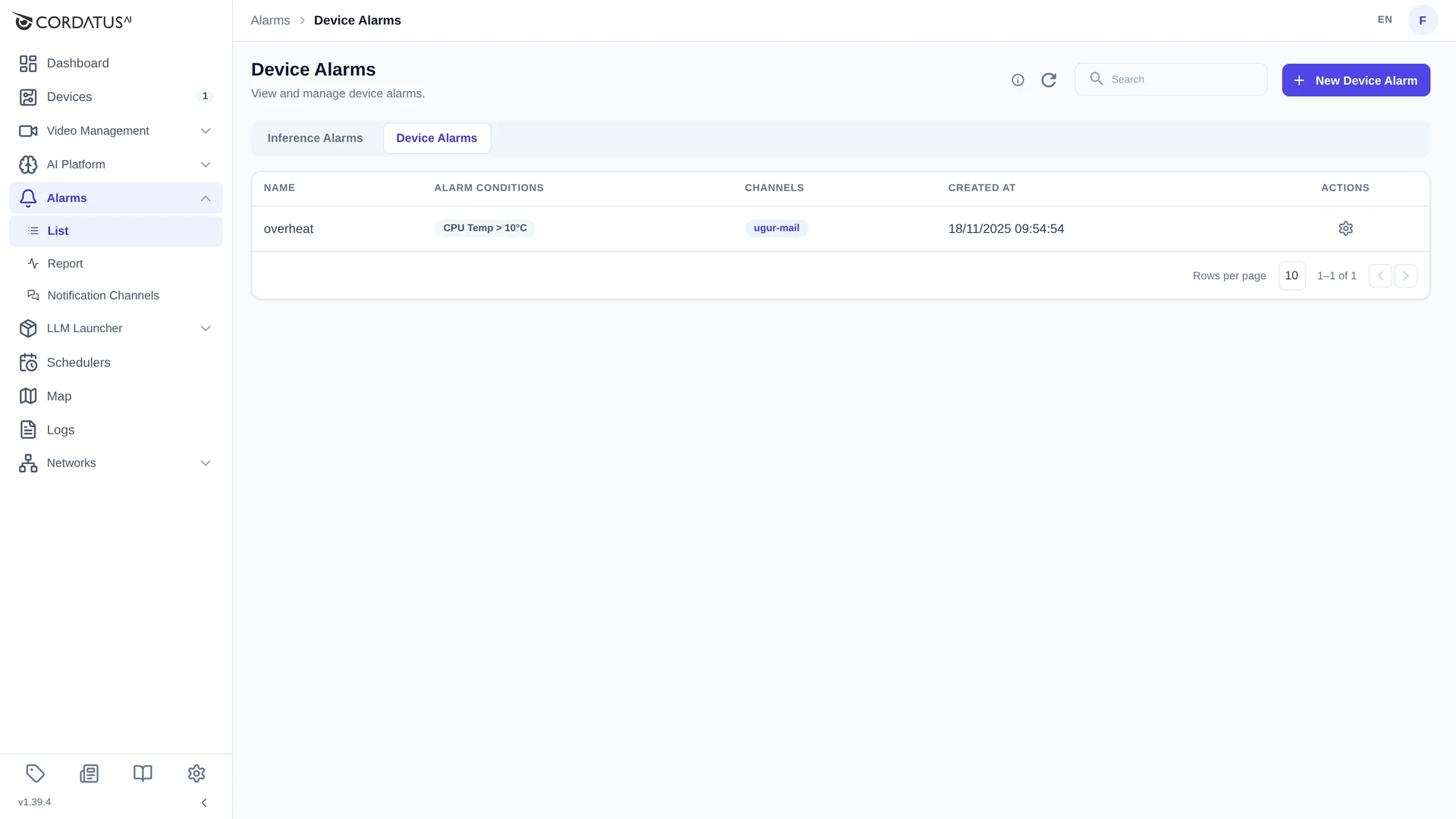
| Device alarm | Alarms → List → Device Alarms | When a device metric crosses a threshold (CPU temperature, disk usage, …). |
Notification Channels
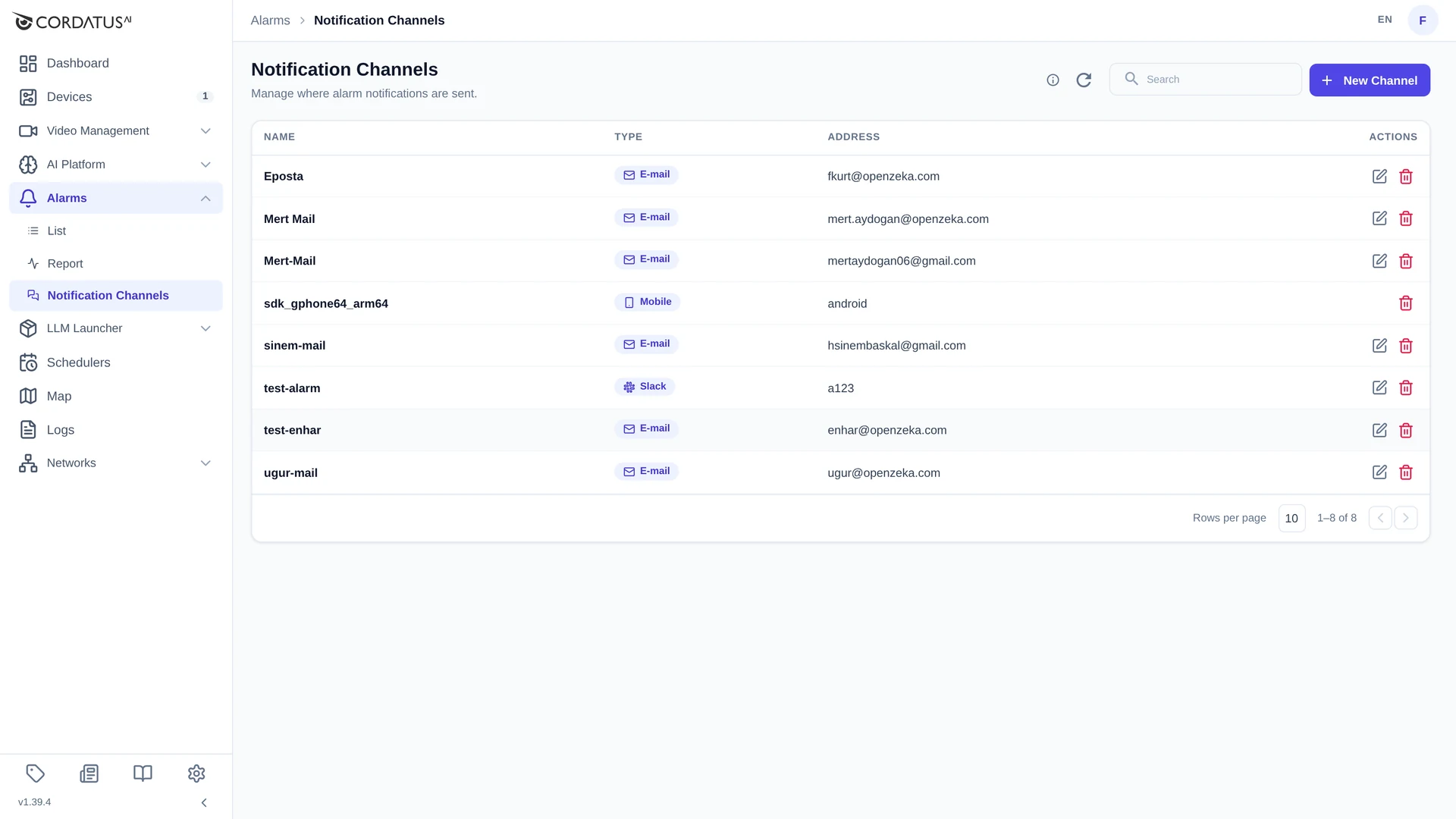
An alarm needs at least one channel to notify. Open Alarms → Notification Channels to see the channels of your organization, and use New Channel to add one. A channel has a Channel Name and a Channel Type — E-mail, Slack or Webhook. Mobile devices that are signed in to the Cordatus mobile app appear here as mobile channels automatically.
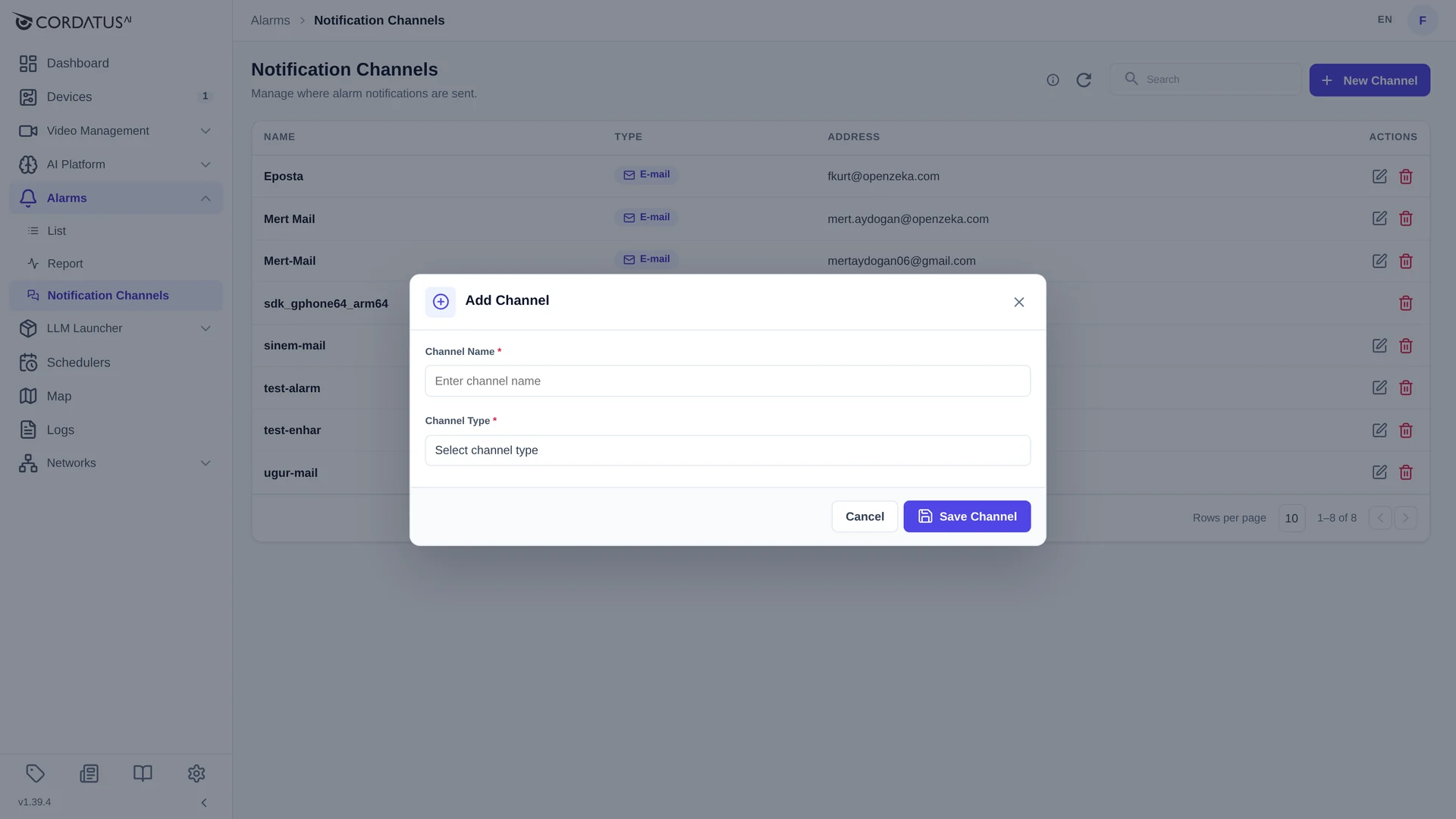
You can also create a channel without leaving the alarm wizard — the + CHANNEL button next to the Alarm Channels field opens the same form.
Creating an Inference Alarm
Inference alarms are defined independently of jobs and stored on the Inference Alarms tab, so the same alarm can be reused by any job that runs a compatible model or pipeline.
Click New Inference Alarm to open the two-step wizard.
Step 1 — Alarm Info
| Field | Description |
|---|---|
| Name | The name the alarm is known by, in the list and in notifications. |
| Alarm Channels | One or more notification channels. Everything in the list is offered; + CHANNEL adds a new one on the spot. |
| Alarm Type | Single Model for an alarm on one model, Pipeline for an alarm on a model pipeline. |
| Model Name / Pipeline Name | The model (or pipeline) the alarm belongs to. The alarm can later be attached only to jobs that run it. |
| Alarm Message (Optional) | Free text that is included in the notification — use it to tell the recipient what to do. |
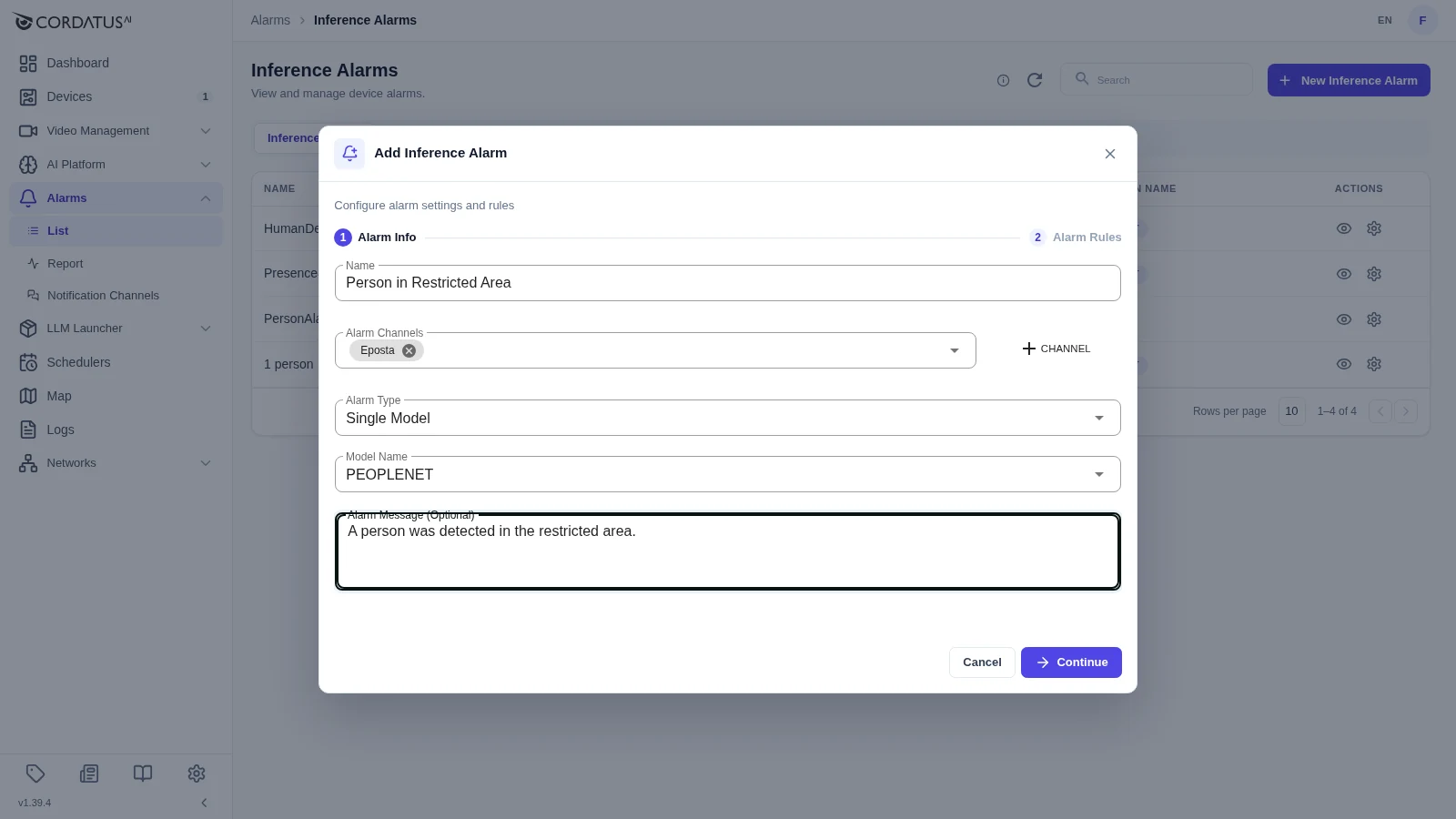
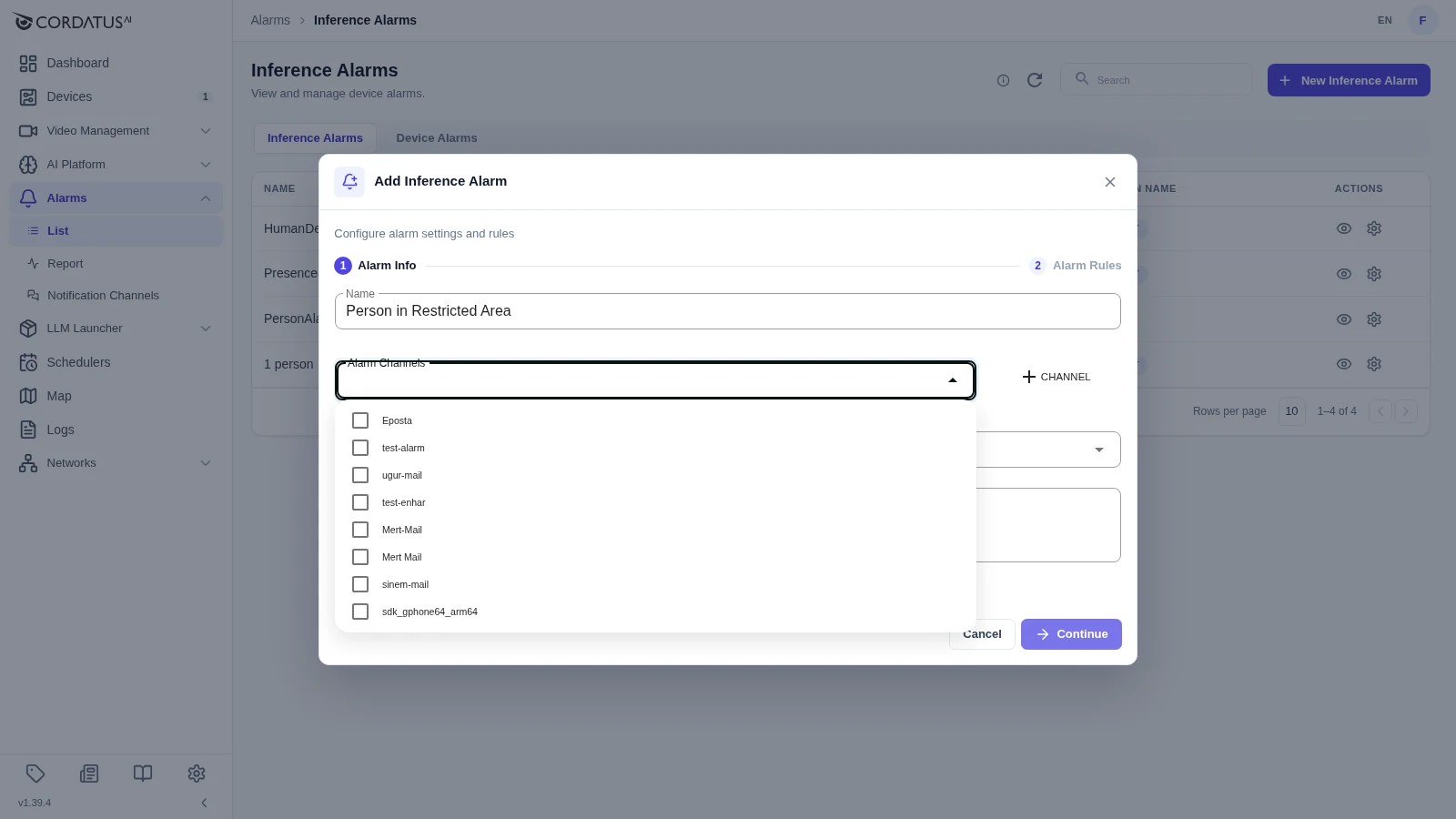
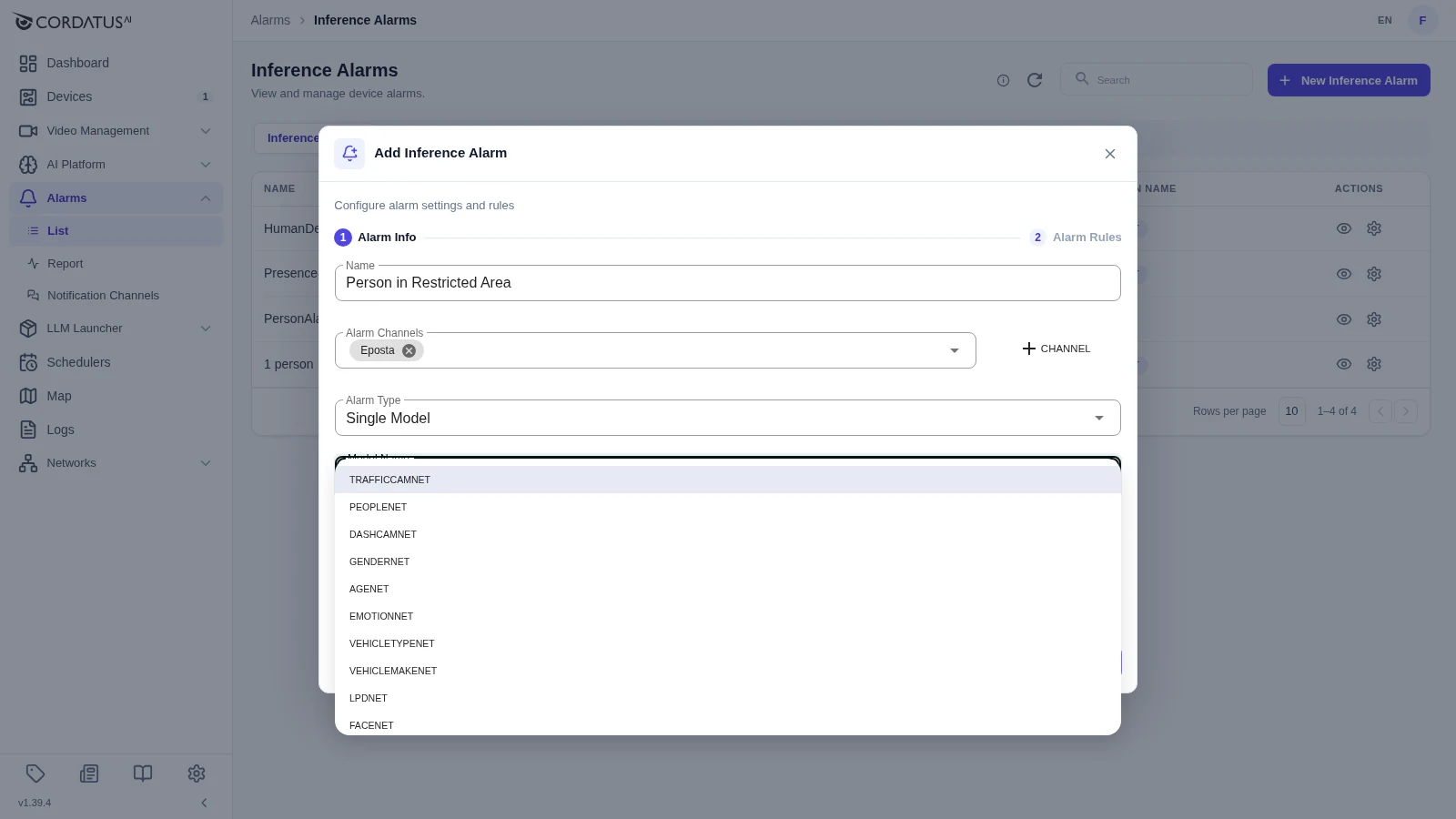
Click Continue to move on.
Step 2 — Alarm Rules
Rules describe the detection that triggers the alarm. They are written as a sentence:
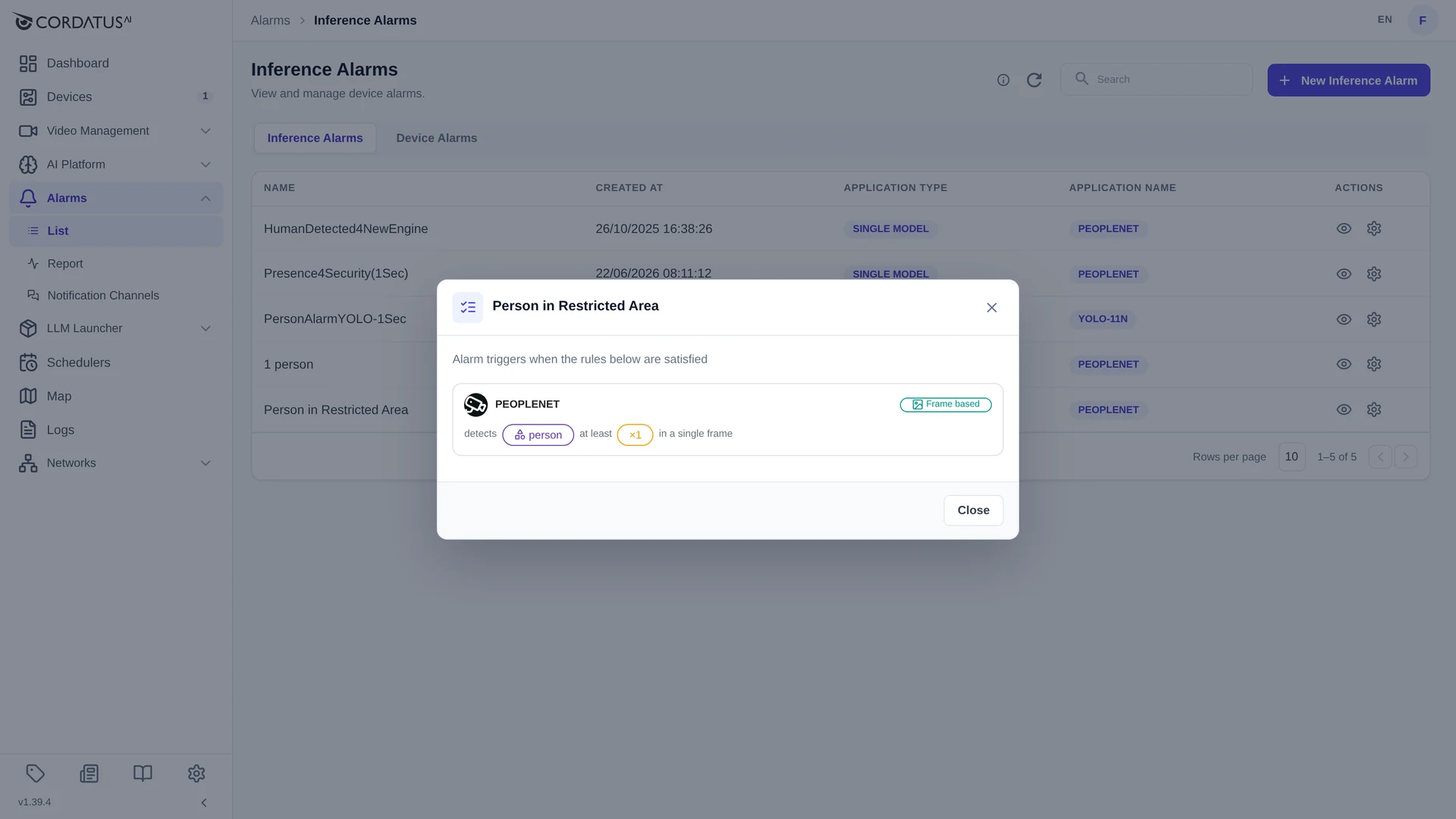
PEOPLENET detects person at least ×1 in a single frame
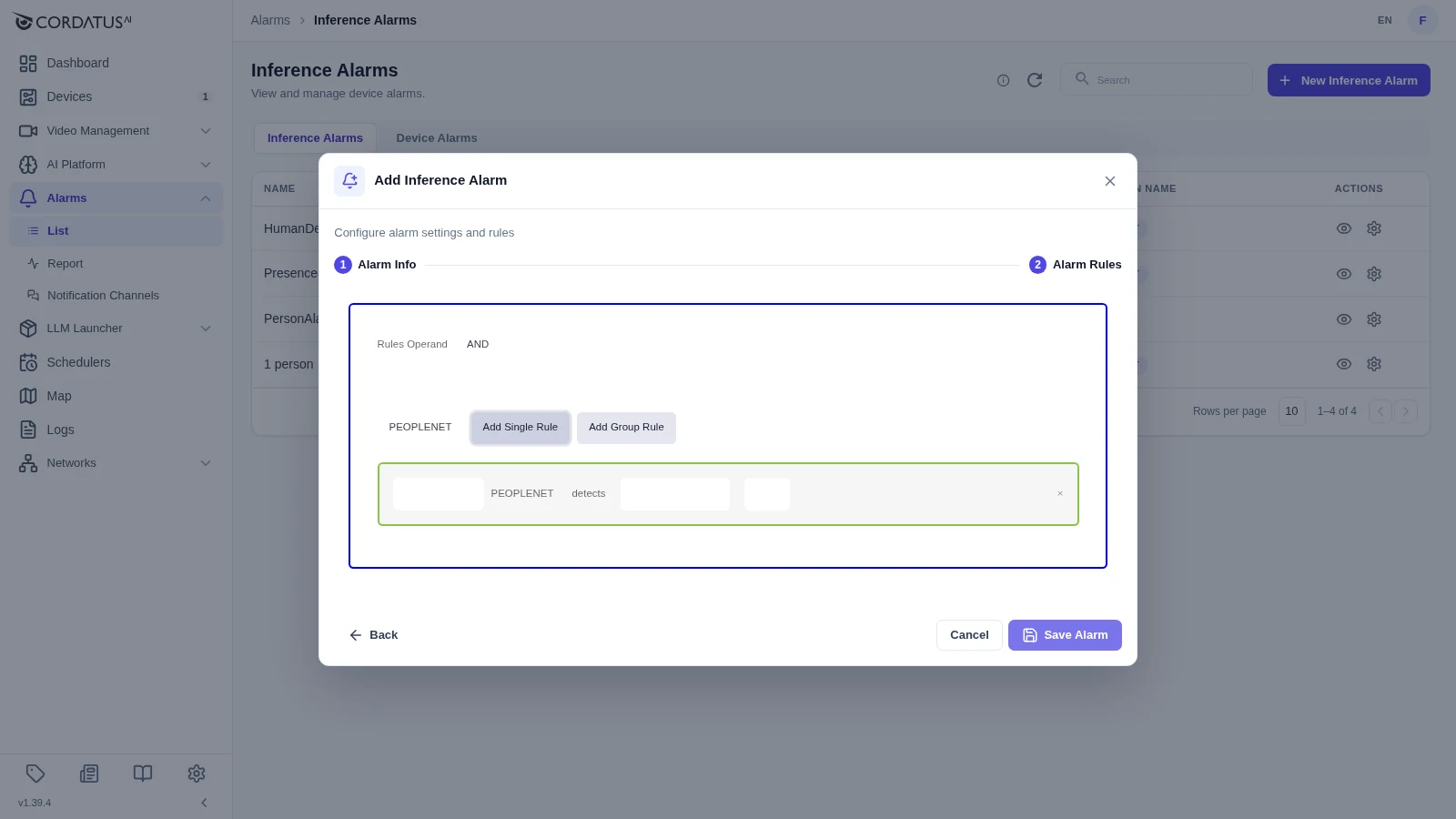
- Rules Operand — choose AND or OR. It decides how several rules are combined.
- Select the model of the rule from the dropdown next to the rule buttons.
- Click Add Single Rule for one condition, or Add Group Rule to nest a group of conditions.
- Complete the sentence in the row that appears:
| Option | Meaning |
|---|---|
| Frame based | Triggers when the selected class reaches the given count in a single frame. |
| Time based | Triggers when the selected class reaches the given count within the given period. |
- Repeat for further rules — they are combined with the operand you chose.
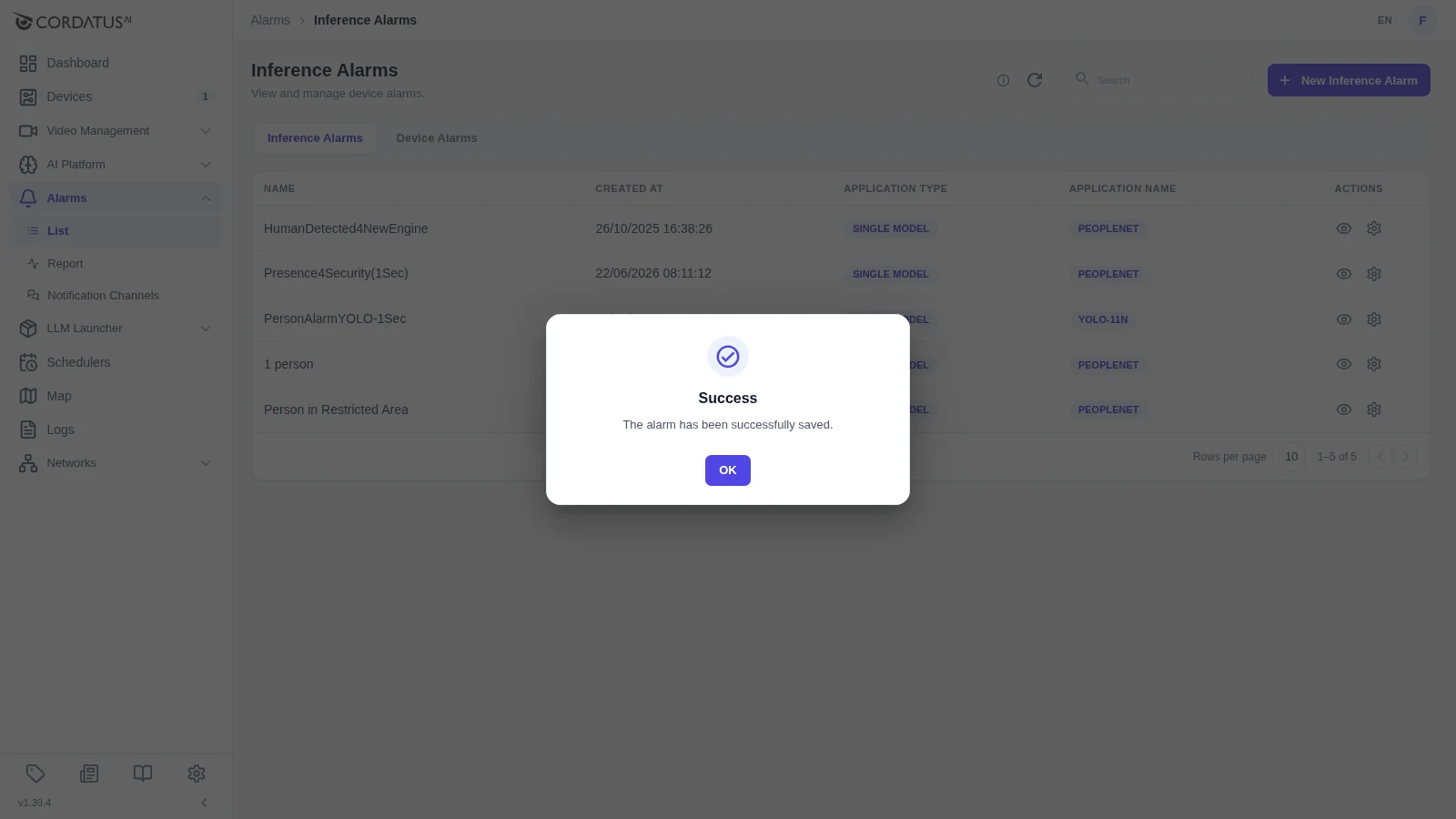
- Click Save Alarm.
The new alarm appears in the list with its Application Type (Single Model / Pipeline) and Application Name.
Using an Alarm in a Job
Defining an alarm does not yet make it fire — it has to be attached to a job.
- Start a new job from AI Platform → AI Workflow (see Jobs).
- In the job configuration, open the Add Alarm section.
- Alarms — select the alarm you want to use. Only alarms that match the job's model or pipeline are offered.
- Cameras — select the cameras the alarm should watch. You can pick several.
- Click Add, then start the job.
NOTE: A job can carry several alarms, and the same alarm can be used by several jobs.
While the job runs, its alarms can be checked — and switched on or off — from the job's stream view.
Viewing, Editing and Deleting Alarms
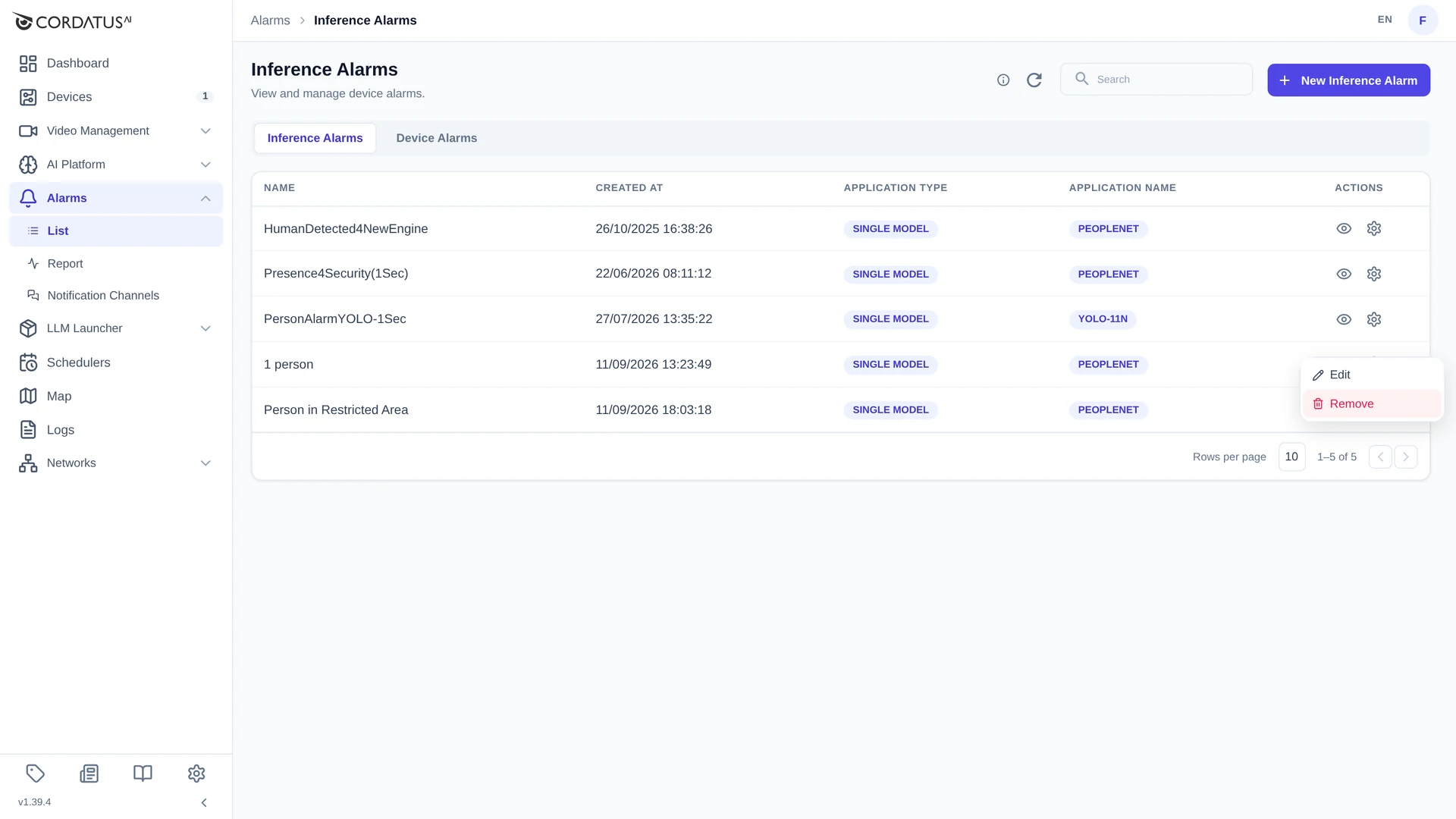
Every row of the Inference Alarms tab ends with two icons:
- the eye icon shows the alarm's rules in plain language, so you can check what will trigger it without opening the editor;
- the gear icon opens the actions menu with Edit and Remove.
An alarm that is in use by a running job should be stopped on that job first. Removing an alarm does not delete the alarm records that it already produced — those stay available on the Report page.
Analytic-Based Alarms
Analytic-based alarms are attached to an analytic rule that you draw on a running job's stream — a line, a region of interest or a direction. They make it possible to alarm on behaviour instead of mere presence.
To add one:
- Go to AI Platform → Jobs and open the stream of the running job.
- Open the analytics panel of the stream and draw the rule you need — line crossing, ROI filtering, direction detection or a counter. See Analytics for how each rule is drawn.
- Use Add Alarm on the rule and fill in the alarm name, channels and message.
- Build the rule sentence, for example:
- Line Crossing: if [class] crosses [rule name] [n] times
- Direction Detection: if [n] [class] move towards [rule name]
- ROI Detection: if [class] is detected [n] times inside [rule name]
- Save the alarm.
INFO: For an ROI alarm to trigger again, the number of objects in the area must first fall below the configured value and then exceed it again. If the alarm is set for 5 vehicles in an area and has fired, the next alarm is only raised after the count drops below 5 and rises above it again.
Analytic-based alarms are managed from the same stream view, in the alarms list of the analytics panel.
Where Triggered Alarms Appear
- Alarms → Report — the full history with video and screenshots. See Watching Alarm Records.
- Dashboard — the Alarms widget lists the most recent alarms of the organization.
- Notification channels — e-mail, Slack or mobile push, depending on the channels attached to the alarm.