Models and Pipelines
Cordatus uses models to detect and categorize objects in video streams. You can choose from Cordatus's ready-to-use computer vision models, or integrate your own custom models if the available options don't meet your needs. Currently, Cordatus supports Object Detection and Classification models. Semantic Segmentation and Pose Estimation models will be added soon.
NOTE: Classification models can only be used within pipelines by connecting to an object detection model; they cannot operate independently.
Cordatus also enables users to develop custom AI models by creating pipelines that easily combine the platform's ready-to-use models with users' custom models. This feature allows users to develop AI solutions specifically tailored to their needs.
Pipelines are one of Cordatus's core features, enabling multiple models to work sequentially. For example, in a vehicle detection model, users can first detect vehicles and then classify the vehicle's make and type using additional models. This demonstrates Cordatus's versatility and flexibility in addressing various use cases.
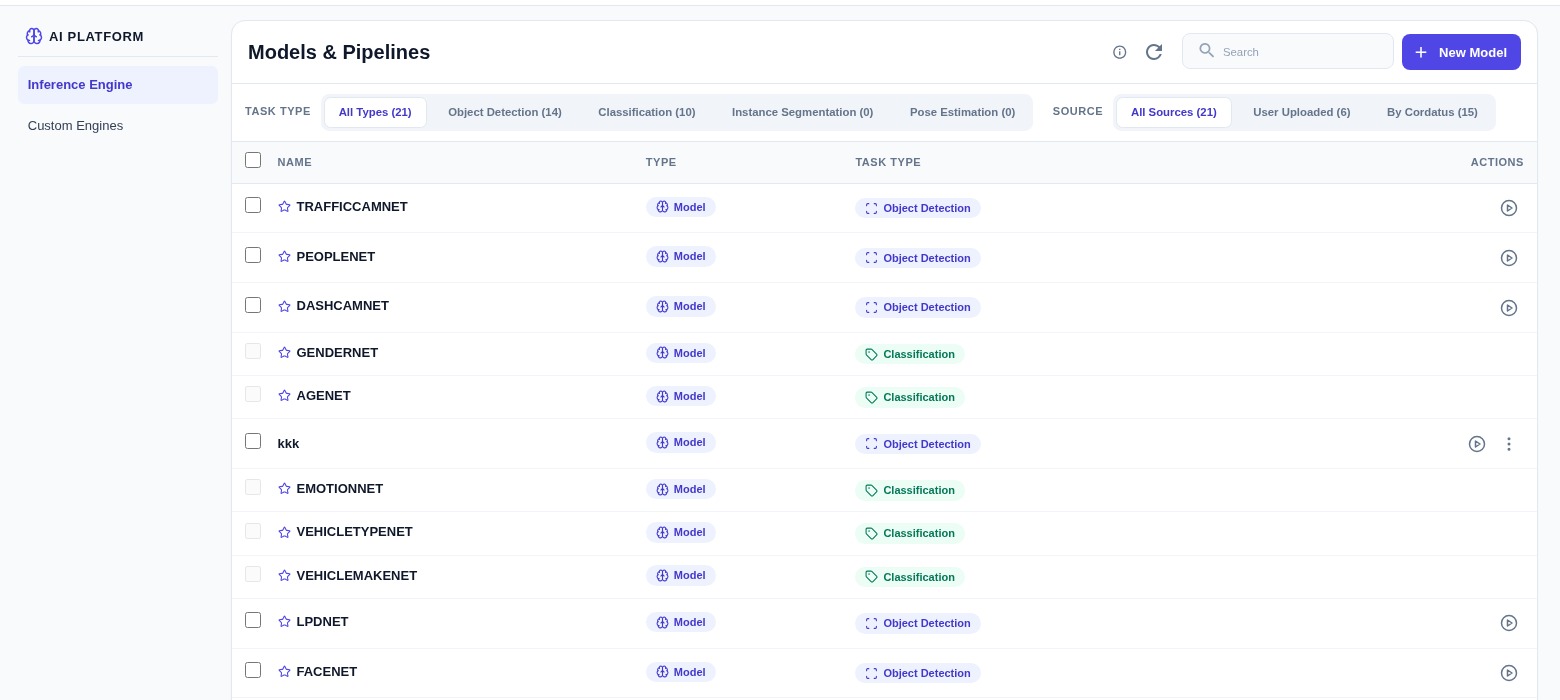 Models Page
Ready-to-Deploy Models & Pipelines
Cordatus currently offers two model architectures: Object Detection and Classification.
Ready-to-Deploy Object Detection Models
| Model | Description |
|---|---|
| TRAFFICCAMNET | The TrafficCamNet model detects one or more physical objects in images captured by a stationary camera and categorizes them into four different categories. It provides bounding boxes and category labels for each object. Four categories : cars, people, road signs, and two-wheelers. |
| DASHCAMNET | The DashCamNet model identifies one or more physical objects in images captured by a moving camera. It provides bounding boxes and category labels for each object. Four categories : cars, people, road signs, and bicycles. |
| LPDNET | The LPDNet model identifies one or more license plate objects in an image. For each detected object, the model returns a bounding box and the lpd label. |
| PEOPLENET | The PeopleNet model identifies one or more physical objects categorized into three categories in an image. It includes bounding boxes and category labels for each detected object. Three categories : people, bags, and faces. |
| FACENET | The FaceNet model detects one or more faces in an image. It creates bounding boxes and assigns category labels for each detected face. |
| FACENET-IR | The FaceNet-IR model excels at detecting one or more faces in provided images or videos, specifically optimized for infrared (IR) images. Compared to the PeopleNet model, it delivers superior results in detecting large faces, such as those in webcam images. |
Ready-to-Deploy Classification Models
| Model | Description |
|---|---|
| GENDERNET | The Gendernet model classifies detected individuals by gender: male or female. |
| AGENET | The Agenet model excels at estimating the age of detected individuals between 0 and 100. |
| EMOTIONNET | The EmotionNet model categorizes human emotions detected by detection models into six different categories : Neutral, Happy, Surprise, Squint, Disgust, and Scream. |
| VEHICLETYPENET | The VehicleTypeNet model classifies car images into six different vehicle types : Coupe, Sedan, SUV, Van, Large Vehicle, and Truck. |
| VEHICLEMAKENET | The VehicleMakeNet model classifies car images into 20 popular car brands : Acura, Audi, BMW, Chevrolet, Chrysler, Dodge, Ford, GMC, Honda, Hyundai, Infiniti, Jeep, Kia, Lexus, Mazda, Mercedes, Nissan, Subaru, Toyota, and Volkswagen. |
| LPRNET_US | The LPRNet (License Plate Recognition Network for US) model predicts sequences of license plate characters detected by LPDNet, enhancing the accuracy and reliability of license plate recognition tasks. |
Ready-to-Deploy Pipelines
Demographic-Analytics
The Demographic Analytics pipeline is designed to make comprehensive demographic predictions for detected individuals. Starting with FACENET, the pipeline accurately detects faces. The pipeline then seamlessly integrates GENDERNET for gender classification, EMOTIONNET for emotional state analysis, and AGENET for accurate age estimation. Together, these components create a powerful pipeline that provides detailed demographic analytics for comprehensive understanding of the target audience.
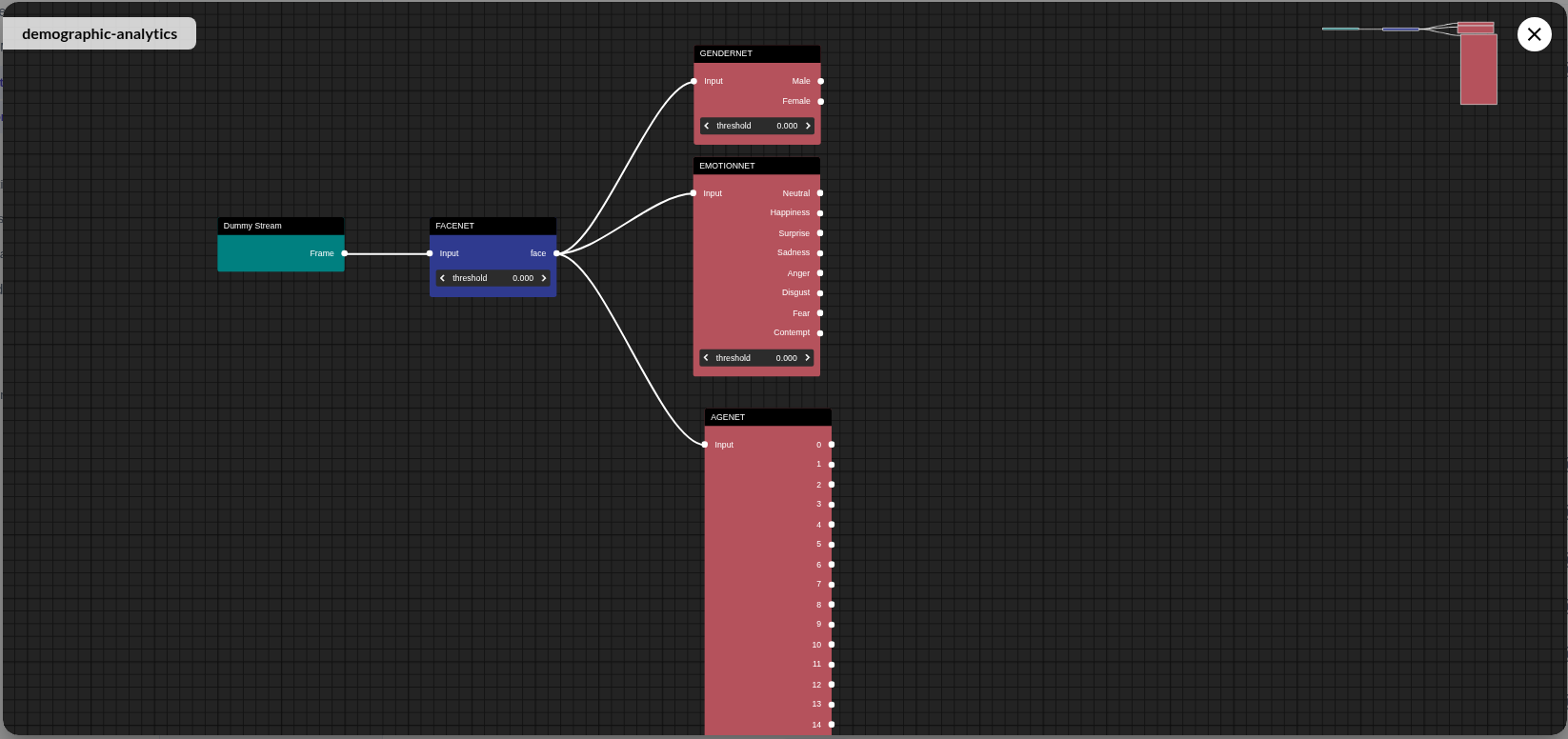 Demographic Analytics
Plate-Recognition
The Plate Recognition pipeline is designed for precise identification of vehicles and their license plates, providing advanced license plate recognition (LPR) capabilities. The pipeline begins with TRAFFICCAMNET for accurate vehicle detection, followed by LPDNET for license plate detection. Finally, the pipeline uses LPRNET_US for license plate recognition, ensuring a seamless and efficient process from vehicle identification to plate reading. This integrated approach provides reliable and accurate license plate recognition for various applications, from security to traffic management.
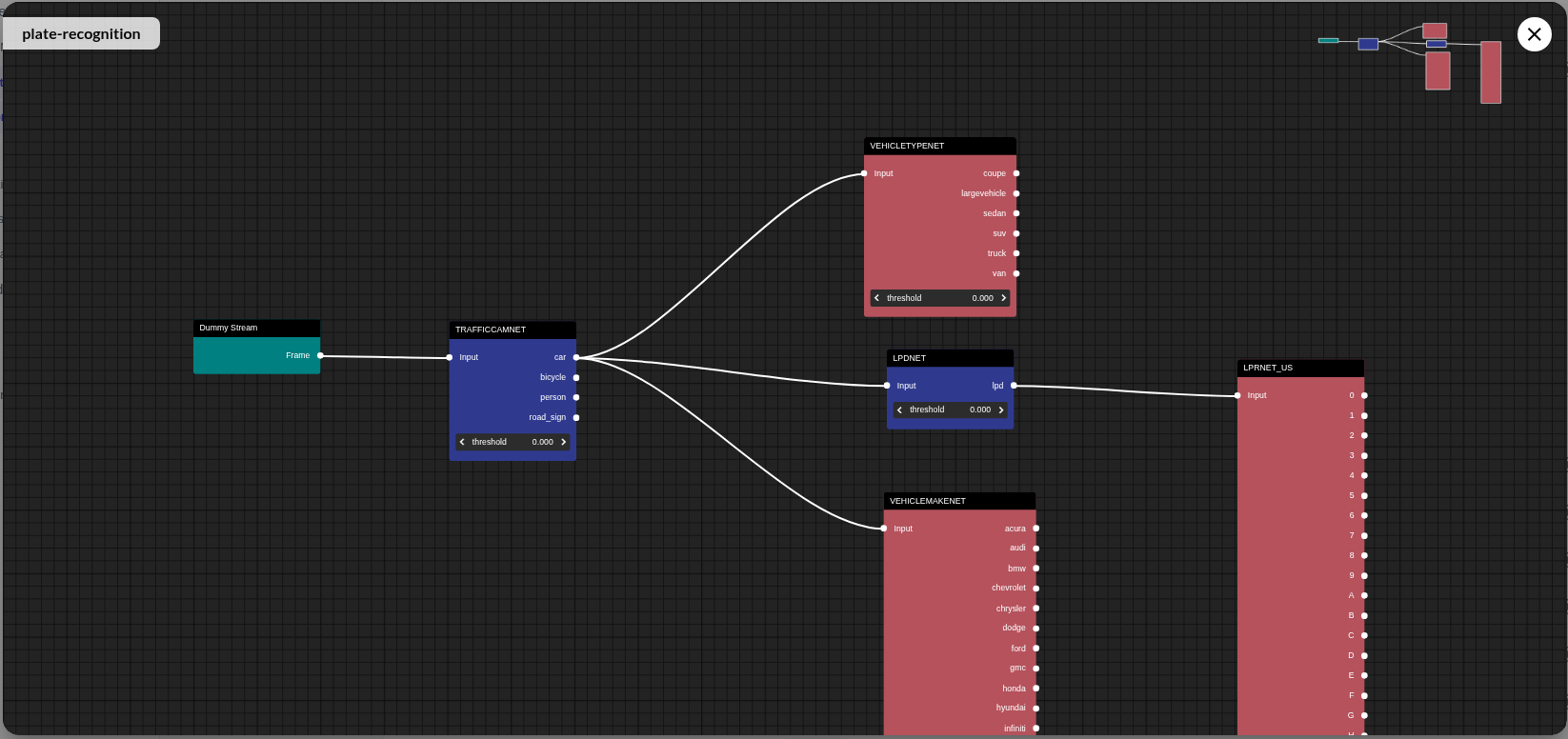 Plate Recognition
NOTE: Additional ready-to-use models and pipelines will be introduced soon.
Using the Interface
Models & Pipelines lives under AI Platform → AI Workflow and is a central location where models and pipelines are displayed together in a single list. The Type column labels each item:
- Model tag: For standalone models
- Pipeline tag: For pipelines combining multiple models
Interface Features
- Sorting: You can organize models and pipelines alphabetically using the sorting options at the top of the page.
- Search: Use the search box in the upper right corner of the screen to quickly find specific models or pipelines.
- Add New Model/Pipeline: Click the New Model button in the upper right corner to add a new model or pipeline.
Adding a Custom Model
If the available ready-to-use models don't meet your needs, you can add your own custom object detection, classification, and instance segmentation models to Cordatus. These models will be private and accessible only to you.
Supported Model Architectures
Cordatus supports the following training sources and model architectures:
NVIDIA TAO Toolkit Models
Models trained with the NVIDIA TAO Toolkit can be uploaded directly.
TensorFlow Object Detection API
Models trained with the TensorFlow Object Detection API are supported.
YOLO Model Family
Cordatus allows you to upload YOLO models you've trained yourself. To upload a YOLO model, you only need two files:
- Model File (.pt): YOLO model file in PyTorch format
- Label File (labels.txt): Label file containing one class name per line
💡 Tip: No additional configuration or conversion process is required for YOLO models. Cordatus automatically converts the
.ptfile to a TensorRT engine and optimizes it.
The following YOLO architectures are supported:
| Model Family | Sizes | Description |
|---|---|---|
| YOLO11 | N, S, M, L, X | Ultralytics' latest YOLO version. Improved accuracy and speed balance. |
| YOLOv10 | N, S, M, L, X | Faster inference with NMS-free design. |
| YOLOv9 | S, M | Improved learning with Programmable Gradient Information (PGI). |
| YOLOv8 | N, S, M, L, X | Ultralytics' popular anchor-free architecture. |
| YOLOv7 | Various | High performance with bag-of-freebies. |
| YOLOv6 | N, S, M, L | Industrial model developed by Meituan. |
| YOLOv5 | N, S, M, L, X | Widely used, mature and stable implementation. |
| YOLOv5u | N, S, M, L, X | Anchor-free version of YOLOv5. |
| YOLOX | S, M, L, X | Megvii's anchor-free YOLO variant. |
| YOLO-NAS (Coming Soon) | S, M, L | Deci AI's Neural Architecture Search model. |
| YOLOR (Coming Soon) | X | Unified network approach. |
YOLO Instance Segmentation Models
Besides object detection, Cordatus also supports uploading custom Instance Segmentation models — models that produce a pixel-precise mask for each detected object instead of just a bounding box. Select Instance Segmentation as the Algorithm Type when adding one of these architectures.
| Model Family | Sizes | Description |
|---|---|---|
| YOLO26-SEG | N, S, M, L, X | Ultralytics' latest instance segmentation architecture, offering improved mask quality and inference efficiency. |
| YOLO11-SEG | N, S, M, L, X | Ultralytics' anchor-free instance segmentation model with a lightweight prototype-mask head. |
| YOLOv8-SEG | N, S, M, L, X | Widely-used, general-purpose instance segmentation model for detecting objects together with their masks. |
| YOLOv5-SEG | N, S, M, L, X | Mature and stable instance segmentation implementation built on the CSPDarknet backbone. |
| YOLOv7-SEG | Various | High-accuracy instance segmentation model using a YOLACT-style mask head. |
| YOLOv7-MASK | Various | Detectron2-based mask head variant of YOLOv7, prioritizing mask quality for precise silhouette/contour extraction. |
YOLOE (Open-Vocabulary) Models
Unlike the fixed-class architectures above, YOLOE is an open-vocabulary instance segmentation architecture. Instead of being limited to a predefined class list, YOLOE's Prompt-Free (PF) variant ships with 4,585 built-in classes and can detect and segment objects it was never explicitly trained on — zero-shot, with no fine-tuning required.
YOLOE can be selected as its own architecture, just like the YOLO families above. You still provide a Label File, but instead of listing classes the model was trained on, you use it to pick which of the 4,585 built-in classes you actually want the job to detect — for example, listing just 12 class names out of the 4,585. Cordatus maps each name you list to its corresponding class in YOLOE's built-in vocabulary, so the model only reports the classes you selected.
| Model Family | Sizes | Description |
|---|---|---|
| YOLOE-26-PF | N, S, M, L, X | Open-vocabulary instance segmentation built on the YOLO26 backbone. |
| YOLOE-11-PF | S, M, L | Open-vocabulary instance segmentation built on the YOLO11 backbone. |
| YOLOE-V8-PF | S, M, L | Open-vocabulary instance segmentation built on the YOLOv8 backbone. |
NOTE: Because of its large class vocabulary, YOLOE (Prompt-Free) is built and run at FP32 precision rather than FP16 — this preserves detection accuracy across its 4,585 classes, at the cost of somewhat slower inference than the fixed-class YOLO-SEG models above. It may also occasionally label large background regions (e.g. sky) as a class.
Other Supported Architectures
| Model Family | Sizes | Description |
|---|---|---|
| Gold-YOLO (Coming Soon) | N, S, M, L | Improved feature fusion mechanism. |
| DAMO-YOLO (Coming Soon) | S, M, L | High-performance detector from Alibaba DAMO Academy. |
| D-FINE (Coming Soon) | N, S, M, L, X | DETR-based fine-grained detector. |
| RT-DETR (Coming Soon) | L, X | Baidu's Real-Time Detection Transformer model. |
Model Size Guide
| Size | Parameters | Recommended Use |
|---|---|---|
| N (Nano) | ~3M | Edge devices, Jetson Nano, low power |
| S (Small) | ~9M | Embedded systems, Jetson Xavier NX |
| M (Medium) | ~25M | Balanced performance, general use |
| L (Large) | ~43M | Applications requiring high accuracy |
| X (Extra Large) | ~68M | Maximum accuracy, powerful GPUs |
NOTE: YOLO models are typically pre-trained on the COCO dataset (80 classes). You can retrain the model through transfer learning for your own custom classes.
1. Adding a TAO / TensorFlow Model
- From the left menu, open AI Platform → AI Workflow.
- Click the New Model button, choose Model in the Add New dialog and click Continue. This opens the Add New Model dialog.
- Fill in the following information in the dialog:
| Field | Description |
|---|---|
| Model Label | Enter a name for your model. |
| Algorithm Type | Select the type of model you trained: object detection or classification. |
| Train Source | Select the application the model was trained with (TAO Toolkit or TensorFlow). |
| Model Key | Required only for models trained with TAO Toolkit; enter the model key used in the training configuration. |
| Model Format | Required only if TensorFlow Object Detection API is selected as train source. Select your model's file export format (ONNX, TF SavedModel, TF GraphDef, TF Checkpoint, or TF Keras). |
| Channel Order | Select your model's channel order as channel-first (NCHW) or channel-last (NHWC). |
| Channel Width and Channel Height | Enter your model's input channel dimensions. |
| Model Files | Upload your model's exported files (only zip format accepted). |
| Label File | Upload a file containing model labels on each line (only txt format accepted). |
- Click the Save and Upload button to complete the process.
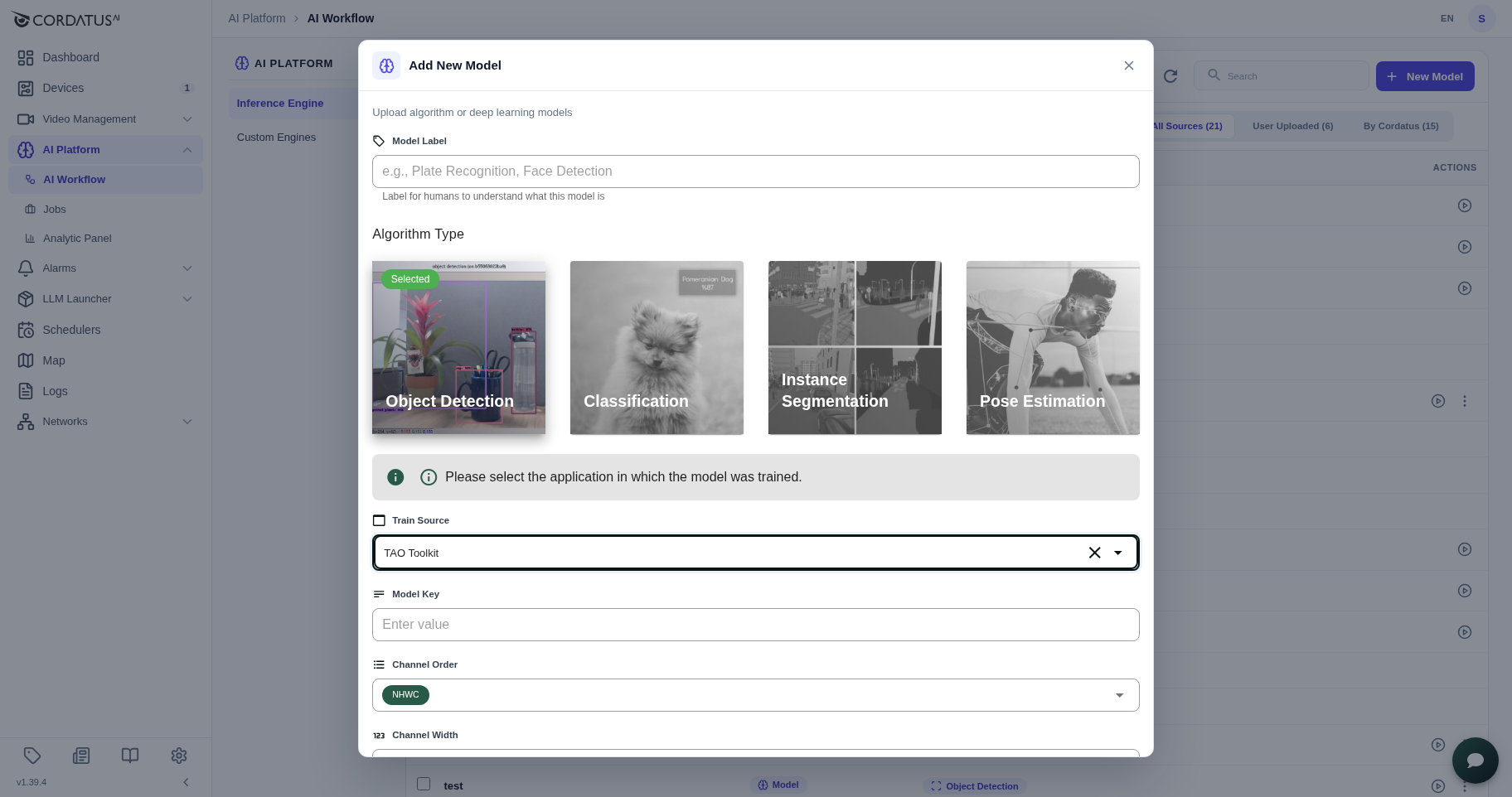
NOTE: To ensure successful deployment, verify that your training configuration matches the configurations added to Cordatus. Any inconsistency in model configurations may lead to deployment errors. Carefully review and align these configurations to ensure a smooth integration process.
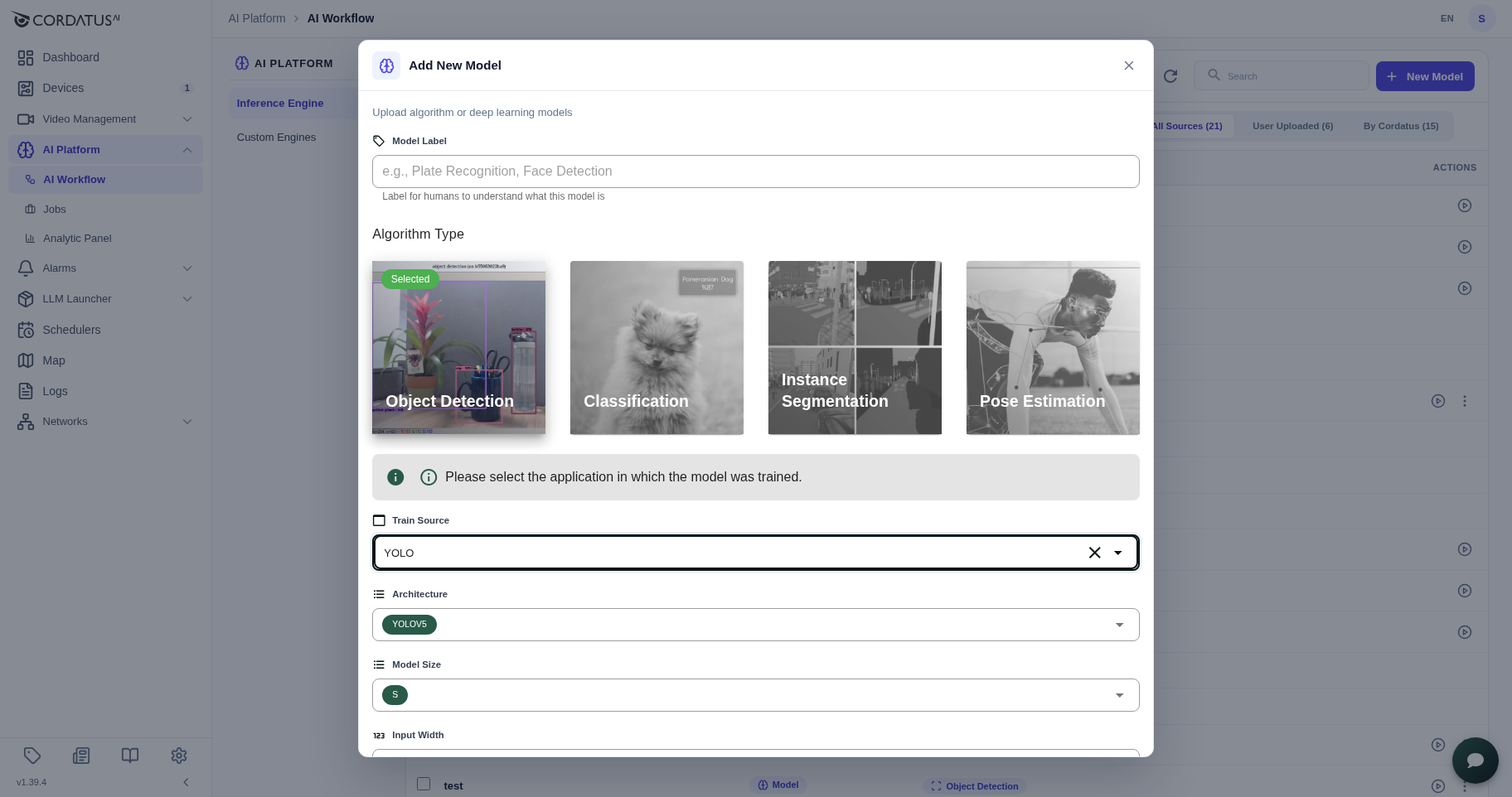
2. Adding a YOLO Model
Adding a YOLO model is quite simple. You only need two files:
Weights (.pt) and labels (.txt)
- From the left menu, open AI Platform → AI Workflow.
- Click the New Model button, choose Model in the Add New dialog and click Continue.
- Fill in the following information:
| Field | Value |
|---|---|
| Model Label | A name for your model (e.g., "Helmet Detector") |
| Algorithm Type | Object Detection, or Instance Segmentation for a YOLO-SEG / YOLOE architecture |
| Train Source | YOLO |
| Model Size | N, S, M, L, or X (Nano, Small, Medium, Large, Extra Large) |
| Model Files | ZIP file containing your.pt file |
| Label File | labels.txt file (one class name per line) |
- Click the Save and Upload button.
NOTE: If you're adding a YOLOE model, the Label File works differently: instead of listing the classes the model was trained on, list the specific classes you want to detect out of YOLOE's 4,585 built-in classes (e.g. just the 12 you care about). Cordatus maps each name to its corresponding class in YOLOE's built-in vocabulary, so the job only reports the classes you selected.
Example labels.txt file:
person
car
truck
bicycle
motorcycle
NOTE: Cordatus automatically converts the YOLO
.ptfile to ONNX and then to TensorRT engine. This process occurs during the first deployment and may take some time.
Once the upload process is complete, Cordatus will process your model files and securely save them to your account. You can then start a job using this model. For more information, see the Jobs section.
Creating a Custom Pipeline
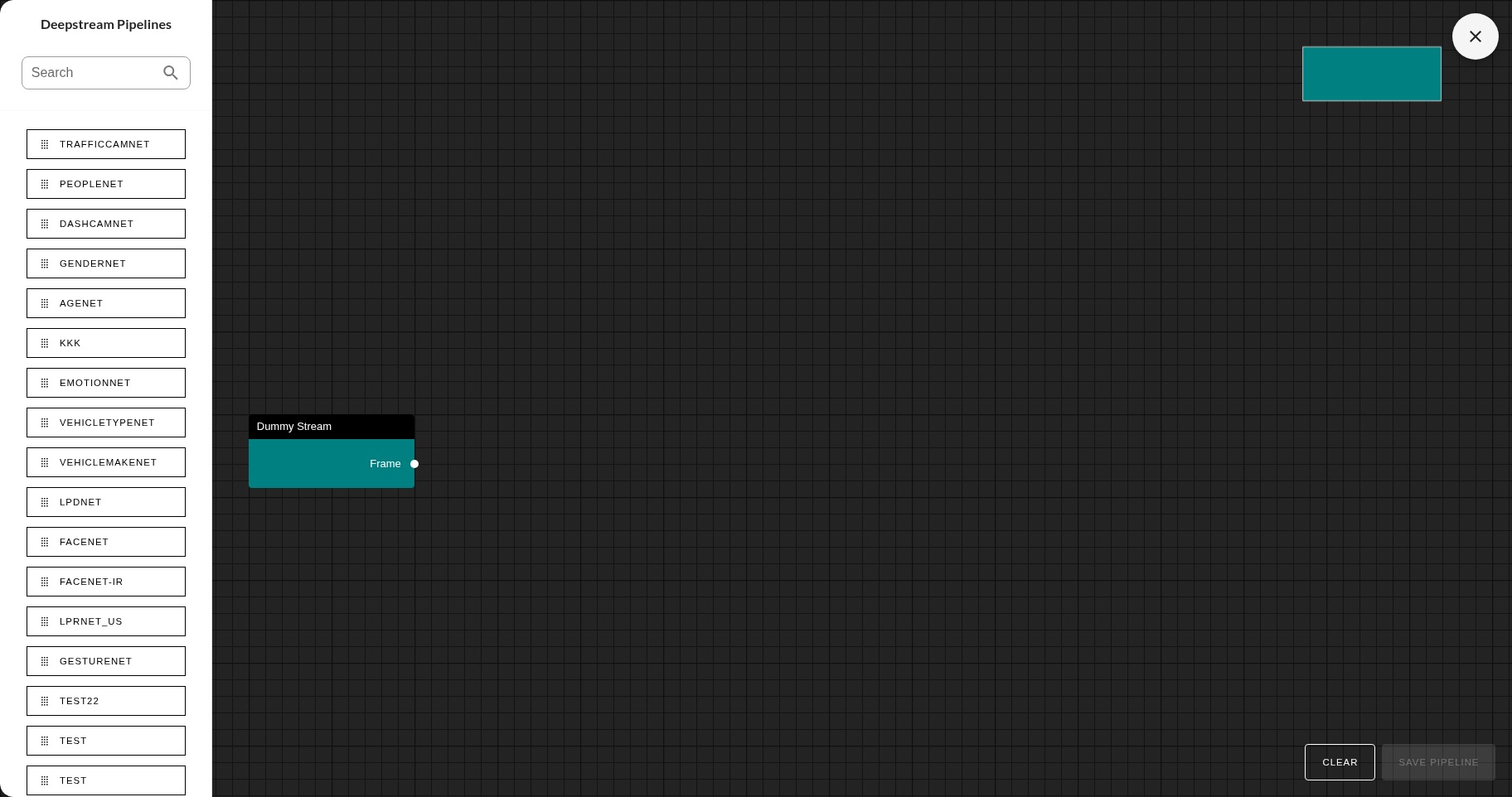
Creating pipelines with Cordatus is an effortless process that requires no coding. Users can easily design their pipelines by dragging and dropping desired models using the intuitive Cordatus Model Composer.
Steps to Create a New Pipeline
- From the left menu, open AI Platform → AI Workflow. The Models & Pipelines panel lists models and pipelines together.
- Click the New Model button in the upper right corner.
- In the Add New dialog, choose Pipeline ("Build a multi-stage inference pipeline in the editor") and click Continue.
- The Model Composer will open. Start your pipeline with the Dummy Stream. This represents your camera stream and serves as the starting point for all pipelines.
- Find the models you want to include in the left sidebar and drag them to the Model Composer. The Dummy Stream and first model will automatically connect.
- To create connections between models, drag a model's output and draw a line to connect it to another model's input.
- To remove a connection between models, drag the input or output part of the connection line and drop it in the black area.
- To remove a model from the pipeline, right-click on the model's header and select the Delete option.
- Click the Save Pipeline button, enter a name for your pipeline in the Pipeline Label field, and click the Save button.
Once your pipeline is created, it's ready to deploy. For details on starting a job using this pipeline, see the Jobs section.
NOTE: For optimal performance and efficiency, it's recommended that your pipeline start with an object detection model and continue with a classification model.
Which model size should I choose when uploading a YOLO model?
| Size | Recommended Use |
|---|---|
| N (Nano) | Edge devices, Jetson Nano, low power consumption |
| S (Small) | Embedded systems, Jetson Xavier NX |
| M (Medium) | Balanced performance, general use |
| L (Large) | Applications requiring high accuracy |
| X (Extra Large) | Maximum accuracy, powerful GPUs |
Can a classification model be used standalone?
No, classification models must be used within a pipeline connected to an object detection model.
What's the difference between a Model and a Pipeline?
- Model: A standalone AI model (e.g., detecting people with PEOPLENET)
- Pipeline: A flow where multiple models run sequentially (e.g., Face detection → Gender prediction → Age prediction)
How many models can I use in a pipeline?
There's no technical limit, but for performance it's recommended to start with an object detection model and continue with classification models.
Copyright © 2025 Cordatus.