Devices
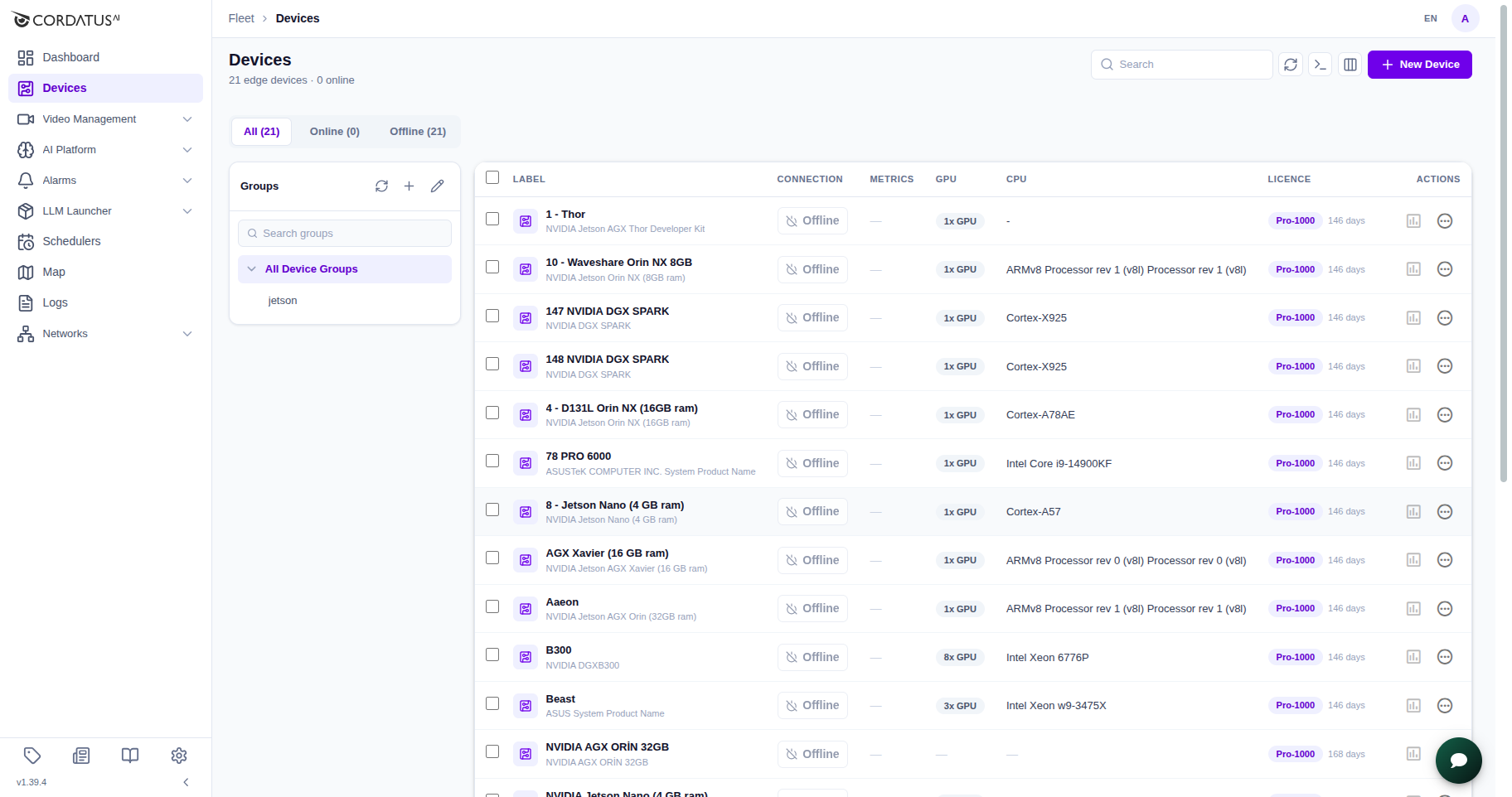
The Devices page is the starting point for managing your devices. It displays your entire fleet in a single table. When you install the Cordatus Client on a device, it automatically appears here. You can quickly see key details, search and filter, sort columns, select multiple devices, and start common actions.
Under the Devices title, a summary line (for example, 21 edge devices · 0 online) shows the total number of devices in your account and how many are currently Online or Connected.
Just above the table, the All / Online / Offline tabs let you filter the list by connection state, and each tab shows its own count.
Device list
The Device List displays all devices in a table format.
Each row represents one device, and each column shows a key property such as status, hardware details, or client version.
You can sort the table by clicking on a column header. Pagination controls are at the bottom right (Rows per page, Next/Prev). The Refresh icon at the top right updates the table with the latest status and metrics.
Columns shown by default:
- Label — Device name and description
- Connection — Device status (Offline, Online, Connected)
- Metrics — CPU and RAM Utilization
- GPU — Number of GPUs
- CPU — Processor model
- Licence — Current licence type and remaining days
- Actions — Icons for management and monitoring actions
Use the Customize Columns icon in the top-right toolbar to show or hide columns. In addition to the defaults, you can enable:
- RAM — Total system memory
- Client — Installed Cordatus Client version
- Uptime — Time since last system restart
- Group(s) — Groups the device belongs to
Search a device
Use the search box at the top right to quickly locate devices. The search matches the keyword in Label (device name) and Description.
- Type a word or part of a word (e.g.,
edge-01,orin). - Results update as you type.
- Click the × (clear) icon to reset the search.
Selection and bulk actions
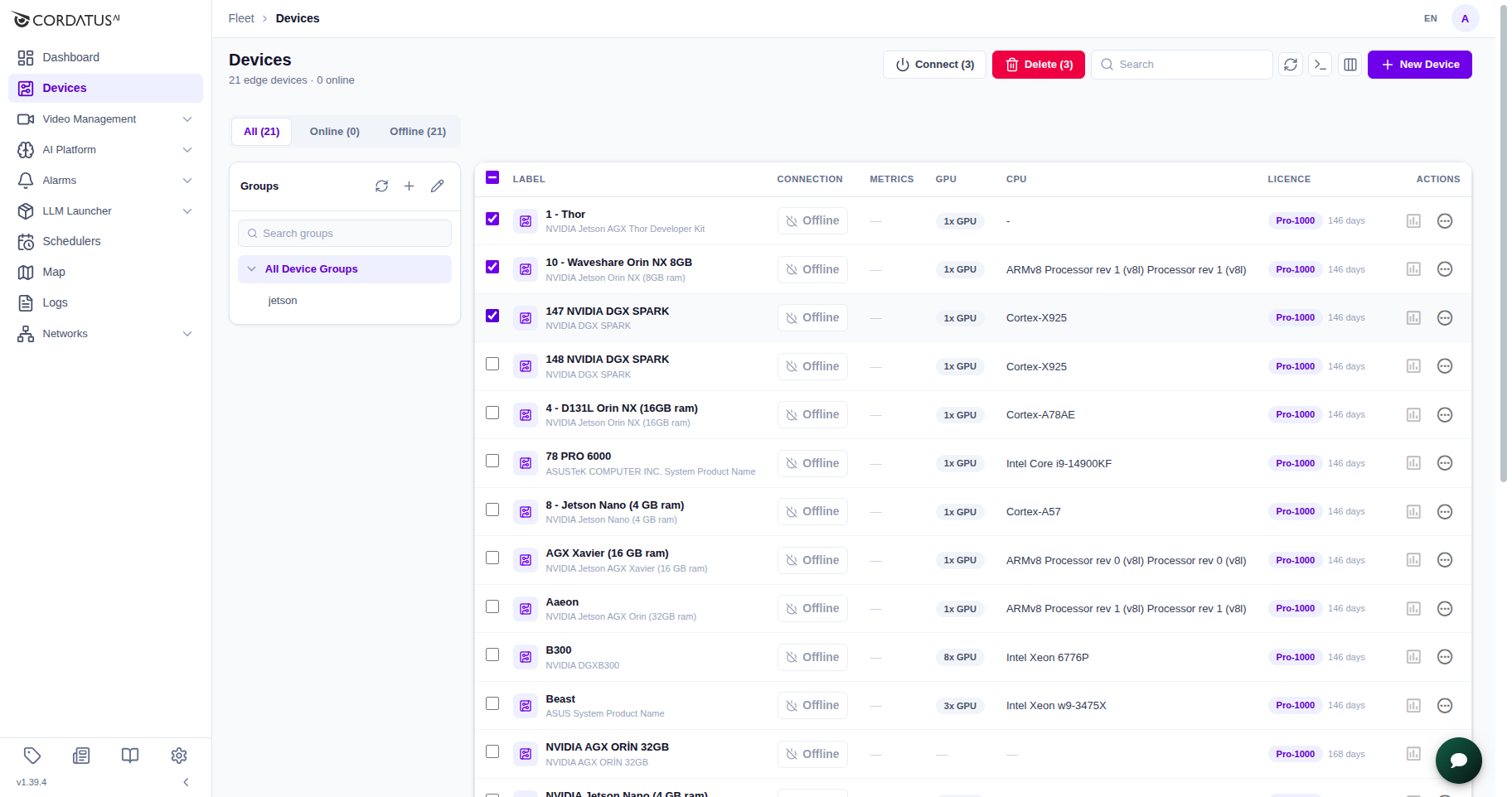
- Use the checkboxes in each row to select one or more devices.
- Use the header checkbox at the top of the table to select or clear all rows on the current page.
- After selecting, a Bulk actions bar appears on top.
Available bulk actions:
- Connect — Connect all selected devices at once.
- Delete — Remove multiple devices from your account.
Actions
Each device row has two icons in the Actions column: Metrics and Ellipsis. These provide different sets of features.
Metrics Panel
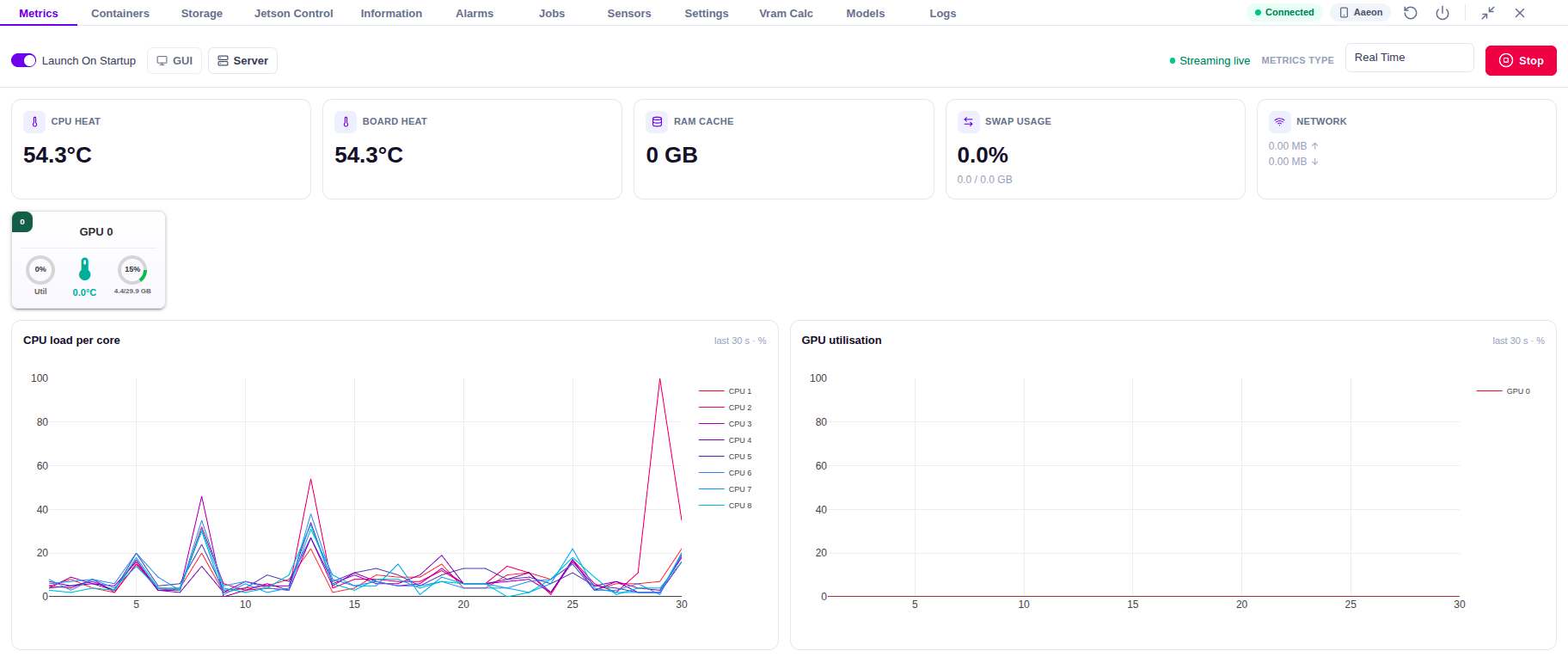
The panel opens as a drawer at the bottom of the Devices page. Its header shows the connection state and device name, plus icons to Restart the device, Shut Down the device, switch to Fullscreen, and Close the panel.
-
Metrics — View realtime charts and query historical data.
See details → MonitoringThe control bar above the charts also includes:
- Launch On Startup — Automatically start the Cordatus Client when the OS boots.
- GUI / Server — Switch between GUI and server mode for the device.
- Streaming live — Indicates that realtime metrics are currently streaming.
- Metrics Type — Switch between Real Time and Historical views.
- Stop - Toggles device metrics (same as turning Check Device Metrics OFF). Use Start to resume.
The GPU strip on the right ends with a MIG tile, for splitting a card into hardware-isolated instances.
See details → MIG (GPU Partitioning) -
Containers — See running containers on the device and manage them.
See details → Containers -
Storage — Disk/partition usage and capacity.
See details → Storage -
Alarms — Toggle alarms defined for the device.
See details → Alarms & Events -
Jobs — Device-level jobs and their status (if license includes this feature).
See details → Jobs -
Sensors — List and manage connected sensors.
See details → Sensors -
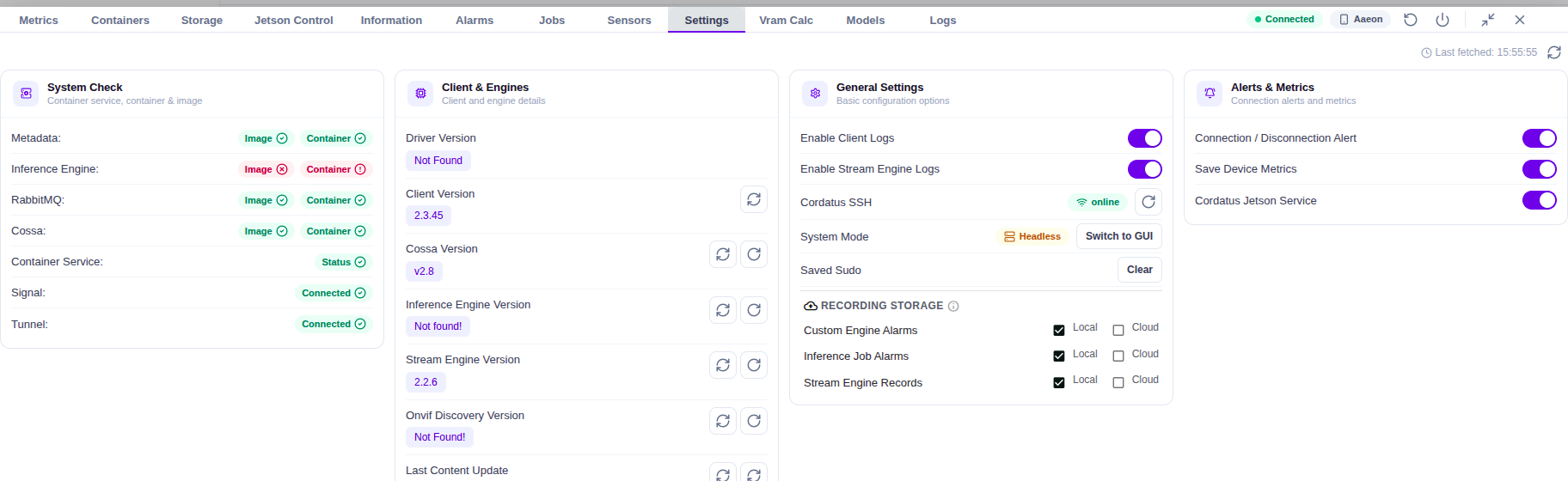
Settings — Configure client and system preferences. Includes:
- System Check — Verify the status of system components and containers (Metadata, Inference Engine, RabbitMQ, Cossa, Docker, Signal, Tunnel).
- Client & Engines — Inspect active engines and runtime processes on the device.
- General Settings — Startup behavior, SSH restart, sudo clearing, and connection notifications.
- Alerts & Metrics — Connection/Disconnection Alert, Check Device Metrics, and Save Device Metrics.
See details → Settings
-
Jetson Control (Jetson only) — Power modes, fan control, Jetson Clocks.
See details → Jetson Control Center -
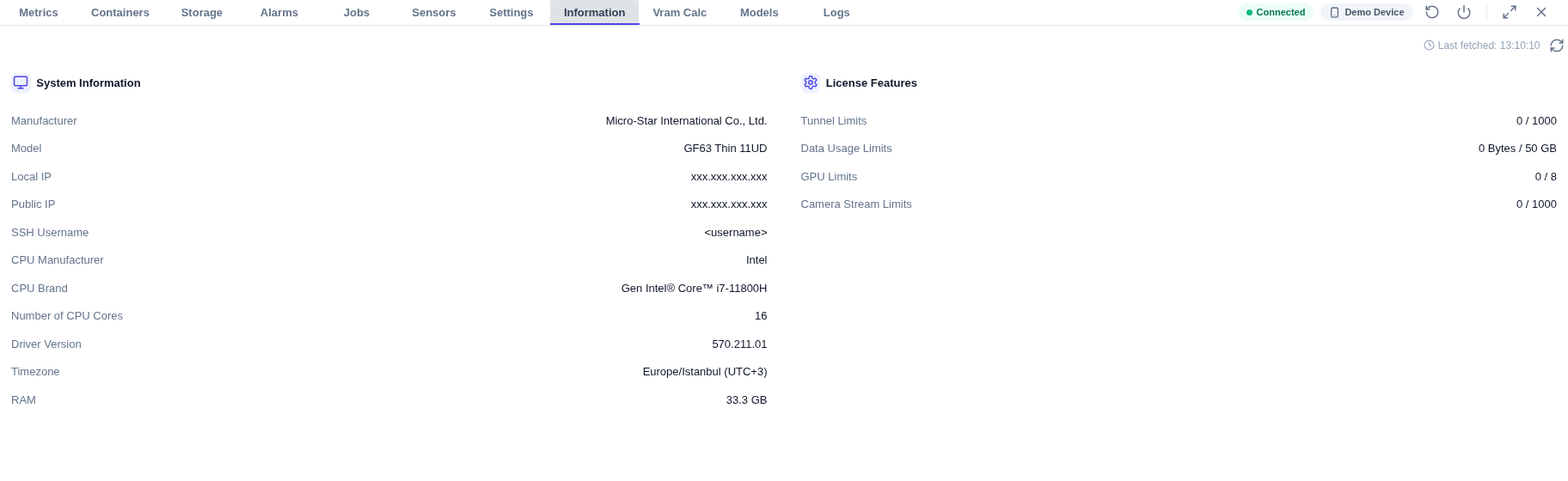
Information — System hardware, software and licence details for the device. The cards shown depend on the platform: x86 devices list system information and license features, while Jetson devices show General Information, Jetson Hardware, Jetson Platform and Jetson Libraries.
See details → Information -
Vram Calc — Estimate the VRAM required to run a model on the device.
-
Models — The model weights already stored on the device, and the paths Cordatus scans for them.
See details → Device Models -
Logs — View client and stream engine logs for the device.
See details → Download Logs
Settings
System Check
The System Check section under Settings verifies the health of key services and containers on the device. These services are Metadata, Inference Engine, RabbitMQ, Cossa, Container Service, Signal, and Tunnel. Metadata, Inference Engine, RabbitMQ and Cossa each show the status of their Image and Container; Container Service shows a single Status, and Signal and Tunnel show their connection state.
| Component | Image | Container / Status |
|---|---|---|
| Metadata | ✅ | ✅ |
| Inference Engine | ✅ | ❌ |
| RabbitMQ | ✅ | ✅ |
| Cossa | ✅ | ✅ |
| Container Service | — | ✅ |
| Signal | — | Connected |
| Tunnel | — | Connected |
If a red cross (❌) appears, that service or container is not running or failed to initialize.
Use Restart Client or check Logs to diagnose the issue.
Client & Engines
The Client & Engines section under Settings lists the client and engine components installed on the device, each with its version and refresh/update buttons:
- Driver Version
- Client Version
- Cossa Version
- Inference Engine Version
- Stream Engine Version
- Onvif Discovery Version
- Last Content Update — Timestamp of the last content update.
General Settings
The General Settings section under Settings lists additional configuration options for the Cordatus Client and system behavior:
- Enable Client Logs — Toggle the collection of client logs for troubleshooting.
- Enable Stream Engine Logs — Toggle the collection of stream engine logs.
- Cordatus SSH — Displays SSH service status and provides a button to restart the SSH service if needed.
- System Mode — Shows whether the device runs in Headless or GUI mode, with a button to switch between them.
- Saved Sudo — Indicates whether a sudo password is stored and provides a Clear button.
- Recording Storage — Choose whether Custom Engine Alarms, Inference Job Alarms and Stream Engine Records are stored Local or in the Cloud.
Launch Cordatus on Startup is now on the Metrics tab, and Last Content Update has moved to Client & Engines.
Alerts & Metrics
The Alerts & Metrics section under Settings lists configuration options for:
- Connection / Disconnection Alert — Enables or disables email or notification alerts when the device connects or disconnects from Cordatus.
- Save Device Metrics — Determines whether collected metrics will be stored for historical analysis.
- Cordatus Jetson Service (Jetson only) — Enables or disables the Cordatus Jetson service on the device.
To stop collecting realtime metrics, use the Stop button on the Metrics tab.
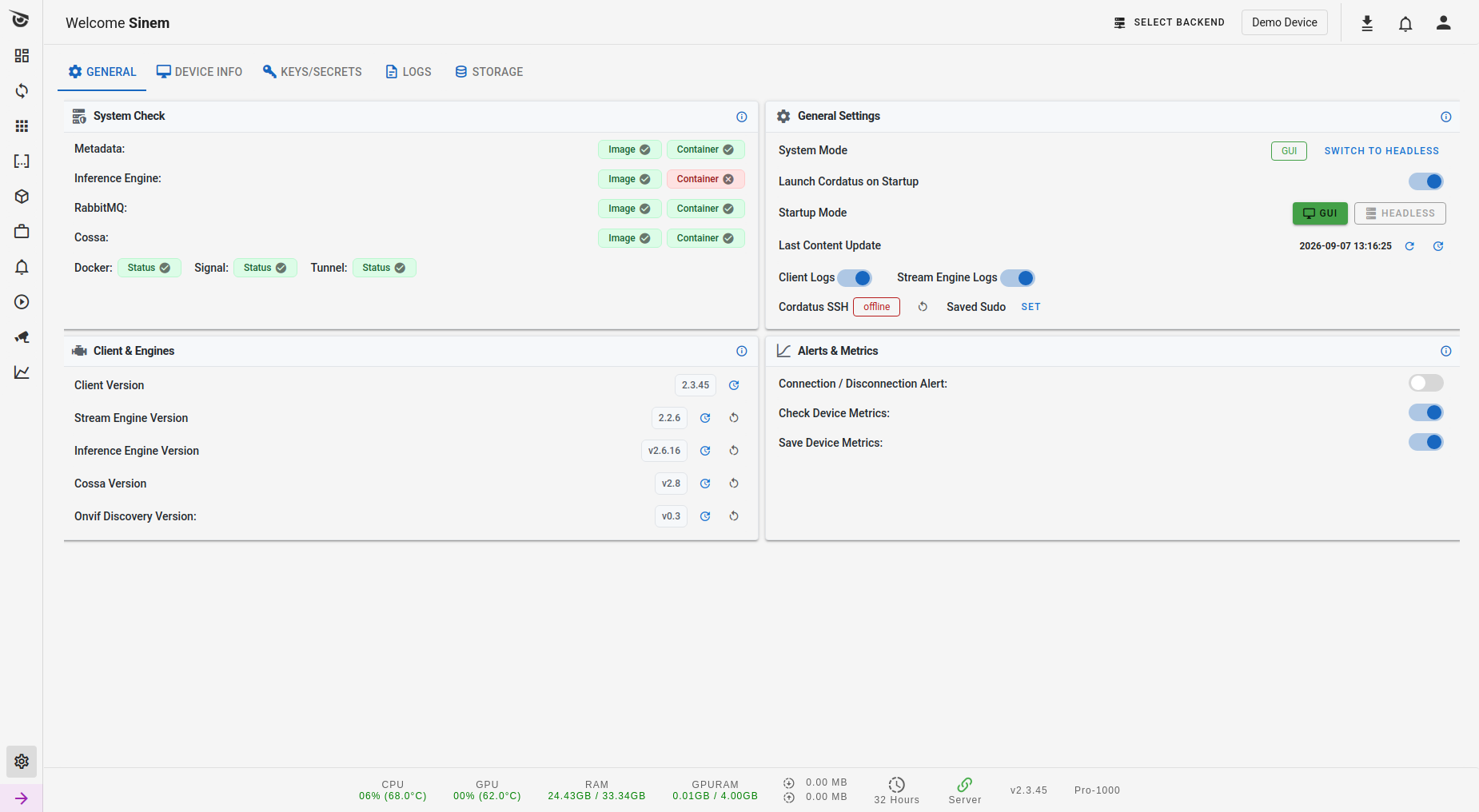
All of these settings can also be viewed and managed directly from the Cordatus Client → Settings → General tab on the device.
Information
This tab provides detailed information about the device hardware, software, and licence features. The cards it shows depend on the platform:
- x86 devices — System Information (manufacturer, model, CPU, driver, RAM, timezone, addresses) and License Features (tunnel, GPU, data usage and camera stream limits).
- Jetson devices — General Information, Jetson Hardware, Jetson Platform and Jetson Libraries (L4T, JetPack, CUDA, cuDNN, TensorRT, OpenCV, VPI, Vulkan).
The example below shows the tab for an x86 device.
This information can also be viewed directly from the Cordatus Client → Settings → Device Info tab on the device.
Ellipsis menu
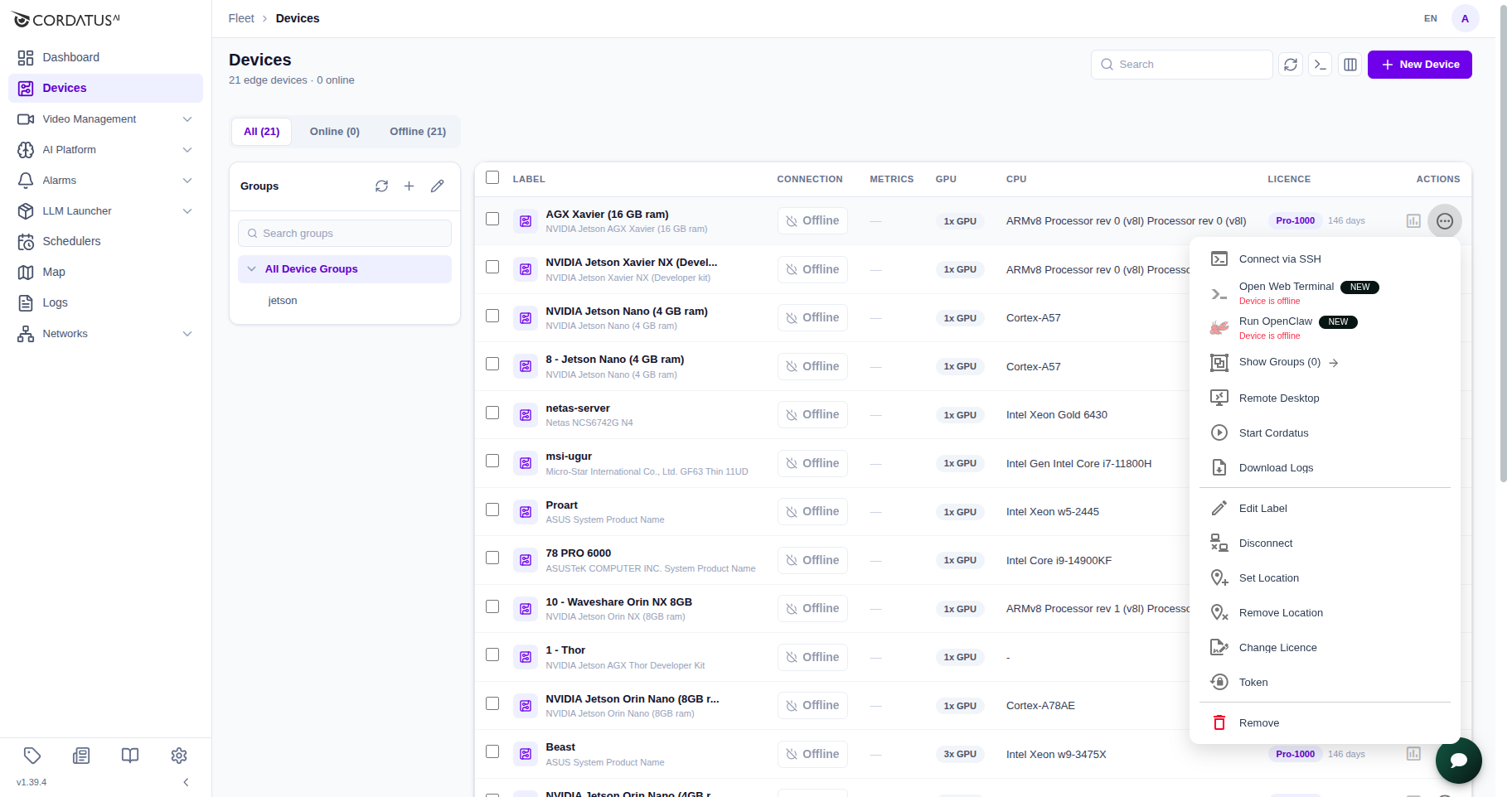
Click the ellipsis icon under Actions to open the management menu. This menu provides access to features:
- Connect via SSH / Remote Desktop → Connectivity & Sessions
- Open Web Terminal (new) — Open a terminal session to the device directly in the browser. Available only while the device is online.
- Run OpenClaw (new) — Start an OpenClaw session on the device. Available only while the device is online.
- Show Groups → Groups & Tags
- Start / Restart Cordatus → Restart Client
- Download Logs → Download Logs
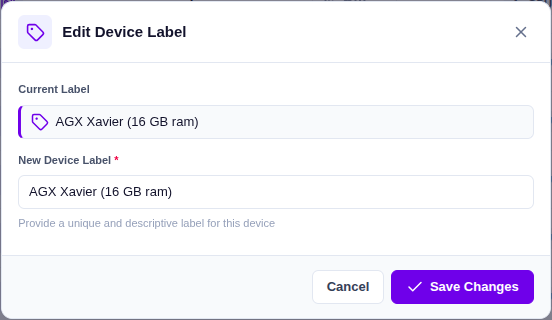
- Edit Label — Rename the device. See Rename a device
- Disconnect
- Set/Remove Location
- Change Licence → Change License
- Token
- Remove → Remove Device
Rename a device
- Open the ellipsis menu in the device row and choose Edit Label.
- In the Edit Device Label dialog, type the new name into New Device Label.
- Click Save Changes.