Quickstart
Start using the AI Assistant in a couple of minutes. This short guide takes you from opening the assistant to running your first real action.
Prerequisites
- A Cordatus account with access to the Web App
- The permissions required for whatever you want to do (the assistant inherits your account's roles)
- For live data about a device: at least one online device
See Device Installation if you have not set one up yet.
Getting started
1. Open the assistant
Click the round chat button in the bottom-right corner of the Cordatus dashboard. The assistant opens as a panel on the right.
The panel header shows CORDATUS AI and the active agent, plus three controls: history, new chat and close. At the bottom you will see the input, prompting "Ask about your Cordatus setup…".
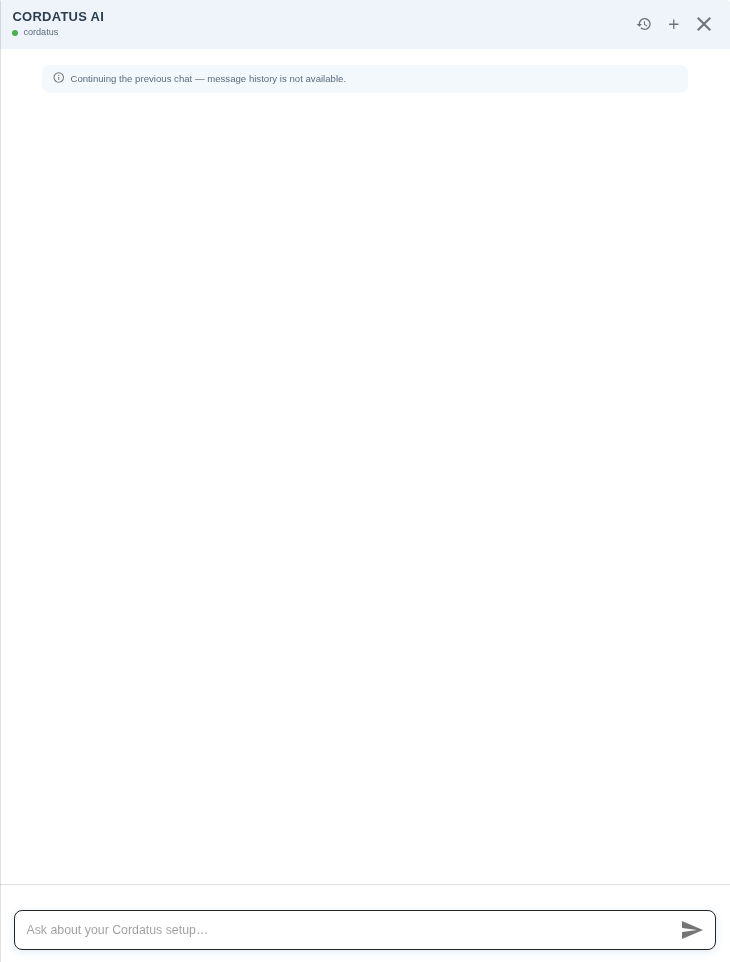
When you reopen the assistant it continues your previous chat, but earlier messages are not shown. Use the new chat (+) button to start a clean conversation.
2. Type your first request
Describe what you want in plain language. For example:
"Which of my devices are online?"
There is no command syntax to learn. The assistant understands several languages and replies in kind.
3. Read the answer
The assistant answers with structured results — usually a table — built from live platform data.
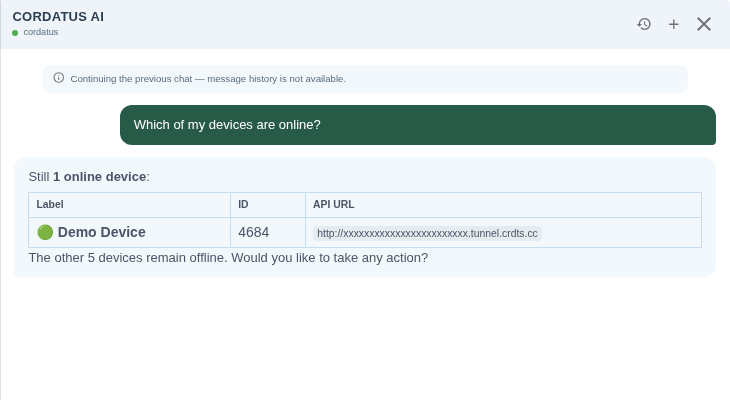
If a request could match more than one thing, the assistant lists the candidates and asks you to pick one instead of guessing.
4. Ask it to do something
Beyond reading data, the assistant can create and change things — jobs, alarms, roles and more. Describe the outcome you want and it performs the operation, then reports what it did.
Check before you ask. Actions that create or change something — creating an alarm, starting a job — are carried out immediately, without asking you to confirm first. The assistant asks "Do you confirm?" before some destructive operations such as deleting an alarm, but do not rely on a confirmation step: treat every request as if it will be executed straight away.
Try these first
| You say | What happens |
|---|---|
| "List my devices." | Lists your devices with status, hardware, OS, Client version and licence |
| "Which of my devices are online?" | Shows only the devices that are currently connected |
| "List the cameras on Demo Device." | Lists the IP and physical cameras attached to that device |
| "Show today's alarms." | Lists triggered alarm events for today |
| "Which models are available?" | Lists the AI engines and models you can run |
See the full Example Prompts library for more.
What it will not do
The assistant is scoped to Cordatus operations. Most notably, it cannot open a live camera stream — it can find the camera for you, but you watch it in the web or desktop app. It also cannot start or schedule recordings, or create calendars.
The full list is in Capabilities.
Next steps
- Learn everything the assistant can do in Capabilities.
- Browse ready-to-use commands in Example Prompts.
- Understand the design principles in How It Works.