Quickstart
From an empty screen to a live video wall and a first recording — in about five minutes.
Before you start
- A Cordatus account with access to the Web App
- At least one device that is online and connected (it decodes the streams and stores recordings)
- A camera: an IP camera reachable from the device, or a USB/CSI/GMSL camera plugged into it
- Enough free disk space on the device if you plan to record
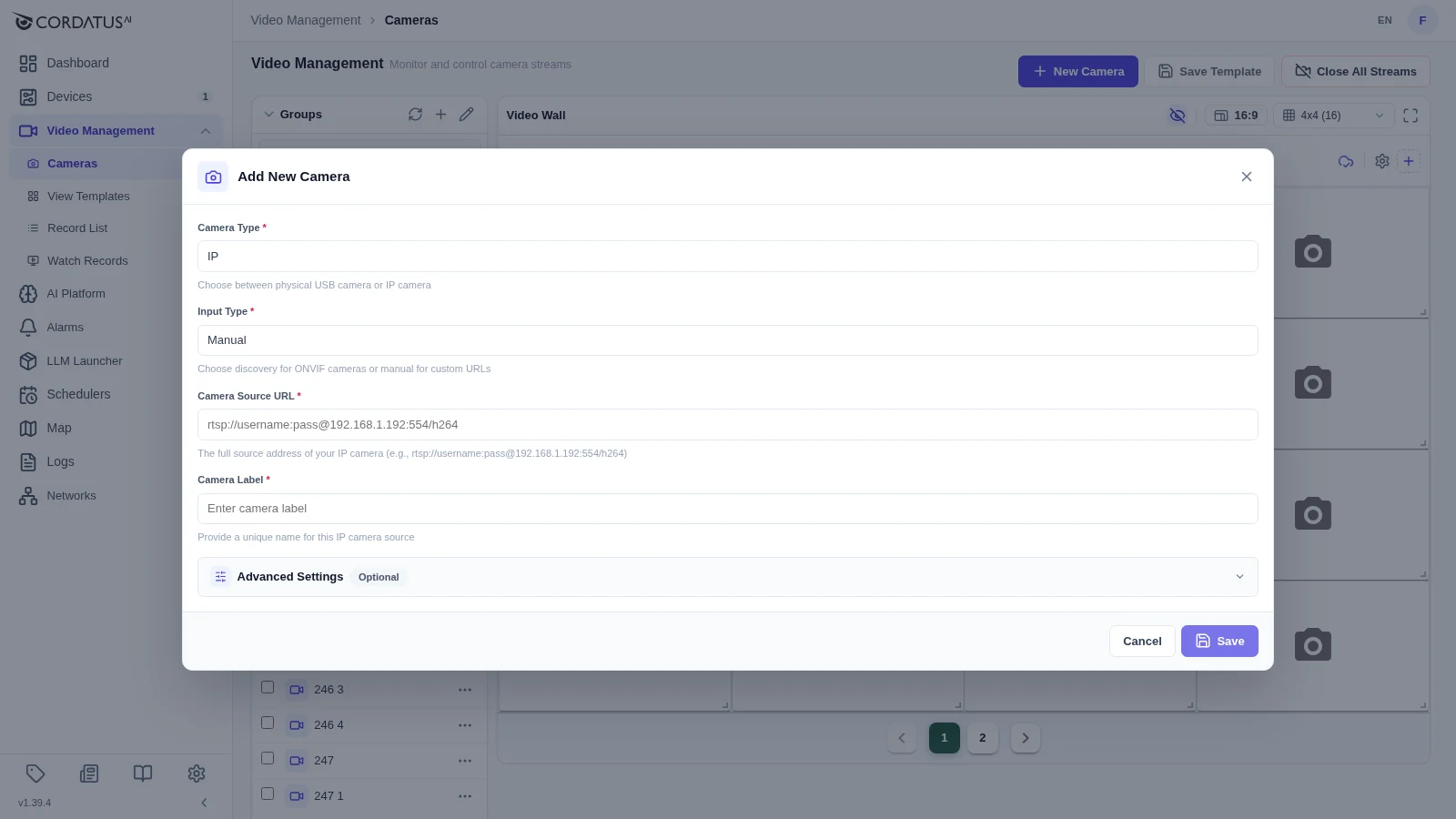
1. Add a camera
Video Management → Cameras → New Camera
- IP camera: keep Camera Type on IP, leave Input Type on Manual, paste the stream URL, give the camera a label and click Save.
- ONVIF camera: switch Input Type to Discovery, select the device that should scan the network and let Cordatus find the camera.
- Physical camera: switch Camera Type to Physical and select the device the camera is plugged into.
2. Organise it
Groups panel → +
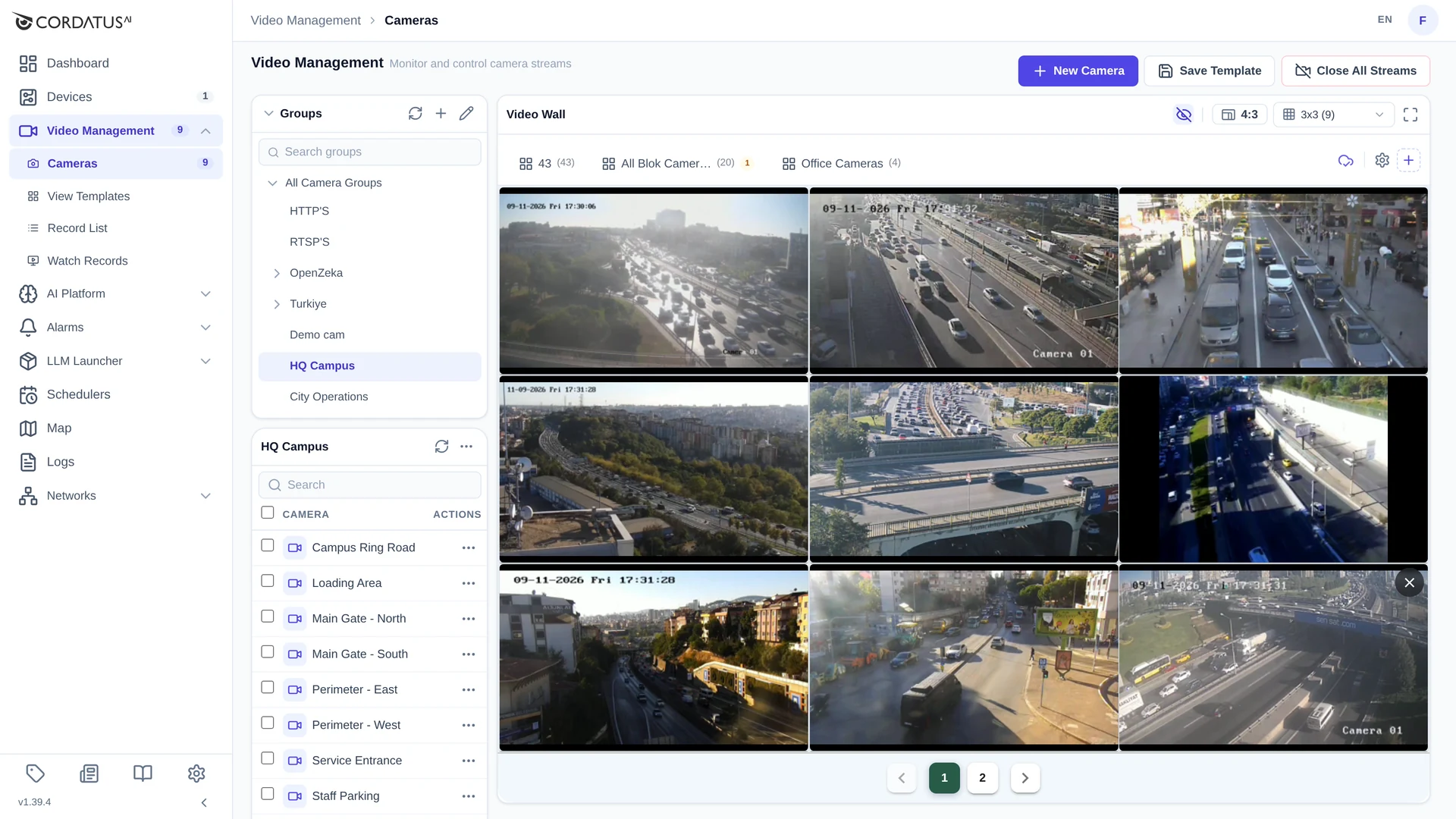
Create a group such as HQ Campus, then use the pencil icon to drag cameras into it. Selecting a group filters the camera list — the fastest way to work with a large estate.
3. Watch it live
Tick one or more cameras, open the ⋯ menu in the camera list header and choose Start N Streams, then pick an online device.
Choose the grid size (up to 8×8) and the aspect ratio in the video wall header; drag tiles to rearrange them.
4. Save the layout
Save Template stores the current wall under a name, and it appears as a tab above the tiles. Next time, one click rebuilds the whole wall.
5. Record
⋯ → Record → Start Now on a camera: choose the device, name the recording (for example 2026-09-11 Main Gate Day Shift) and click Create Recording.
Follow it under Video Management → Record List, where you can stop, resume or delete it.
6. Play it back
Video Management → Watch Records → Select Records (or Select Cameras), pick what you want to review and click a bar on the timeline.
Turn Single Mode off to line every camera up on the same moment.
7. Automate it (optional)
Schedulers → New Calendar, add an event — for example Daily 09:00–18:00 — and assign the calendar to the recording with ⋯ → Record → Schedule. Cossa starts and stops the recording from then on.
Expected result
- Cameras listed on the Cameras page and, if you gave them locations, visible on the Map
- A live video wall you can restore from a template
- A recording running on the device, visible in the Record List
- Playback available on Watch Records