What is Cordatus VMS?
Cordatus VMS (Video Management System) covers everything related to connecting, managing, streaming and recording cameras. From adding a physical or IP camera to watching a live video wall, scheduling recordings and reviewing footage on a timeline, VMS gives you a complete surveillance layer that runs on your own devices.
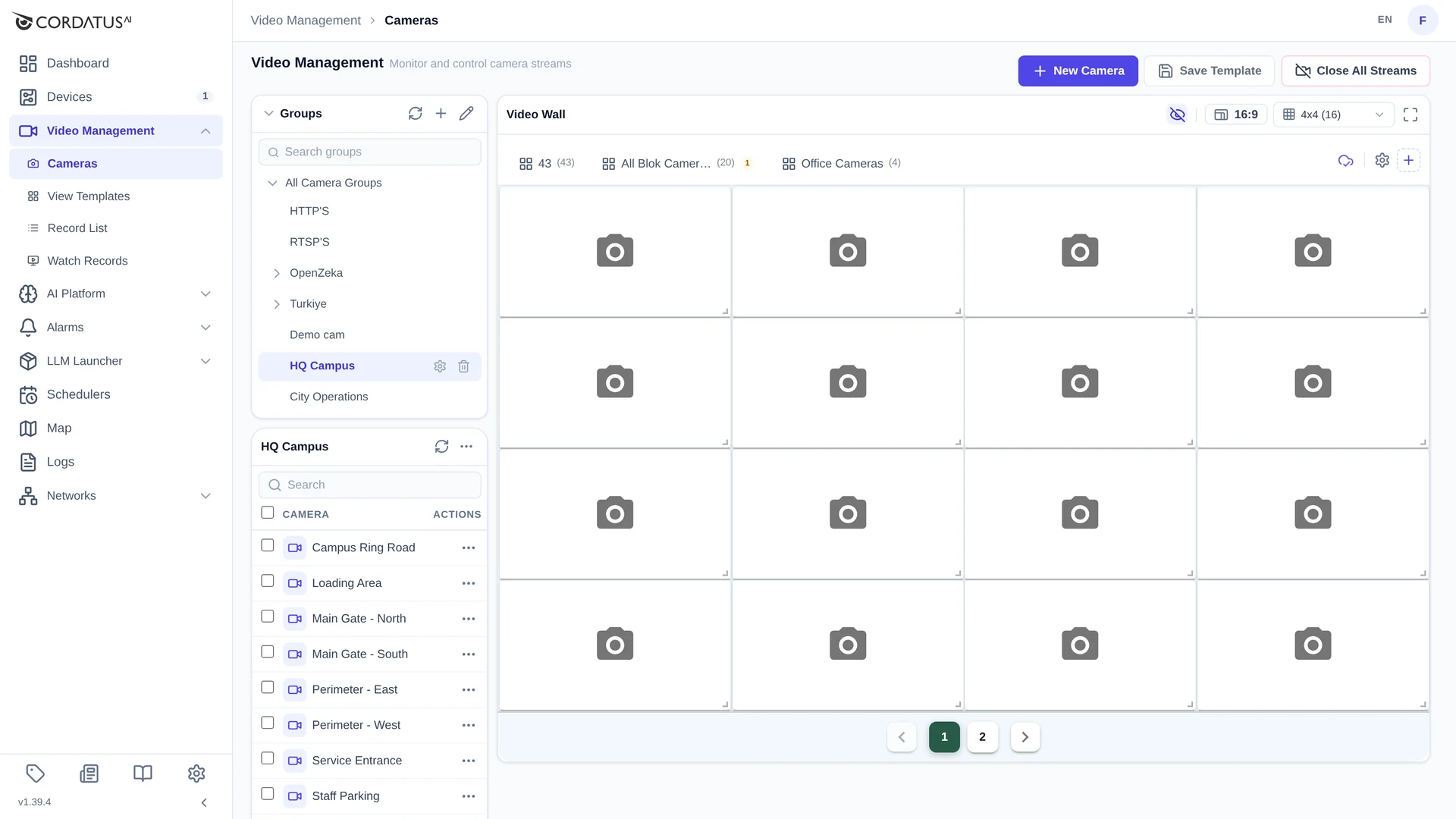
Everything in this section lives under Video Management in the left menu of the Cordatus Web App:
| Page | What you do there |
|---|---|
| Cameras | Add cameras, organise them into groups and watch them on the Video Wall |
| View Templates | Save and reload video-wall layouts |
| Record List | Start, pause, stop and delete recordings |
| Watch Records | Play back recordings on a synchronised timeline |
Why Cordatus VMS?
Unlike traditional VMS solutions, Cordatus works with a distributed architecture that combines local processing with cloud accessibility:
- 100% Uptime: Recording continues uninterrupted even during internet outages
- Low Latency: Video is decoded and stored on the device, close to the camera
- Cost Savings: Cloud bandwidth and storage costs are minimised
- Data Security: Sensitive footage stays in your local infrastructure, GDPR compliant
- Flexibility: Works on edge devices, workstations and servers with the same interface
Core Capabilities
| Feature | Description |
|---|---|
| Universal Camera Support | RTSP, HTTP/HTTPS and ONVIF network cameras plus USB, CSI and GMSL cameras connected directly to a device |
| ONVIF Discovery | Scan the network of a device and add the cameras it finds, without typing a URL |
| Video Wall | Watch up to 64 cameras at once in grids from 1×1 to 8×8, in 16:9 or 4:3 |
| View Templates | Save a wall layout once and restore it on any screen with a single click |
| Local Recording | Cloud-independent recording directly to the device's own disks |
| Smart Storage | Disk threshold monitoring with automatic cleanup or automatic stop |
| Flexible Scheduling | Calendar-based automatic recording handled by Cossa |
| Infinite Timeline | Scroll back through unlimited historical recordings, synchronised across cameras |
| Map Integration | Place cameras on the map and open their streams straight from it |
Who is it for?
Security & Surveillance
- 24/7 monitoring desks with fixed camera layouts
- Post-incident forensic review on a multi-camera timeline
- Multi-site organisations with centralised monitoring
Industrial & Manufacturing
- Production line tracking and quality control
- Workplace safety documentation
- Process monitoring and compliance recording
Retail & Commerce
- Store security and loss prevention
- Customer flow analysis
- Checkout and entry point monitoring
Smart City & Infrastructure
- Traffic monitoring and management
- Parking and public area surveillance
- Public safety and emergency response
What can I do with VMS?
Connect cameras
- Add IP cameras by URL (RTSP, HTTP/HTTPS) or let ONVIF Discovery find them
- Add USB, CSI and GMSL cameras that are physically attached to a device
- Give every camera a label, a group and — optionally — a location on the map
Organise cameras
- Build a group hierarchy (for example HQ Campus → Parking), with descriptions and tags
- Move cameras between groups on the Editing Groups screen
- Filter the camera list by group or search by name
Watch live video
- Open one camera or a whole group on the Video Wall
- Choose the grid size and aspect ratio, resize and rearrange tiles
- Inspect stream type, duration and transferred data per tile
- Save the current layout as a template and reload it whenever you need it
Record video
- Start recordings manually from the camera menu or the video wall
- Pause, resume, stop and delete recordings from the Record List
- Keep recordings on the device's local disk or an external drive
Review footage
- Play recordings of several cameras side by side on Watch Records
- Use the timeline to jump to any moment, zoom in and out, and scroll back in time
- Use Master mode to synchronise every camera to the same instant
Automate
- Create calendars with recurring or one-time events under Schedulers
- Assign a calendar to a recording so it starts and stops on its own
- Let Cossa (Cordatus Smart Scheduling Agent) take care of the rest
System Architecture
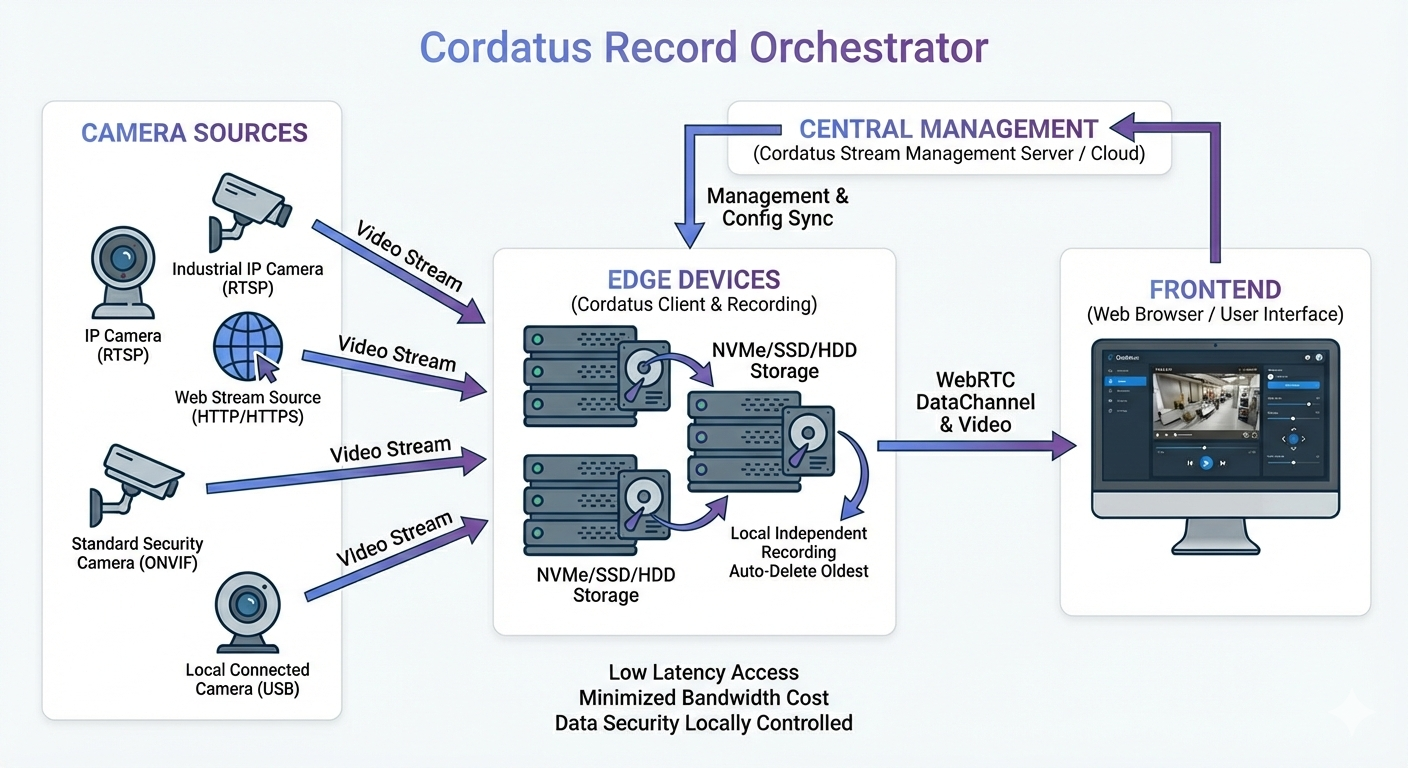
Supported camera sources
- RTSP: Industrial IP cameras and professional security systems
- HTTP/HTTPS: Web-based streaming sources and video feeds via API
- ONVIF: Standard-compliant security cameras (discovery supported)
- USB: Locally connected cameras and webcams
- CSI & GMSL: Direct camera module integration for edge devices
Distributed recording architecture
Recordings are stored directly on devices, independent from the cloud. This architecture provides:
- Uninterrupted recording: Recording continues even when the internet connection is lost
- Low latency: Instant access and fast playback startup
- Bandwidth optimisation: Video is transferred to the cloud only when needed
- Data sovereignty: Recordings stay in your own infrastructure
Smart storage management
NVMe, SSD or HDD storage can be used on recording devices. Cordatus monitors disk usage in real time and, when the configured threshold is reached, either deletes the oldest recordings or stops recording — you decide which.
Key Concepts
- Camera — A video source: an IP camera (RTSP/HTTP/ONVIF) or a physical camera (USB, CSI, GMSL).
- Group — A folder in the camera hierarchy, with an optional description and tags.
- Target device — The Cordatus device that decodes a stream for you. It must be online and connected.
- Video Wall — The grid on the Cameras page where live streams are displayed.
- Template — A saved video-wall layout that can be reloaded later.
- Recording — Saved camera footage, played back from the Watch Records page.
- Calendar — An automation template that starts and stops recordings at defined times.
- Cossa — The agent that checks and applies every schedule operation, once per minute.
How it works
- Connect cameras from the Cameras page — manually or through ONVIF discovery.
- Organise them into groups and, optionally, place them on the map.
- Stream them on the video wall by selecting a target device.
- Save the layout as a template so the same wall is one click away.
- Record manually or automatically with a calendar.
- Review the footage on the Watch Records timeline.