Connecting Cameras
Cordatus works with IP cameras (RTSP, HTTP/HTTPS and ONVIF) and with physical cameras (USB, CSI and GMSL) that are plugged directly into a device. Every camera is added from the same place: the New Camera button on the Video Management → Cameras page.
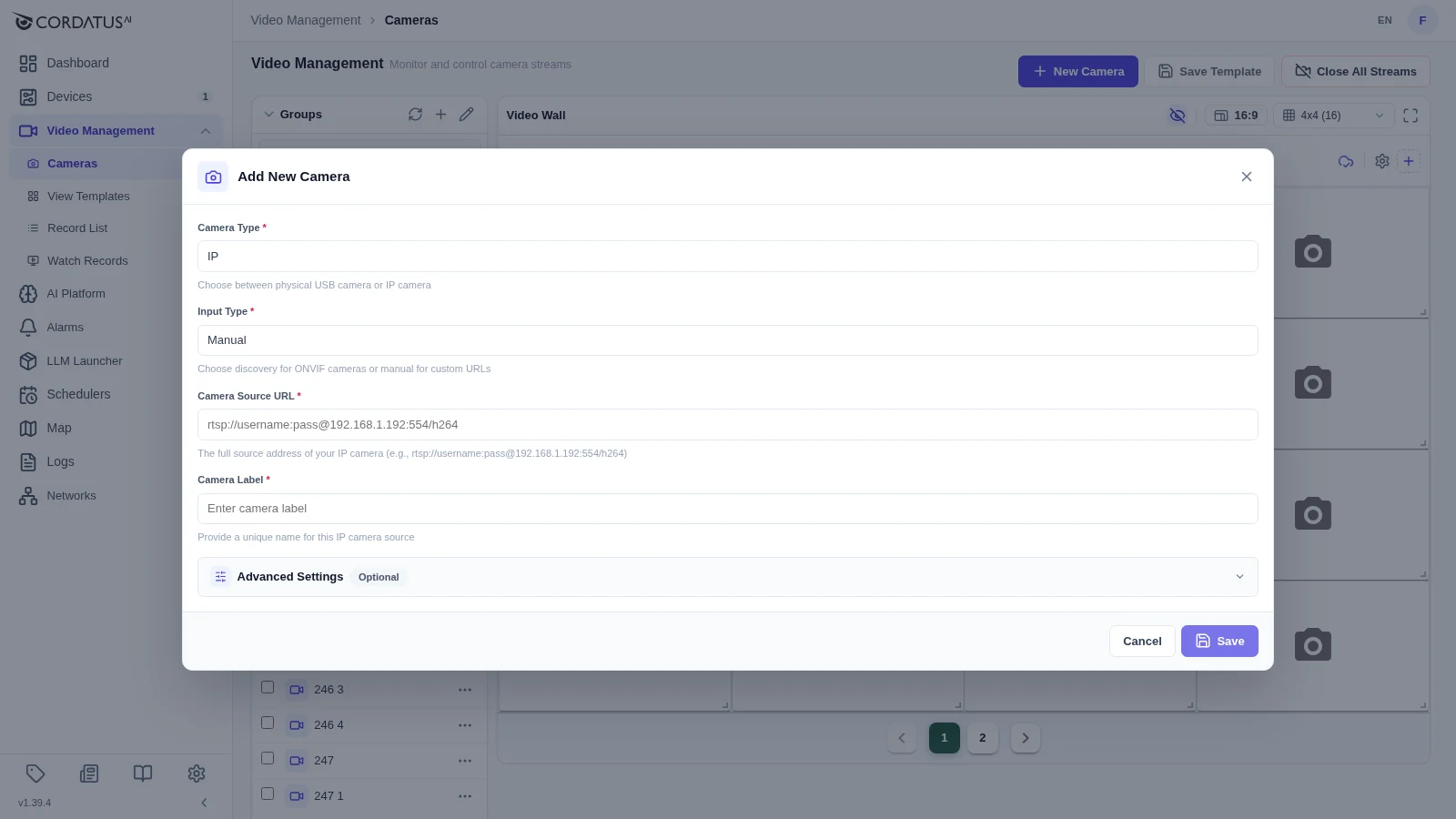
The window adapts to what you are adding:
| Field | Description |
|---|---|
| Camera Type | IP for network cameras, Physical for cameras attached to a device. |
| Input Type (IP only) | Manual to type the stream URL yourself, Discovery to scan the network for ONVIF cameras. |
| Camera Source URL (Manual) | The full address of the stream. |
| Camera Label | The name the camera will carry everywhere in Cordatus. |
| Advanced Settings | Decoder type, access scope, map location and camera preview — all optional. |
Adding an IP Camera Manually
- Open Video Management → Cameras and click New Camera.
- Keep Camera Type as IP and Input Type as Manual.
- Enter the Camera Source URL.
- Give the camera a Camera Label.
- (Optional) Open Advanced Settings to set the decoder, the access scope or a map location.
- Click Save.
HTTP URLs follow the format http://[IP_ADDRESS]/[STREAM_PATH], and RTSP URLs follow rtsp://[USER]:[PASSWORD]@[IP_ADDRESS]:[PORT]/h264. HLS playlists (.m3u8) are supported as well.
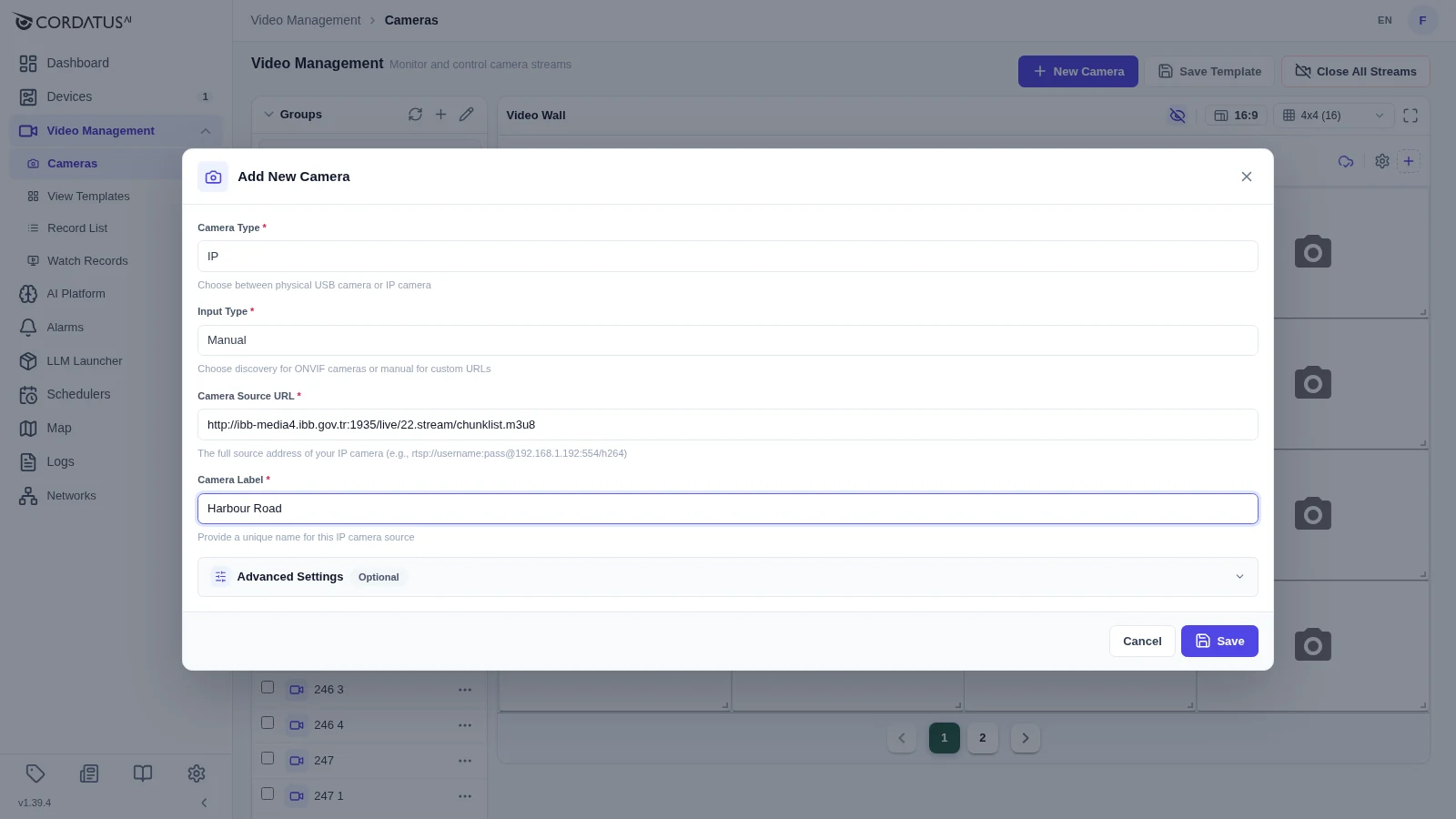
Only use camera URLs from trusted and stable sources. Unreliable URLs can cause connection problems, instability or security risks.
Advanced Settings
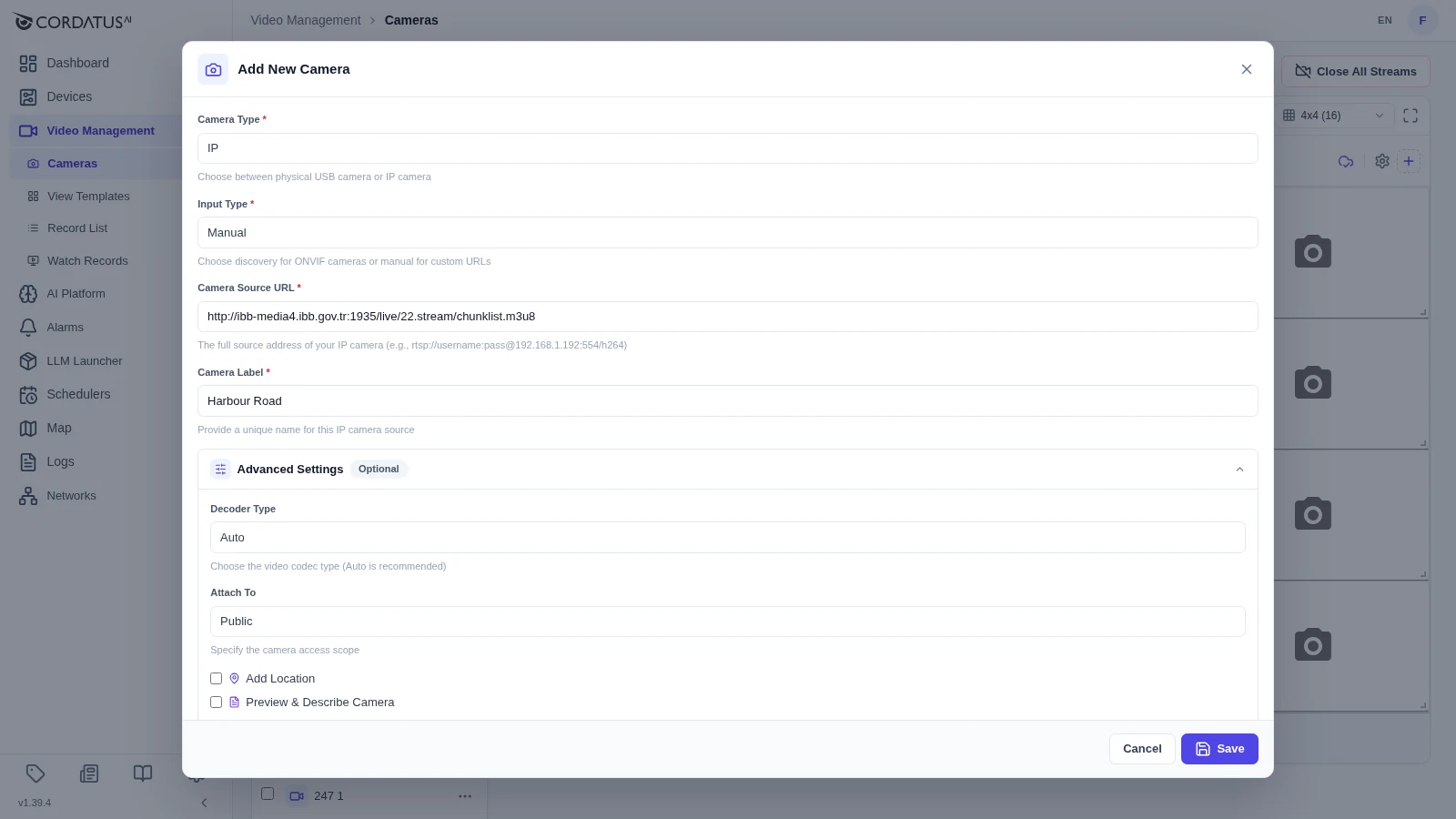
| Setting | Description |
|---|---|
| Decoder Type | The video codec used for decoding. Auto is recommended and works for nearly every camera. |
| Attach To | Public makes the camera available to every device in the organization. Device binds it to one device, which is useful when the camera is only reachable from that device's network. |
| Add Location | Places the camera on the Camera Map. |
| Preview & Describe Camera | Fetches a preview of the stream and lets you store a description together with the camera. |
Setting a location
Tick Add Location to reveal a map. Search for a place with the search box, or pan and zoom with the mouse, then click on the map to drop the pin. The coordinates of the pin are shown in the bottom-left corner of the map.
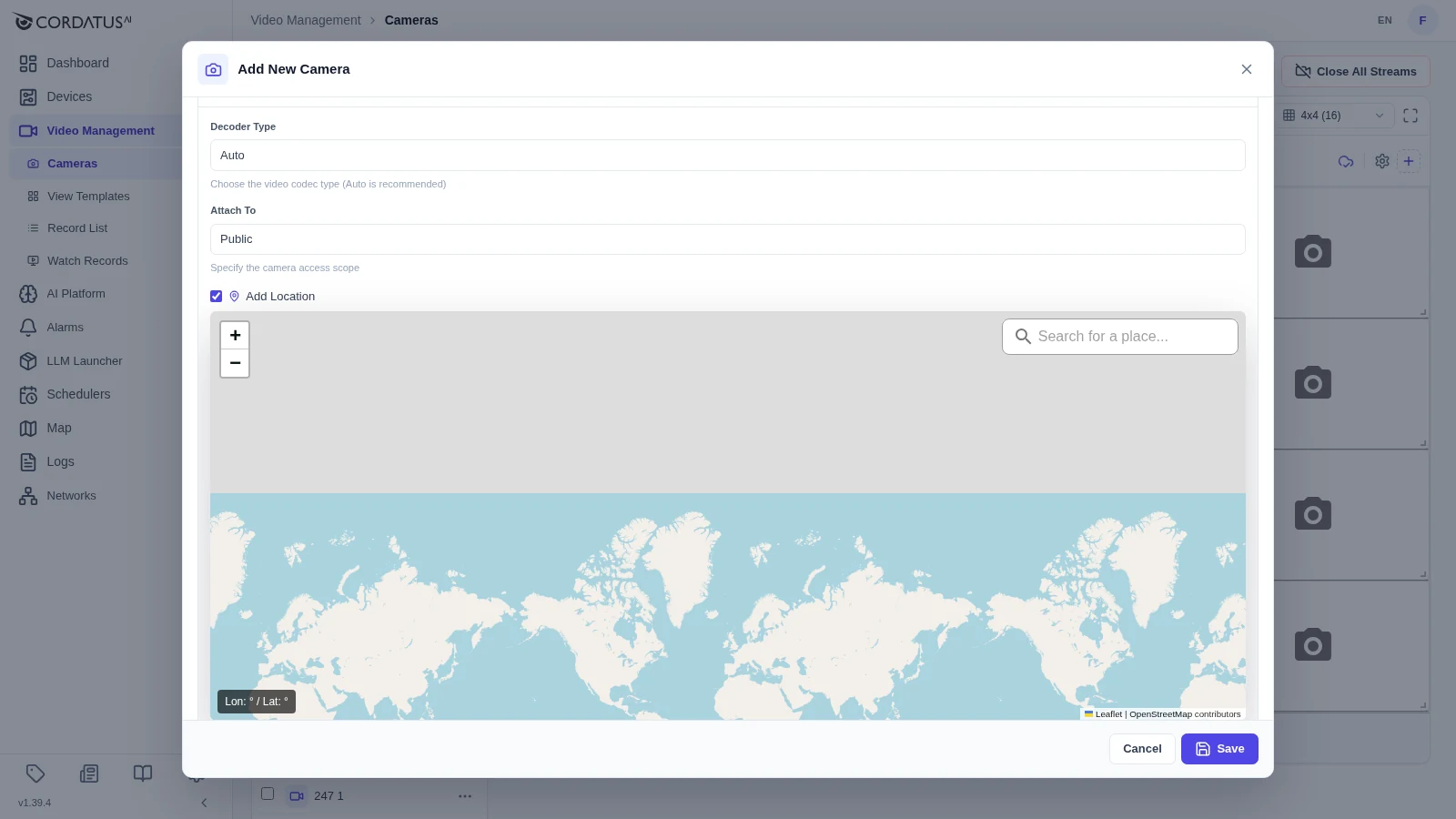
The location is stored when the camera is created. To change the location of an existing camera, remove it and add it again with the new coordinates.
Finding IP Cameras with ONVIF Discovery
If your cameras support ONVIF, Cordatus can find them for you instead of you typing URLs.
- Click New Camera.
- Set Camera Type to IP and Input Type to Discovery.
- Select the device (or devices) whose network should be scanned. Only online devices can scan.
- Click Add IP Cameras.
- Cordatus lists the cameras it found — select the ones you want, give them labels and save them.
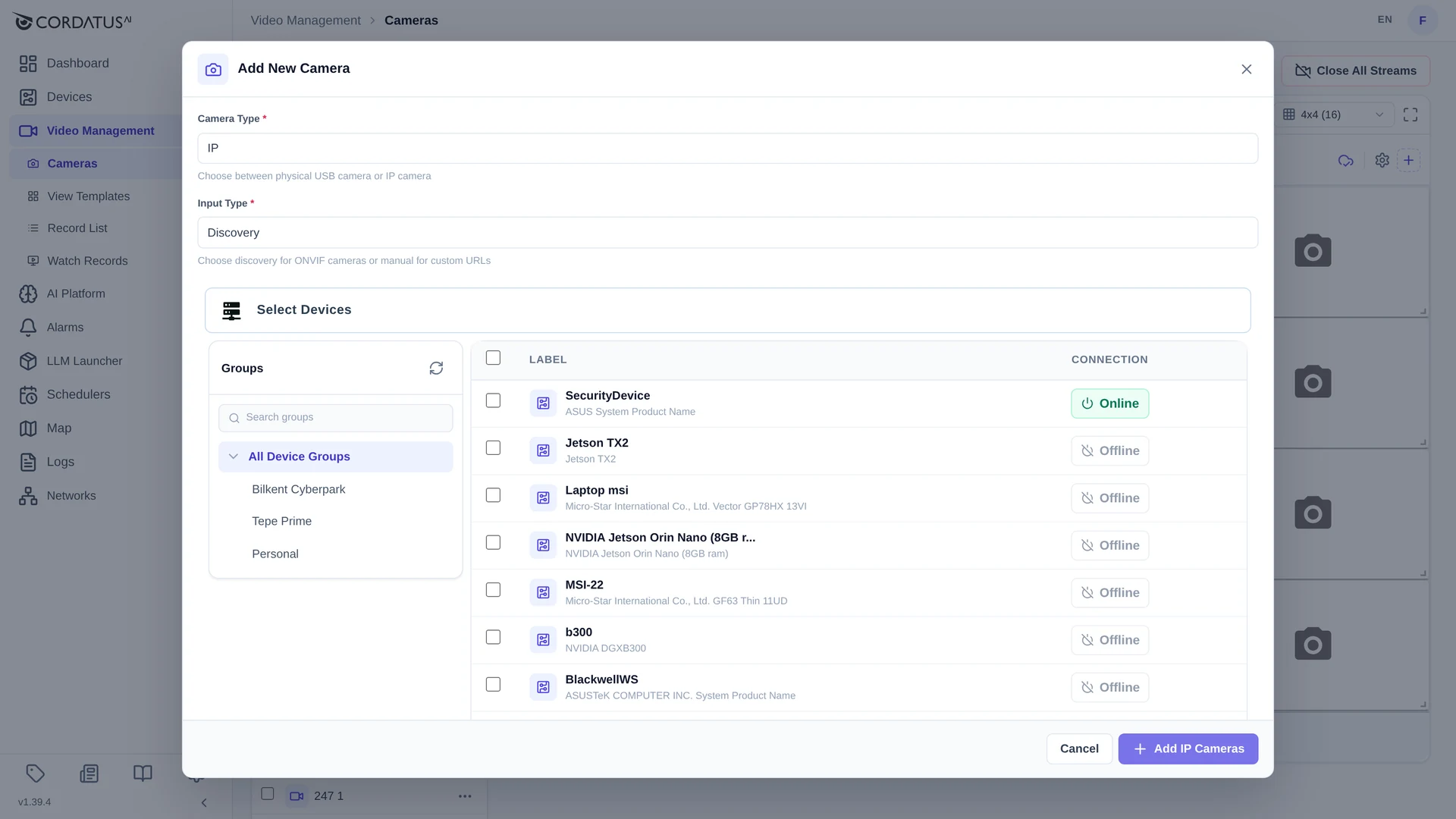
Discovery only finds cameras that are on the same network as the selected device and have ONVIF enabled. If a camera does not appear, add it manually with its RTSP URL.
Adding a Physical Camera (USB, CSI, GMSL)
- Connect the camera to the device and install any driver it needs.
- Click New Camera and set Camera Type to Physical.
- Select the device the camera is plugged into.
- Cordatus lists the cameras that the device detects — pick yours, enter a Camera Label and click Save.
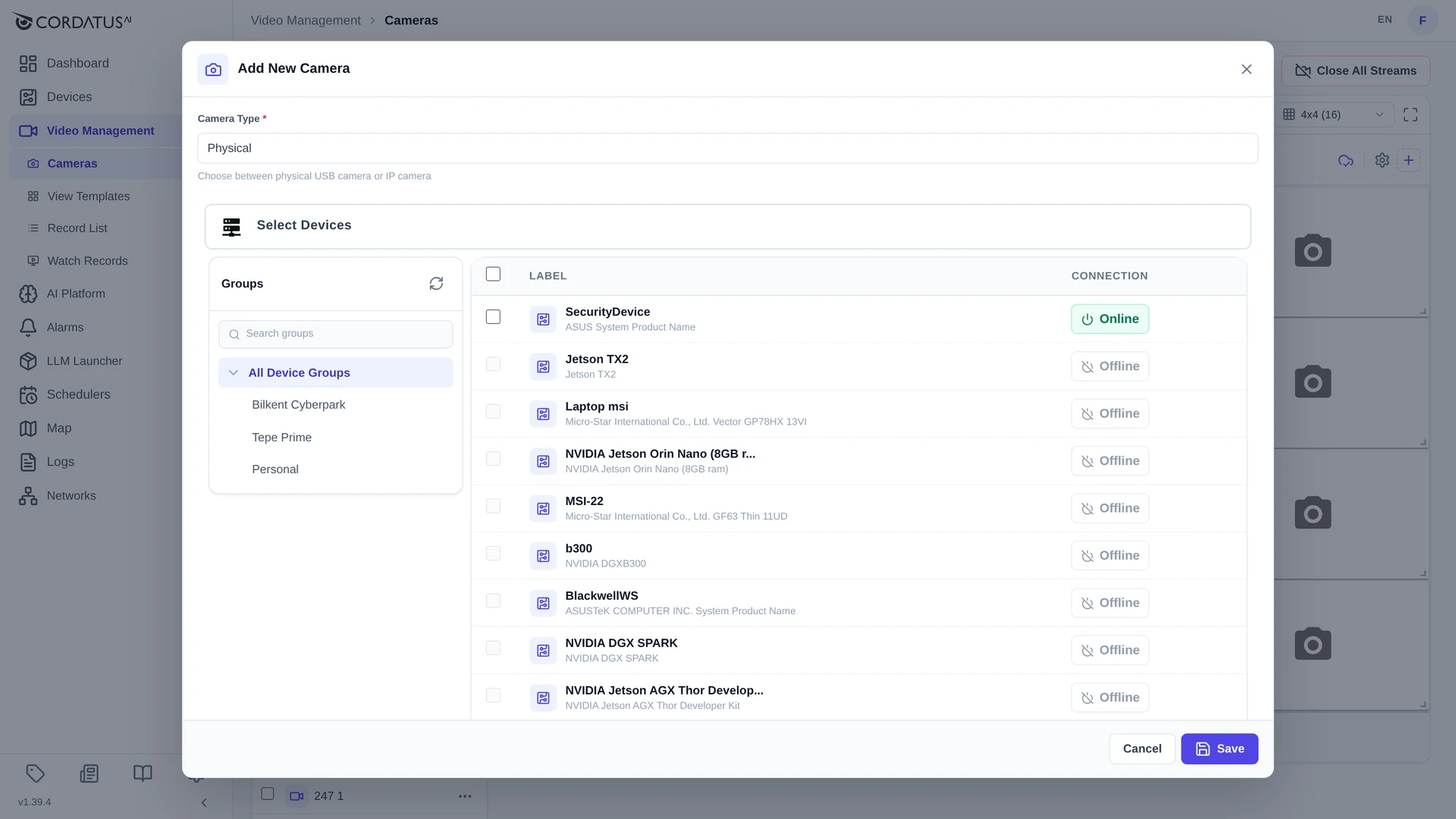
If your physical camera is not listed, refresh the list. If it still does not appear, restart the stream engine on the device and reload the page.
Adding Cameras from the Cordatus Client
The Cordatus Client detects CSI, USB and GMSL cameras automatically — you do not have to add them by hand.
To add an IP camera from the Client:
- Launch Cordatus Client and open the Cameras page.
- Click Add IP Camera.
- Enter the stream address in the IP Camera URL field.
- Enter a name in the Label field.
- Click Save IP Camera.
IP cameras added from the Web App are managed from the Web App, and cameras added from the Client are managed from the Client. If you need a camera in both places, add it in both.
What happens next?
A newly added camera appears in the camera list immediately. From there you can: