Record Scheduling
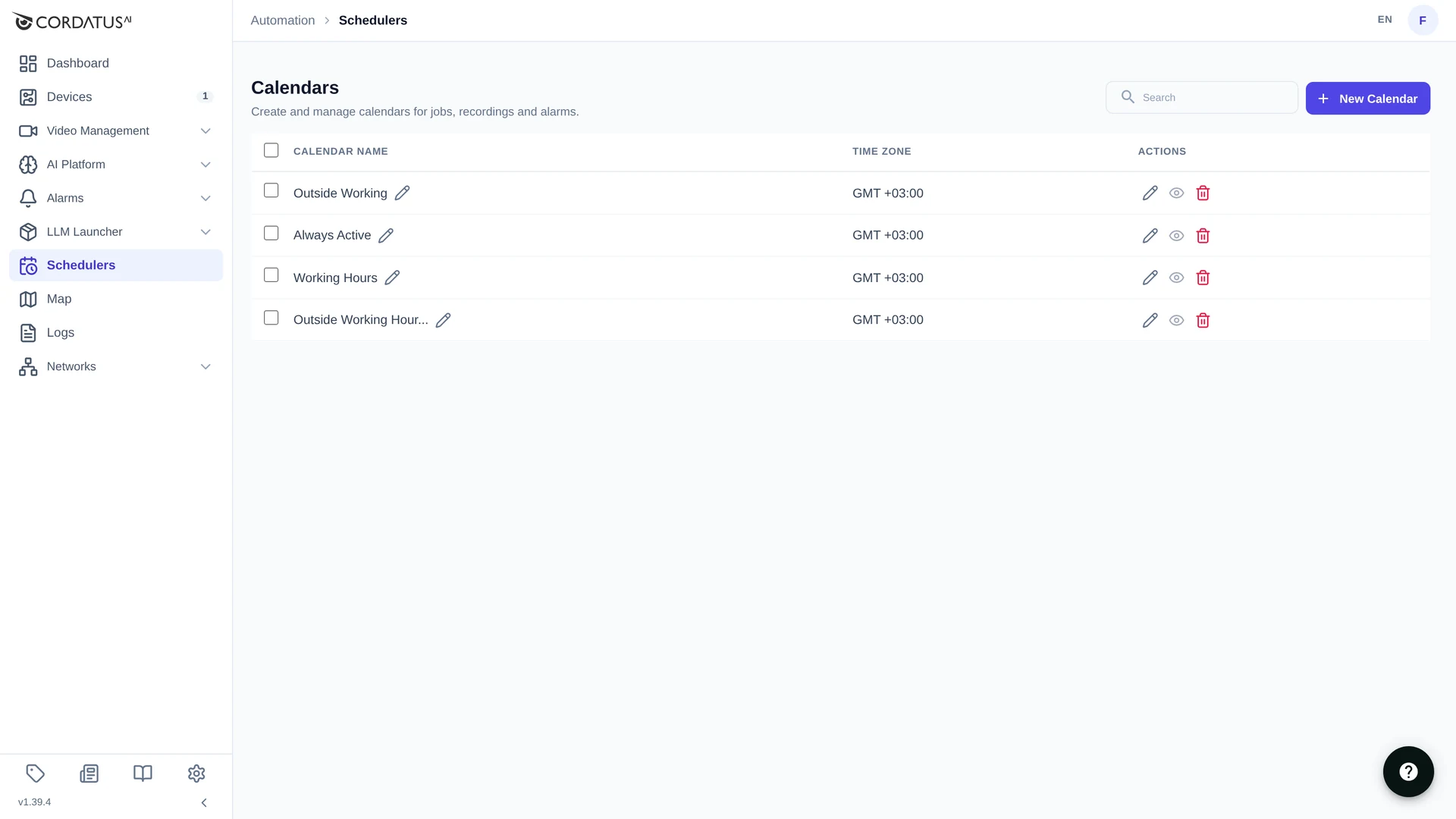
Instead of starting and stopping recordings by hand, describe when they should run and let Cordatus do it. A calendar holds one or more events — recurring or one-time time ranges — and can be assigned to recordings, jobs and alarms.
Calendars live under Schedulers in the left menu.
Typical patterns:
- Business hours: Monday–Friday, 09:00–18:00
- Night security: every day, 22:00–06:00
- Weekend: all day Saturday and Sunday
- Custom: Tuesday and Thursday, 14:00–16:00 and 20:00–22:00
Creating a Calendar
- Open Schedulers and click New Calendar.
- Enter a Calendar Name.
- Choose the Time Zone — every event of the calendar is interpreted in it.
- (Optional) Add a description.
- Save.
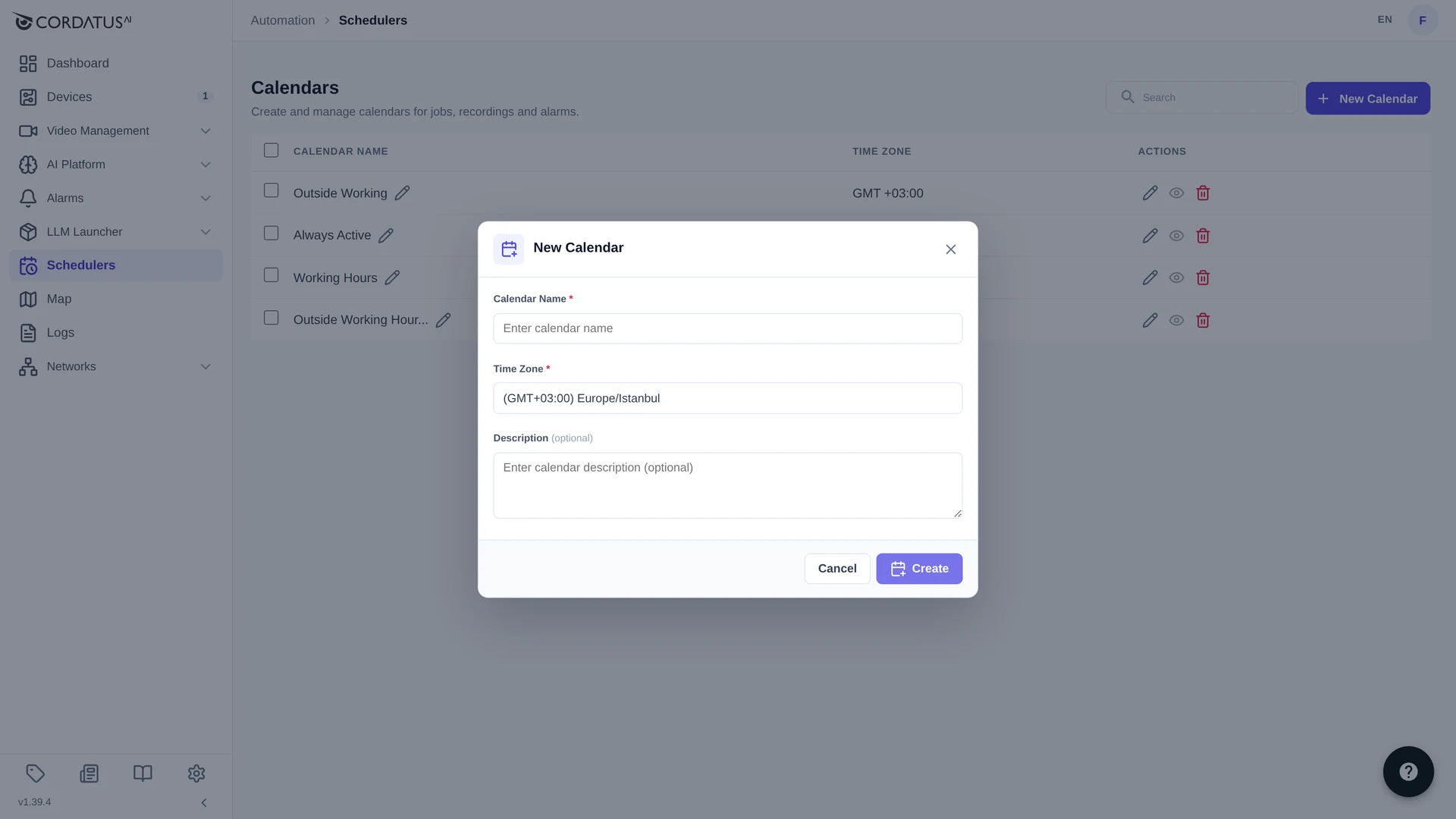
The time zone belongs to the calendar, not to your browser — set it to the time zone of the site the cameras are in, so schedules stay correct when you travel.
The list shows every calendar with its time zone and four actions: Rename, Edit calendar, View on calendar and Delete calendar.
Adding Events
Click Edit calendar to open the calendar editor.
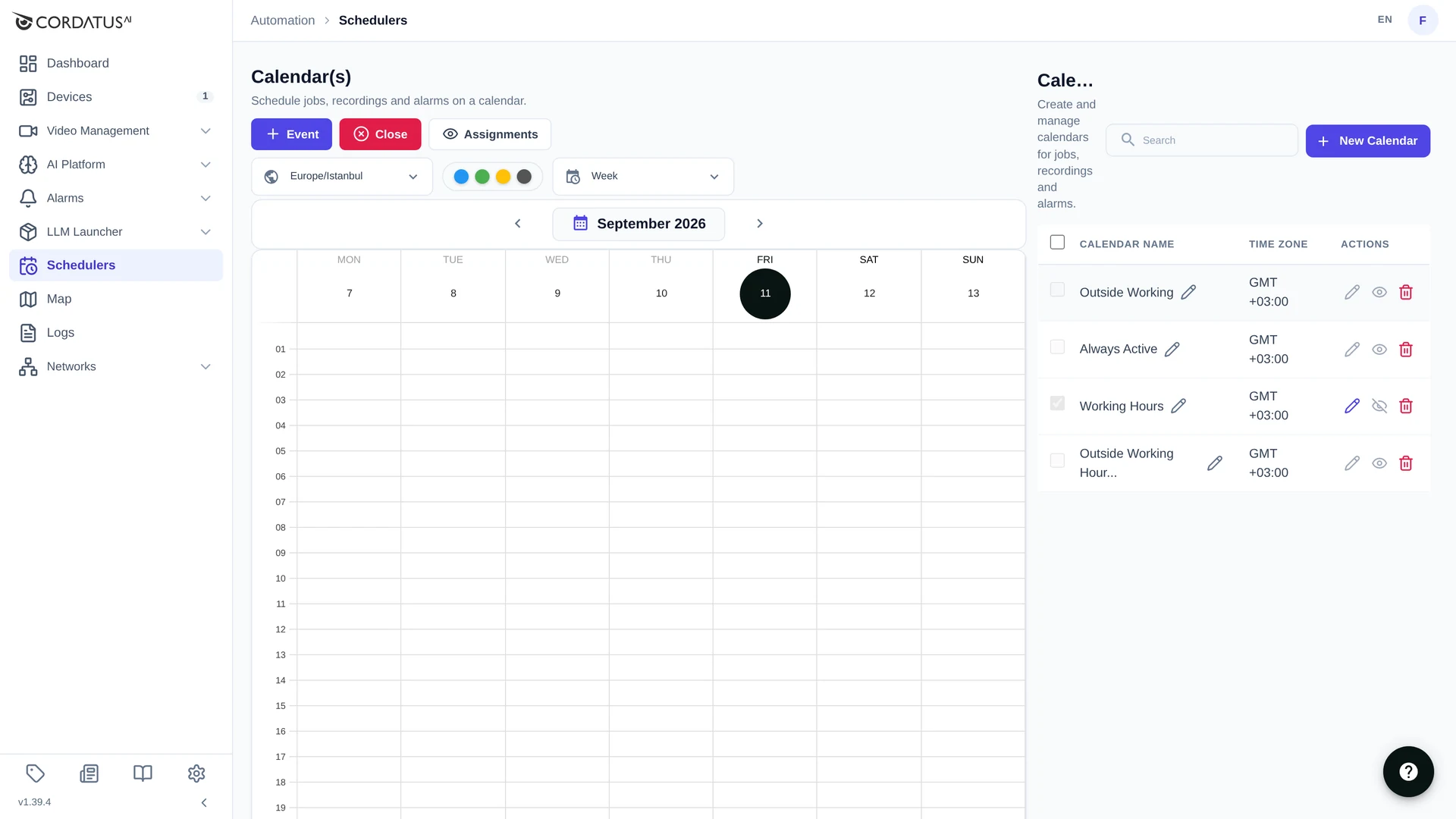
| Control | Purpose |
|---|---|
| + Event | Creates a new event. |
| Close | Leaves the editor. |
| Assignments | Shows what this calendar is currently assigned to. |
| Time zone | The calendar's time zone. |
| Colour dots | The event types drawn on the calendar (see below). |
| View | Day, week or month view. |
| ‹ September 2026 › | Moves through time. |
The calendar list on the right has a checkbox per calendar: tick several calendars to see their events on the same grid and spot overlaps.
The event dialog
+ Event opens Create New Calendar Event, which is organised in three steps:
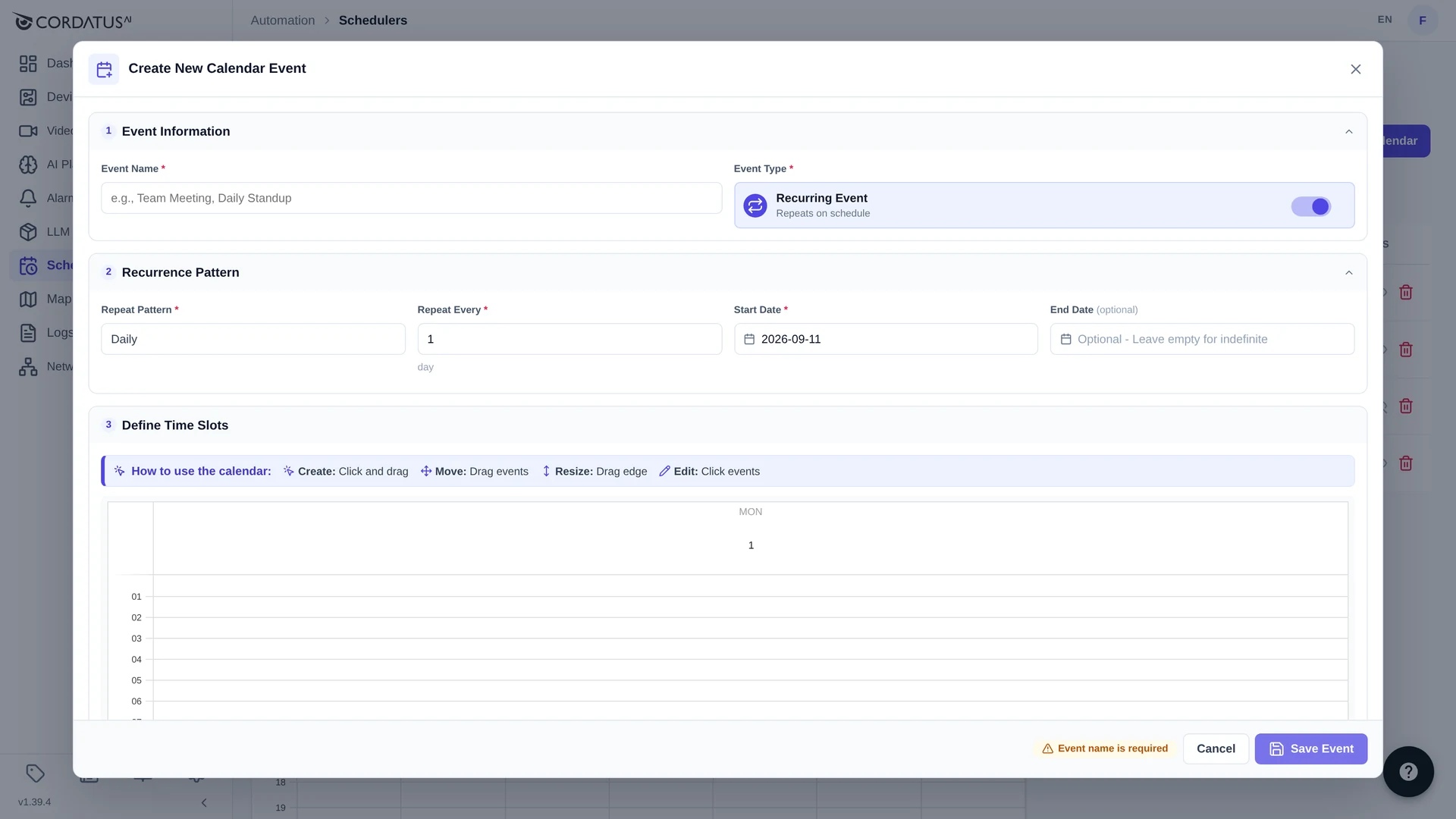
1. Event Information
- Event Name — for example Day Shift or Night Watch.
- Event Type — the Recurring Event switch. Leave it on for a repeating pattern, turn it off for a one-time event.
2. Recurrence Pattern
| Field | Description |
|---|---|
| Repeat Pattern | Daily, Weekly or Monthly. |
| Repeat Every | The interval. With Weekly and 2, the event repeats every second week. |
| Start Date | The first day the event is valid. |
| End Date | Optional — leave it empty for an event that never expires. |
3. Define Time Slots
Draw the hours on the grid:
- Create — click and drag over the hours the event should cover.
- Move — drag an existing block to another time.
- Resize — drag the edge of a block.
- Edit — click a block to fine-tune its start and end.
Click Save Event when the pattern looks right.
Event colours
The dots above the calendar are the legend for the event types:
- 🔵 Blue — daily events
- 🟢 Green — weekly events
- 🟡 Yellow — monthly events
- ⚫ Black — one-time events
Assigning a Calendar to a Recording
- Go to Video Management → Cameras.
- Click the ⋯ button on the camera and choose Record → Schedule.
- Choose the device that will record and the calendar that should drive it.
- Save.
The recording then appears in the Record List as Scheduled. When the first event starts, the status moves to Schedule Starting and then to Recording; when the event ends, the recording stops on its own.
Use Assignments in the calendar editor to see every recording, job and alarm that a calendar currently drives.
How the Schedule is Executed
Scheduling is handled by Cossa (Cordatus Smart Scheduling Agent), which checks all schedule operations once a minute.
If you create a calendar whose event has already started, the recording does not begin immediately — it starts at the next minute boundary. If you save a schedule at 14:30:35 and nothing happens, wait until 14:31:00.
Calendar behaviour
- A recording starts and stops automatically, following the assigned calendar.
- More than one calendar can be assigned to the same recording; they work independently, and the recording runs whenever any of them is active.
- Editing a calendar updates every recording that uses it.
- Deleting a calendar leaves its recordings without automation — they simply stay as they are.
Reviewing Scheduled Recordings
Everything a schedule produces is an ordinary recording: find it in the Record List and play it back from Watch Records.