Streaming Cameras
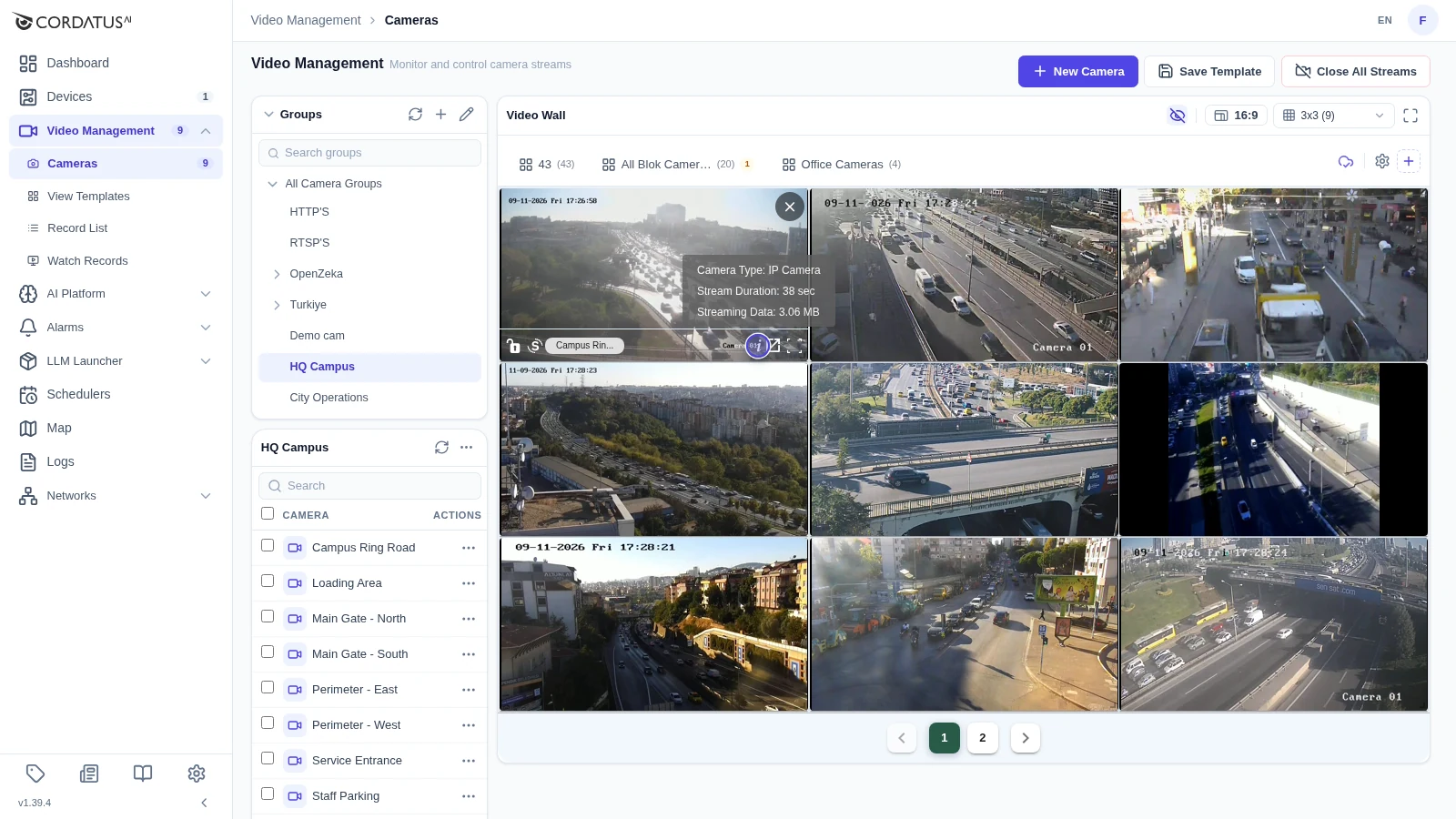
Live video is watched on the Video Wall, the large panel on the Video Management → Cameras page. Streams are pulled from the camera by a target device — one of your Cordatus devices — which decodes the video and forwards it to your browser.
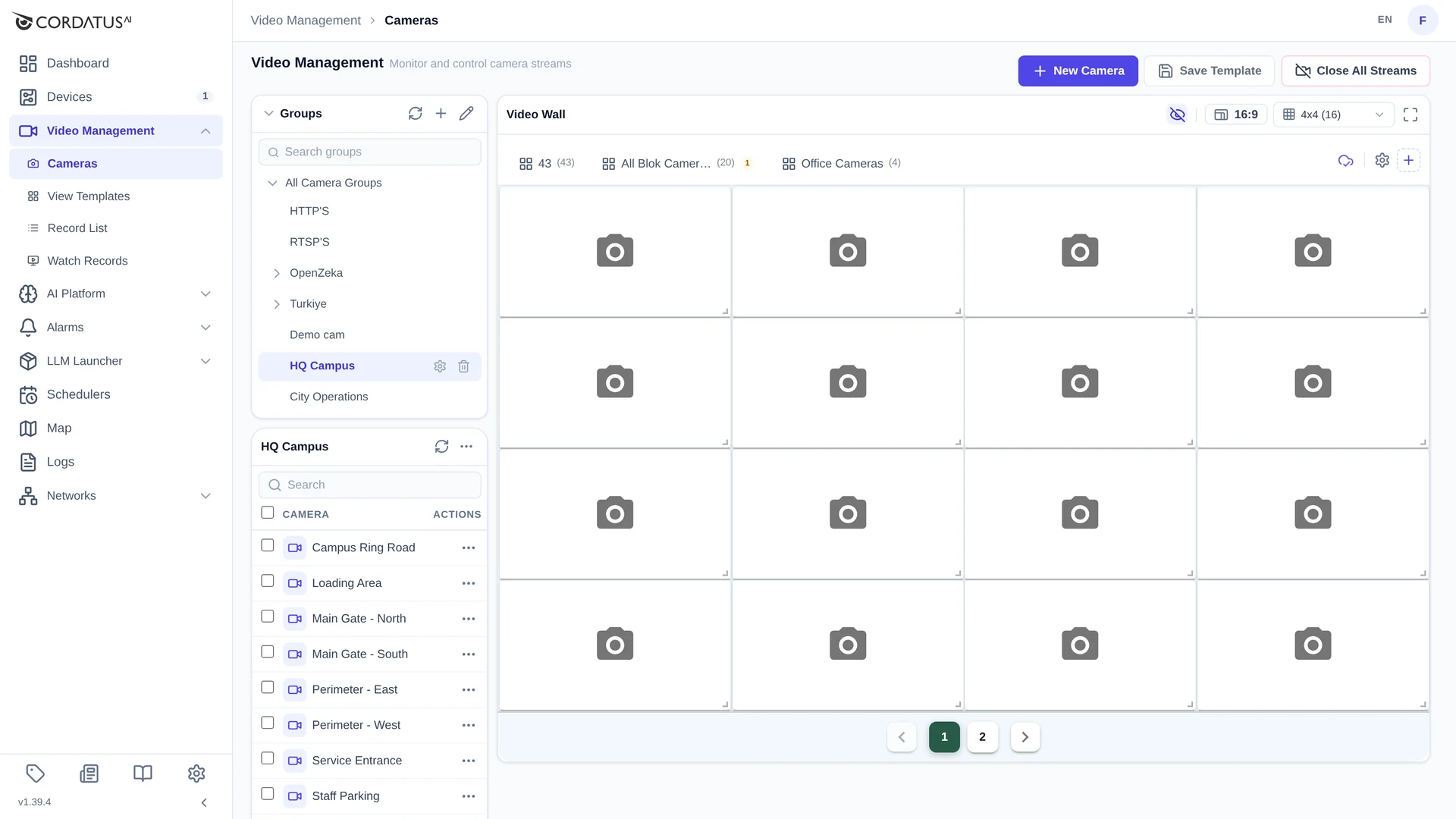
The page has three areas:
| Area | Purpose |
|---|---|
| Groups (top left) | The camera group hierarchy. Selecting a group filters the camera list below. |
| Camera list (bottom left) | Every camera of the selected group, with a search box, checkboxes for bulk actions and a ⋯ menu per camera. |
| Video Wall (right) | The live grid, with layout controls in its header and template tabs above the tiles. |
Opening a Stream
A single camera
- Go to Video Management → Cameras.
- (Optional) Select a group on the left to narrow the list.
- Click the camera you want to watch.
- In the Select a target device window, tick a device that is Online and click Select.
The stream opens in the first free tile of the video wall.
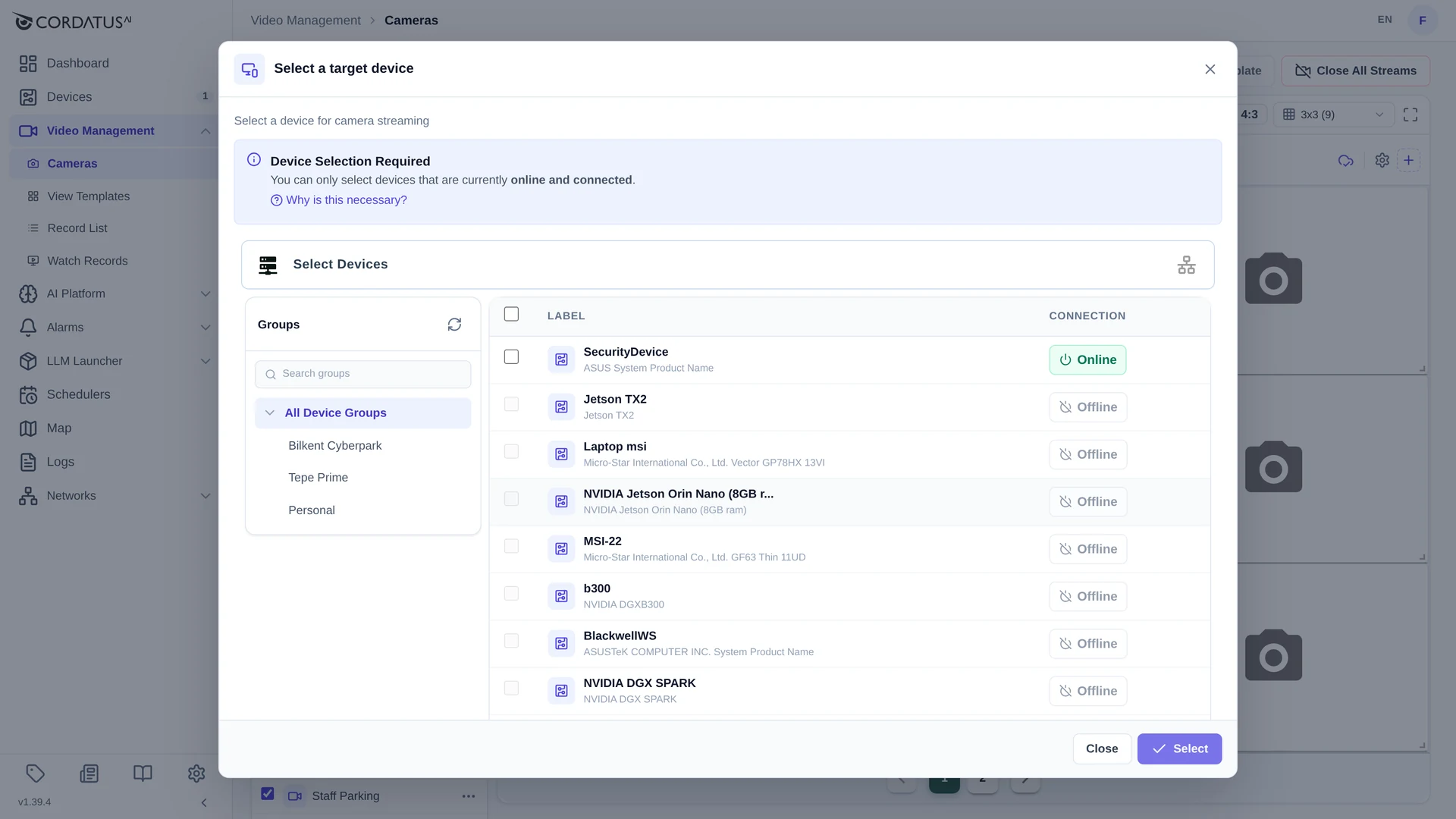
Only devices that are currently online and connected can be selected. The target device decodes the camera stream, so it must be able to reach the camera over the network.
Several cameras at once
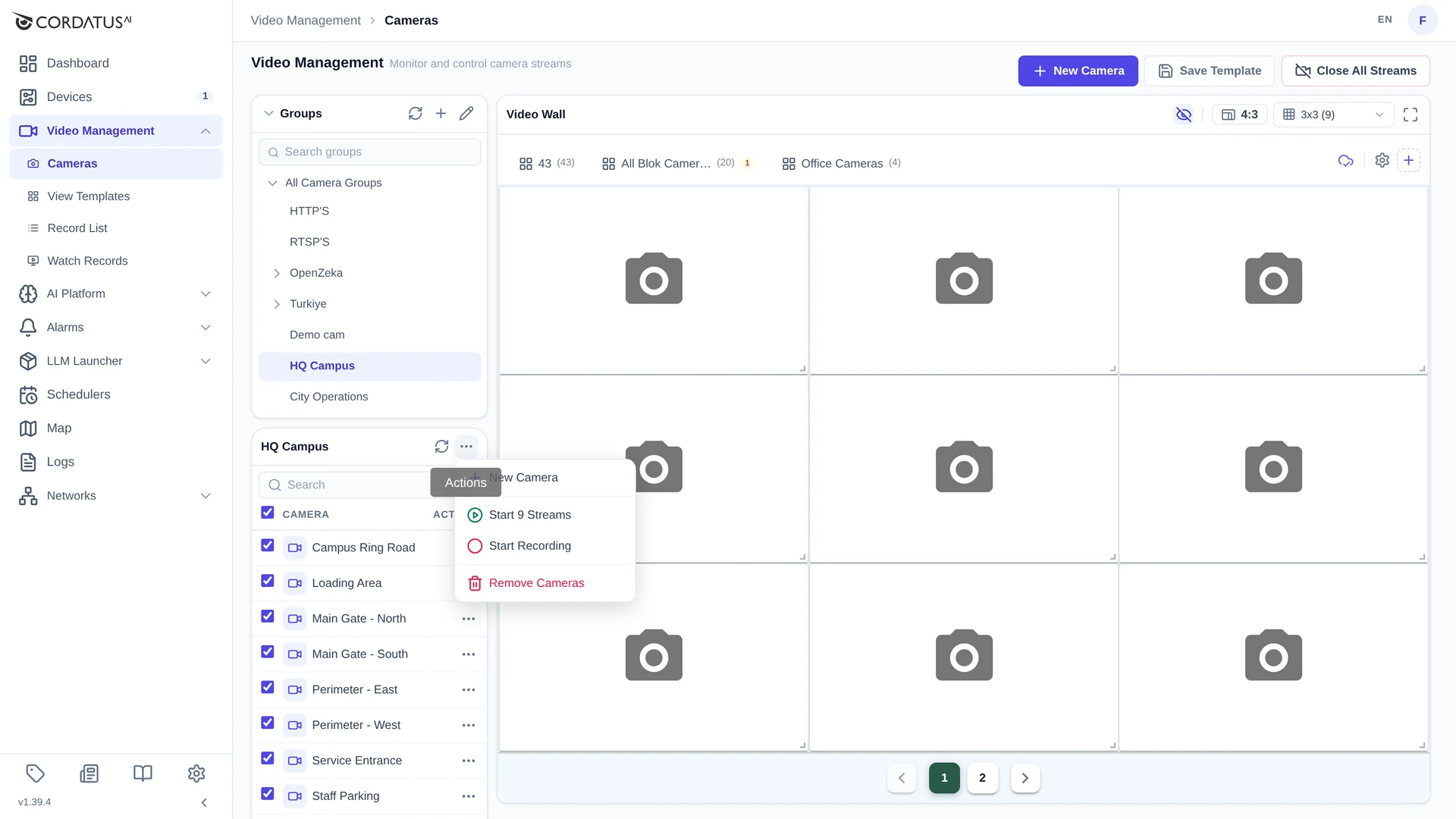
- Tick the checkbox of every camera you want to open — or use the checkbox in the table header to select the whole group.
- Click the ⋯ button in the camera list header.
- Choose Start N Streams.
- Pick the target device and click Select.
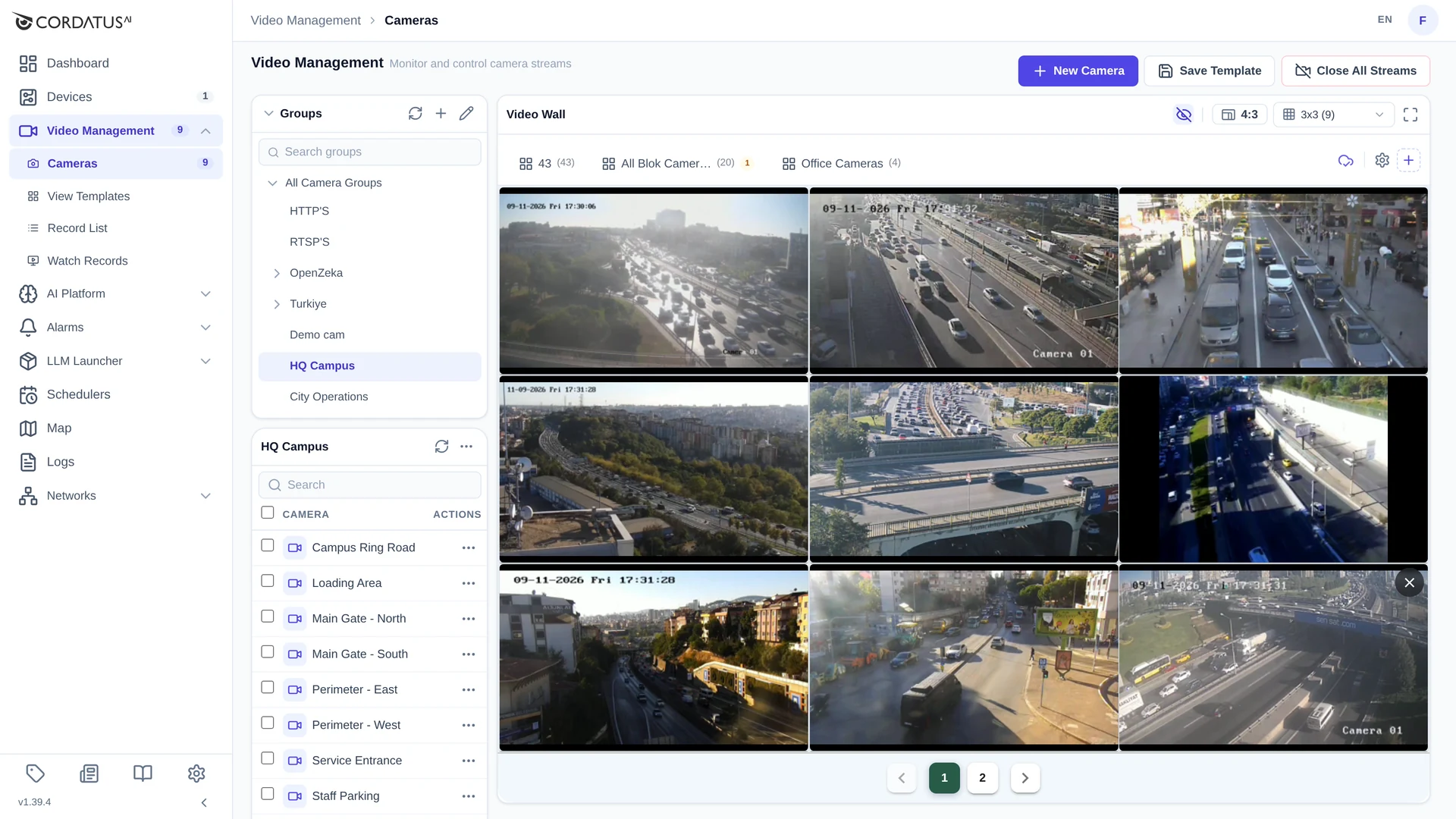
Save the layout you have just built as a template so you can restore the same wall with one click next time. See Camera Templates.
Wall Layout Controls
The video wall header holds the layout controls:
| Control | What it does |
|---|---|
Grid selector (3x3 (9)) | Sets how many tiles the wall has: 1×1, 2×2, 3×3, 4×4, 5×5, 6×6, 7×7 or 8×8 — up to 64 cameras on one screen. |
Aspect ratio (16:9) | Switches every tile between 16:9 and 4:3. |
| Eye icon | Shows or hides the overlay information drawn on the tiles. |
| Fullscreen icon | Expands the wall to the whole browser window. Press Esc to leave. |
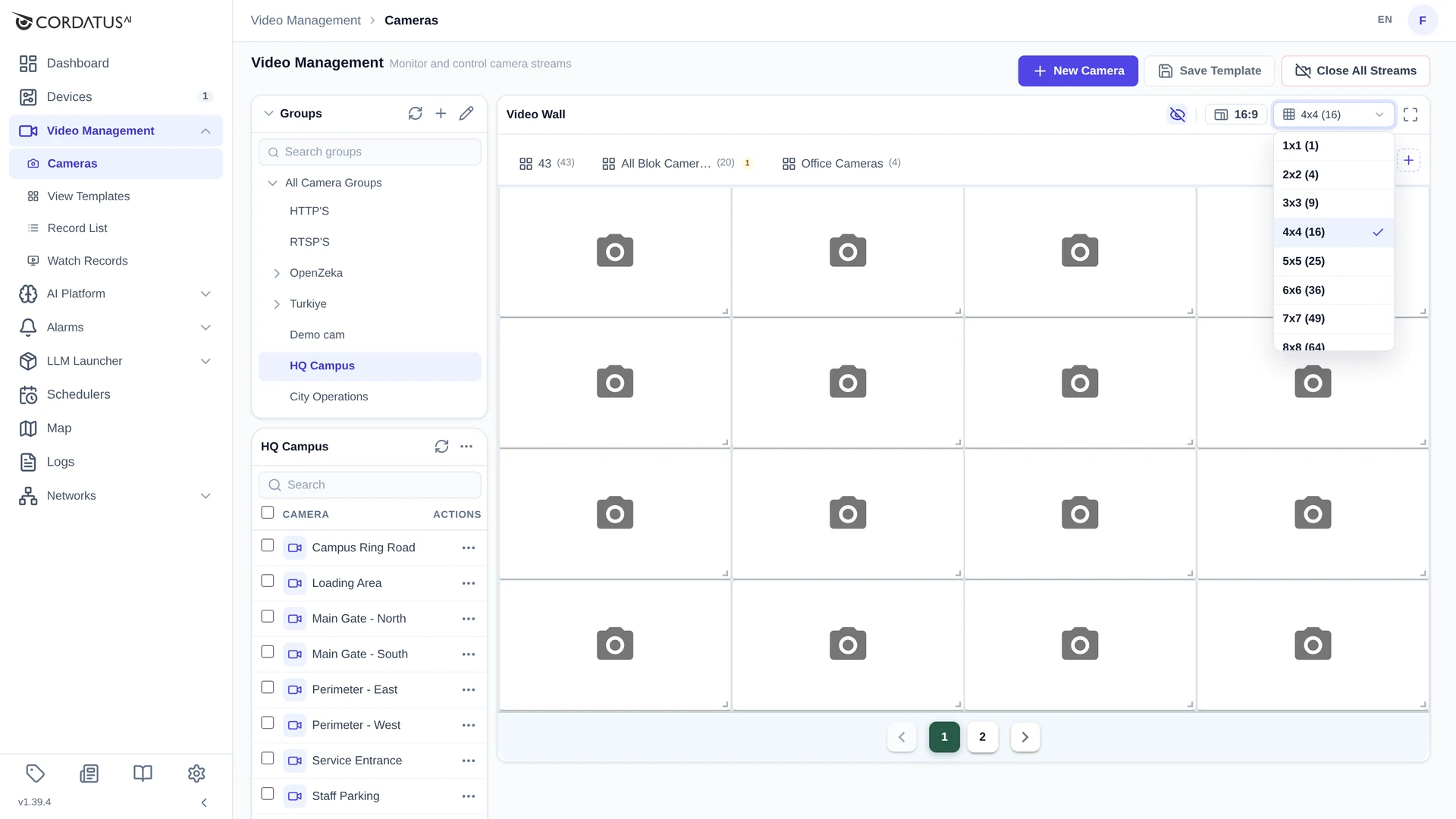
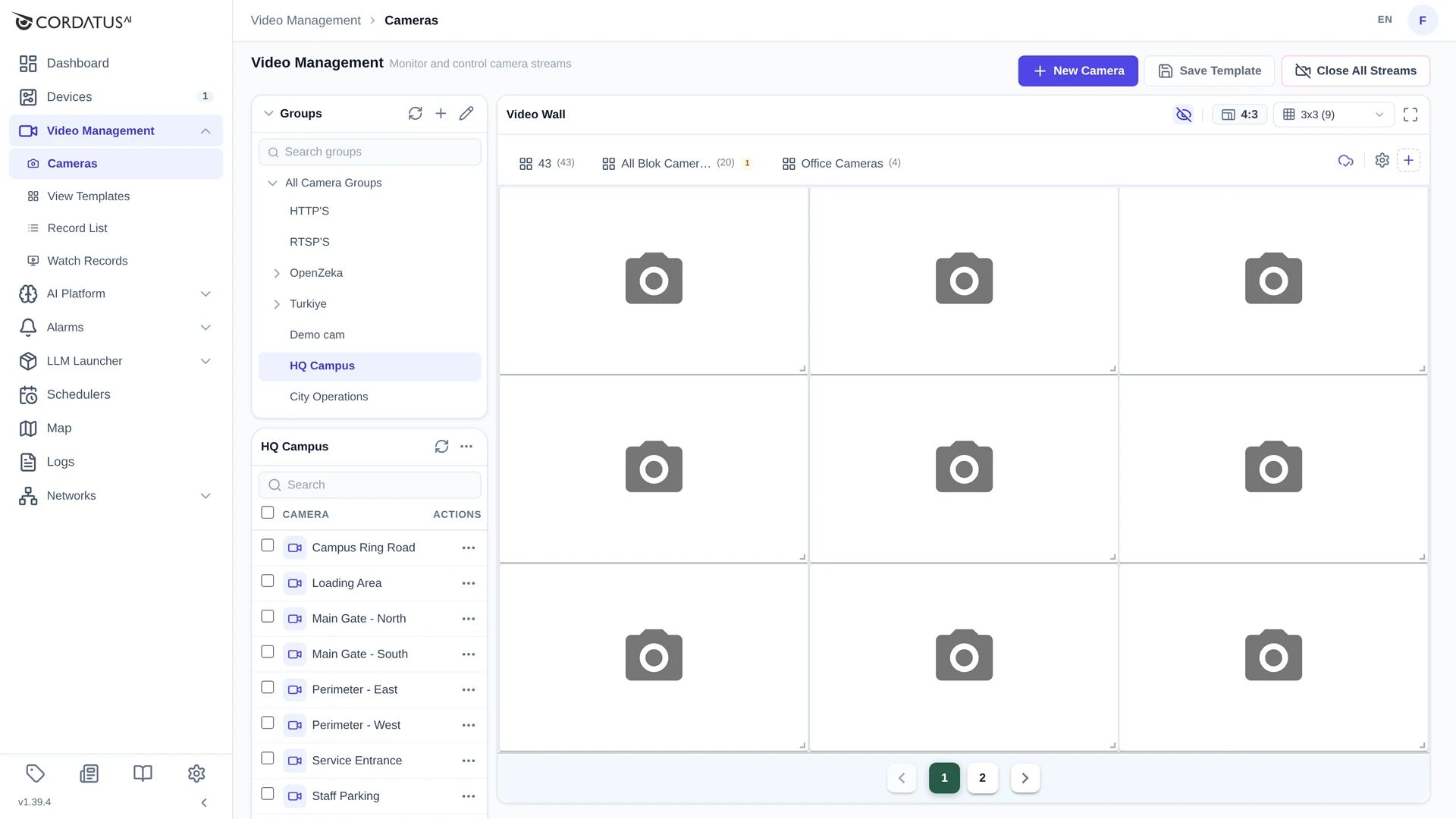
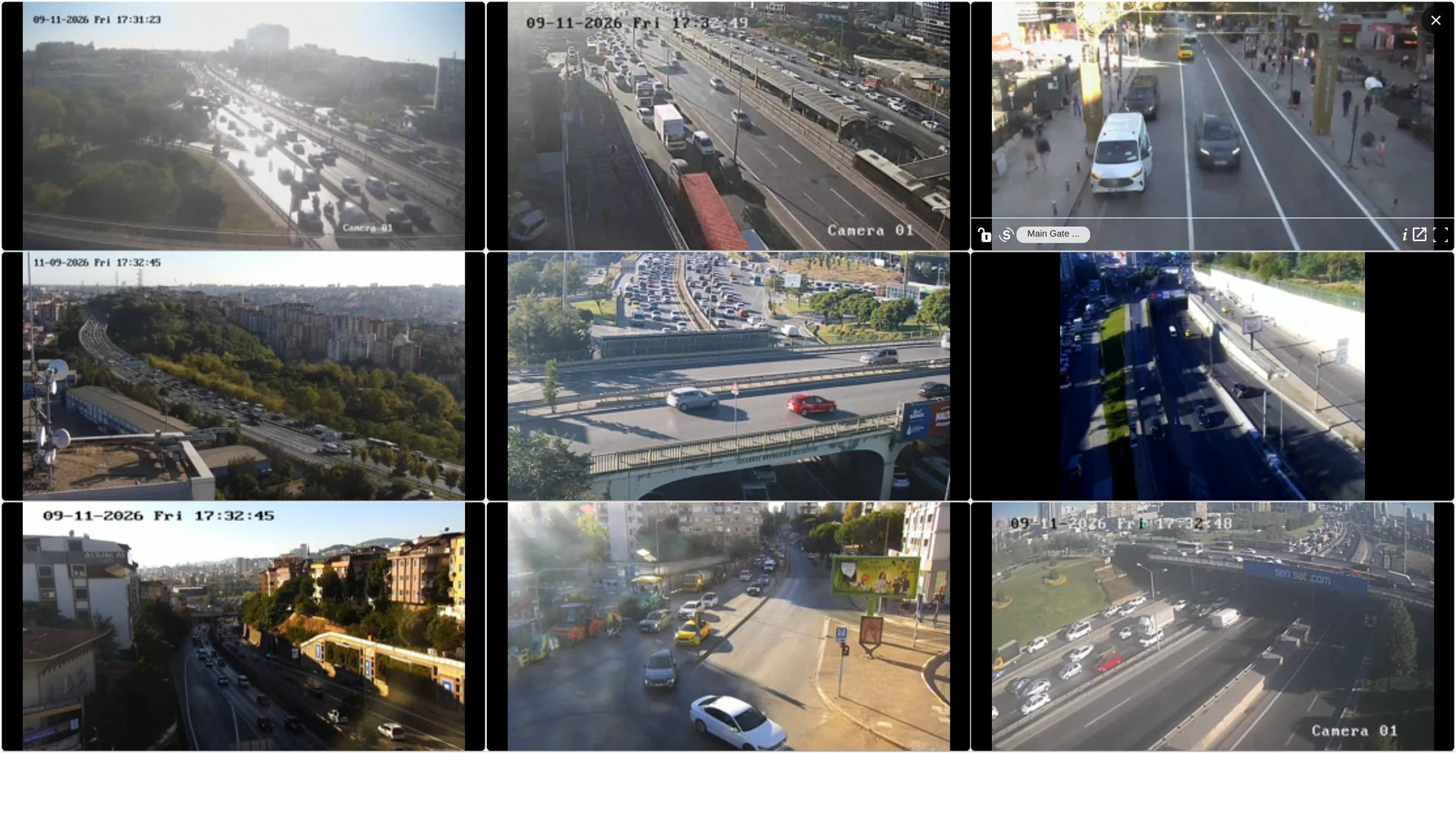
Tiles themselves can be rearranged: drag a tile to move it to another position and drag its bottom-right corner to resize it.
The Tile Toolbar
Move the mouse over a tile to reveal its toolbar.
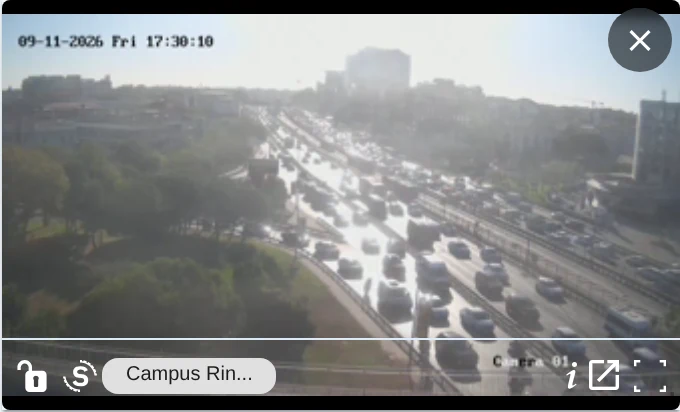
From left to right:
- Lock — pins the toolbar so it stays visible instead of hiding when the pointer leaves the tile.
- S / I badge — tells you whether the tile shows a raw Stream or an Inference (AI) stream.
- Camera name — the label of the camera being displayed.
- Information (i) — shows camera type, how long the stream has been running and how much data has been transferred.
- Open in new (↗) — opens the camera in the Raw Stream Detail page (see below).
- Fullscreen — expands this single tile to the whole screen.
- X (top right corner) — closes the stream.
Raw Stream Detail
Clicking the open in new icon opens the camera on its own page, with a bigger player and the actions you need while watching one camera:
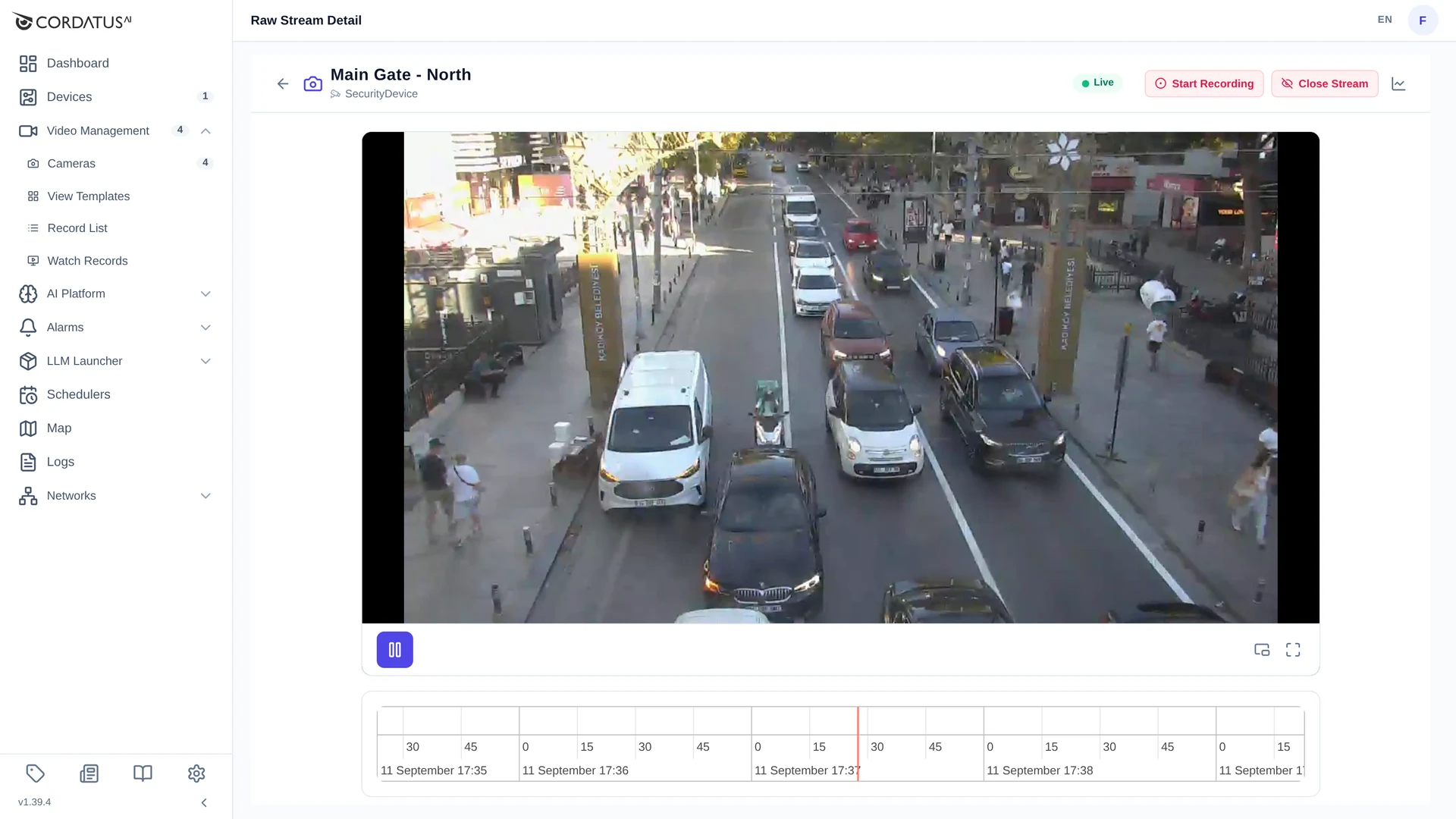
- Live badge — confirms that you are watching the live feed.
- Start Recording — starts recording this camera straight away (see Recording Stream).
- Close Stream — stops the stream and returns you to the Cameras page.
- Metrics icon (top right) — opens the stream statistics panel.
- Pause, picture-in-picture and fullscreen controls sit under the player.
- The timeline at the bottom shows the recordings that exist for this camera.
Closing Streams
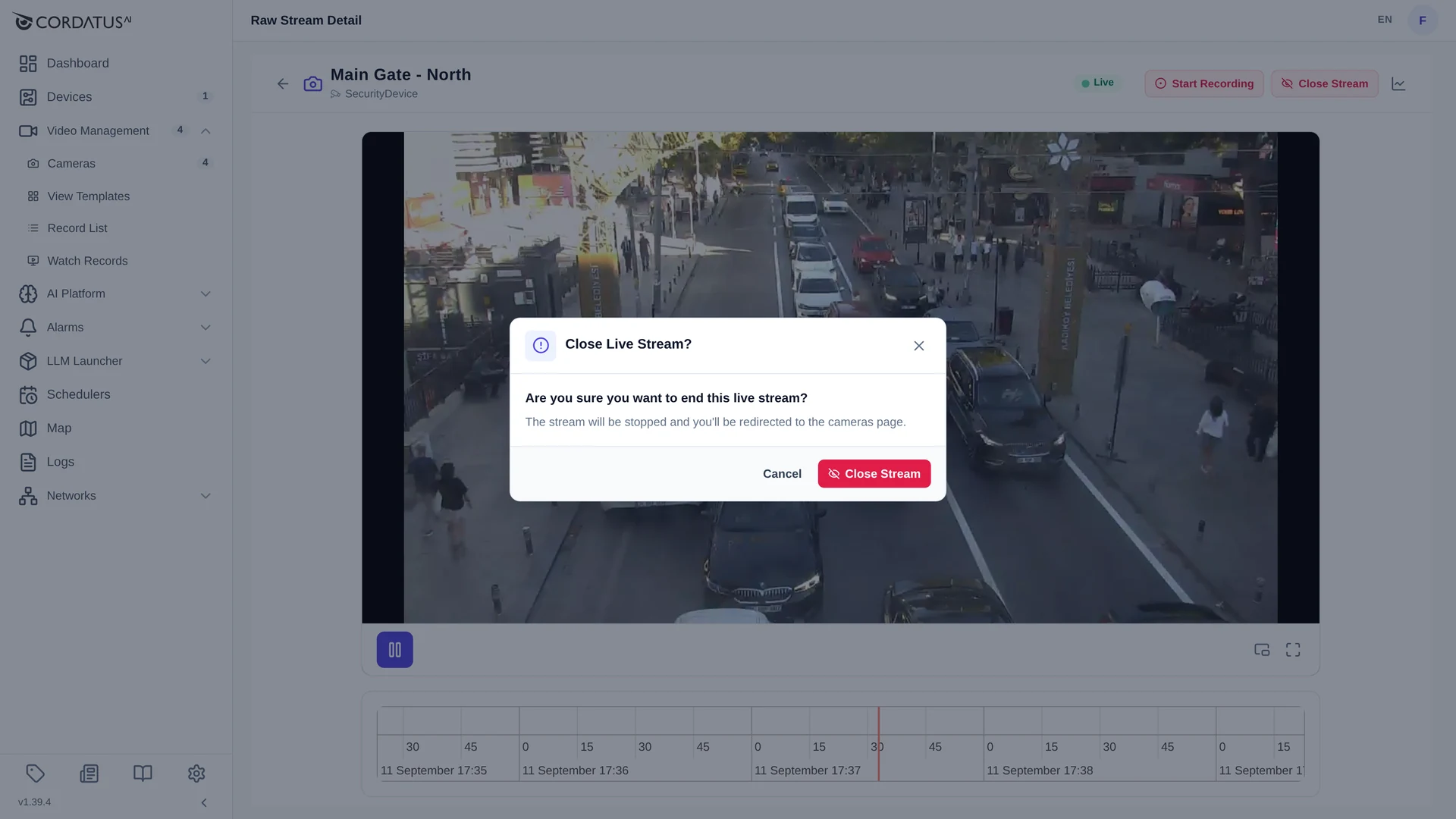
- One stream: click the X in the top-right corner of its tile, or Close Stream on the Raw Stream Detail page and confirm.
- All streams: click Close All Streams at the top of the page.
Streaming on the Cordatus Client
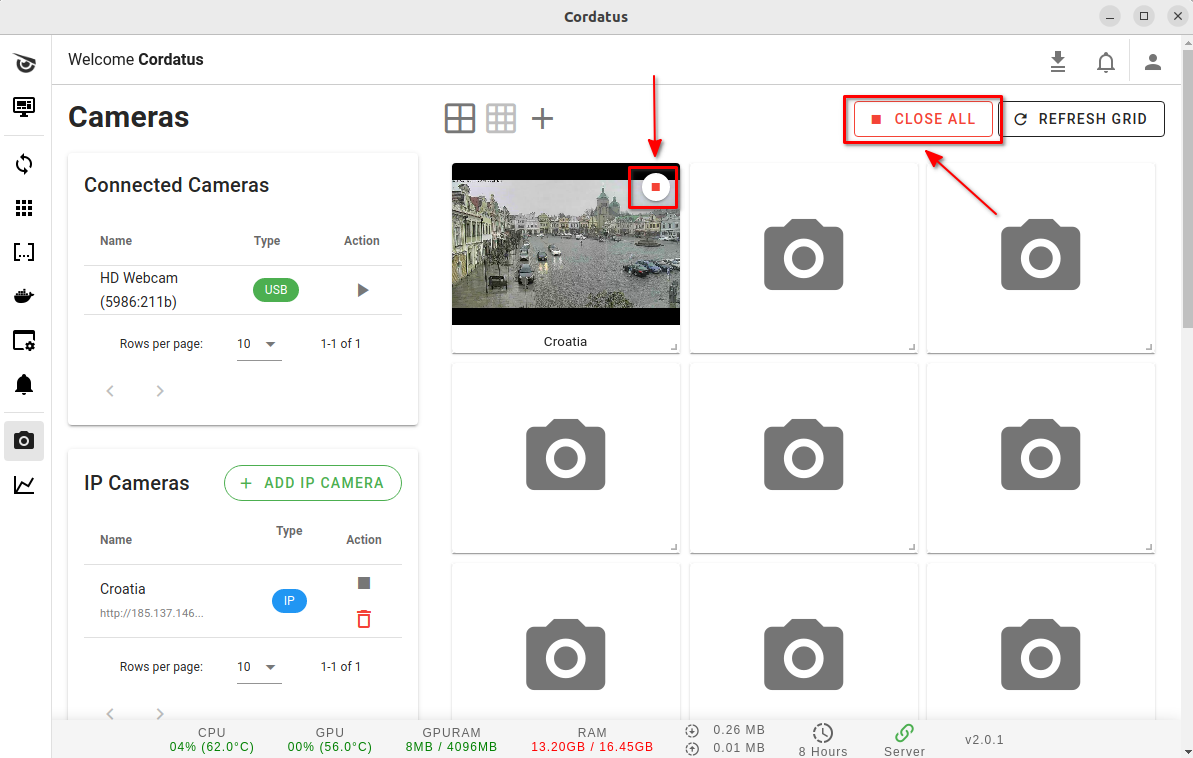
Cameras that were added from the Cordatus Client are watched in the Client itself:
- Launch Cordatus Client and open the Cameras page.
- Click the Play button next to the camera you want to watch — the stream opens on the right.
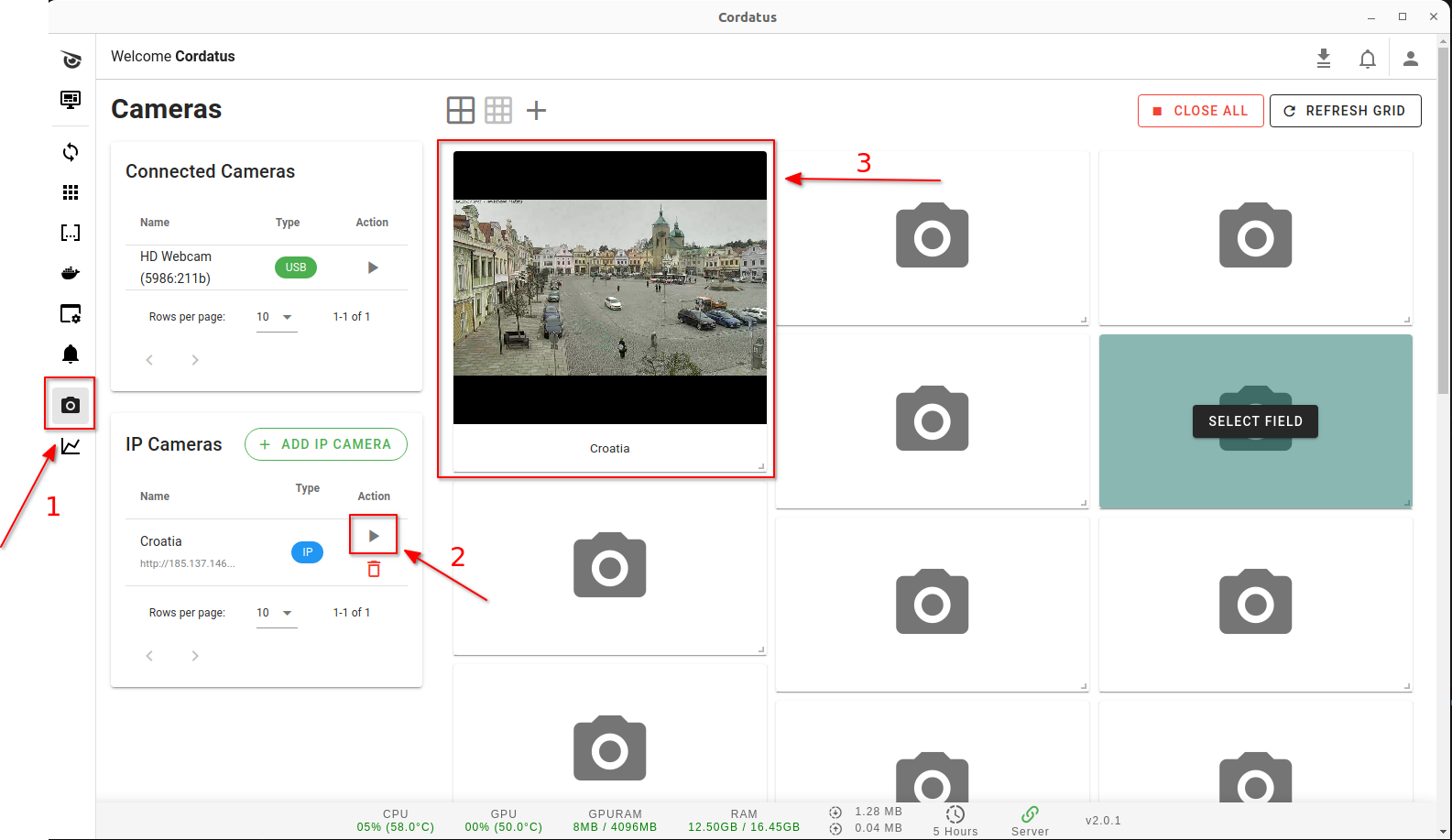
To close a stream, click the red Close Stream icon in the corner of that stream, or Close All to close every stream at once.
Reconnection Behaviour
When a stream is opened, the Cordatus Stream Engine connects to the camera and starts decoding. If the connection cannot be established — or is lost while streaming — Cordatus retries automatically: the first attempt after 5 seconds, then 10, then 20, doubling each time up to a maximum of 600 seconds. After that maximum is reached, Cordatus keeps retrying every 10 minutes until the camera answers.
If a camera never comes back, check that its URL and credentials are still valid on the Edit Camera window, and that the target device can reach the camera's network.