Camera Templates
A template is a saved video-wall layout: which cameras are open, in which grid, in which order. Instead of building the same wall every morning, you save it once and load it with a single click — on any screen, on any computer.
This is what an operator's day usually looks like: a Day Shift template with the entrances and the parking areas, a Night Watch template with the perimeter cameras, and a Loading Dock template for the hours when trucks arrive.
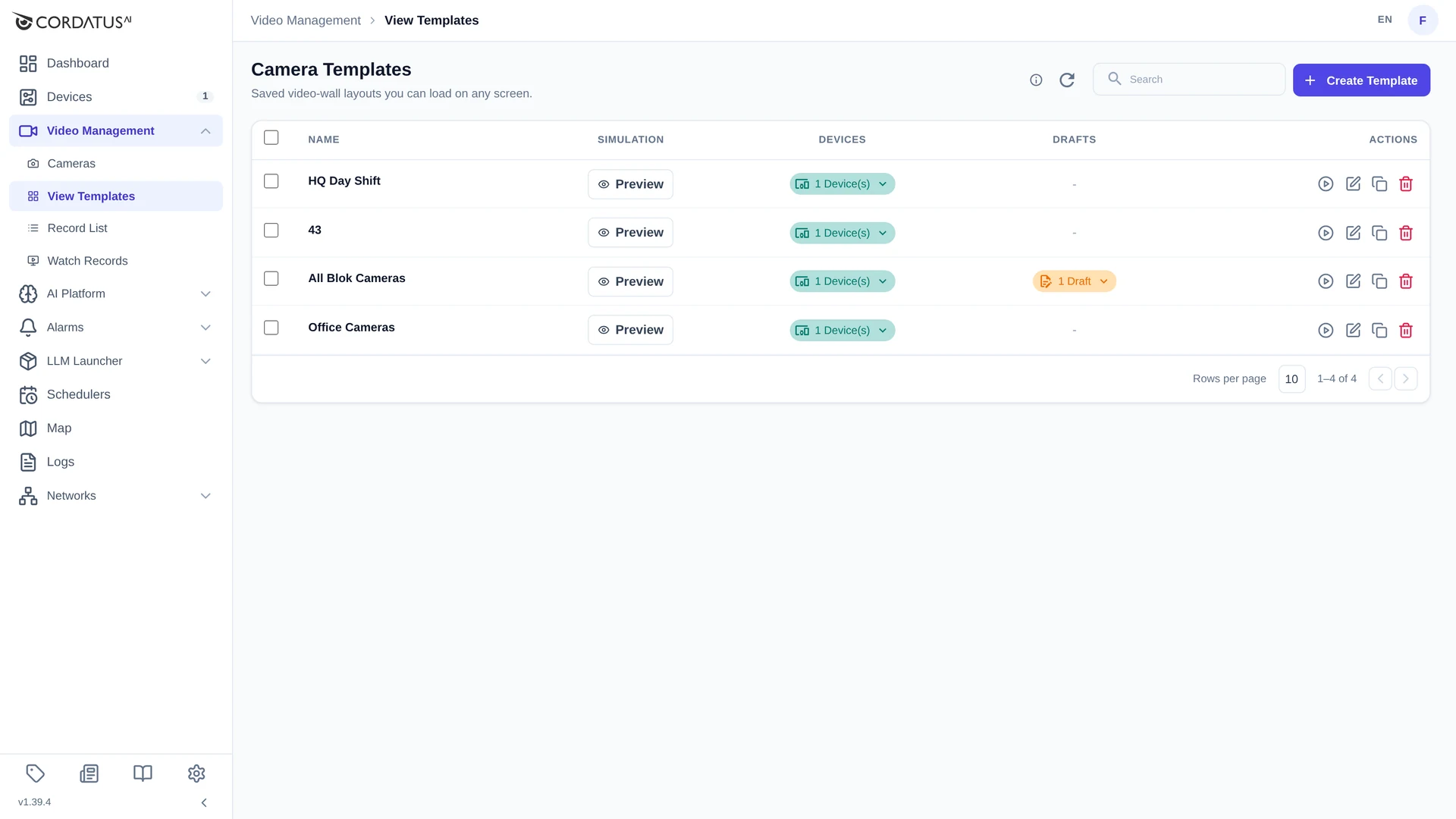
Saving the Current Wall as a Template
- Open the cameras you want on Video Management → Cameras and arrange the wall: grid size, tile order, tile sizes.
- Click Save Template at the top of the page.
- Enter a Template Name (up to 20 characters).
- Click Save Template.
The window tells you exactly what will be stored — for example "This will save 4 active streams as a template."
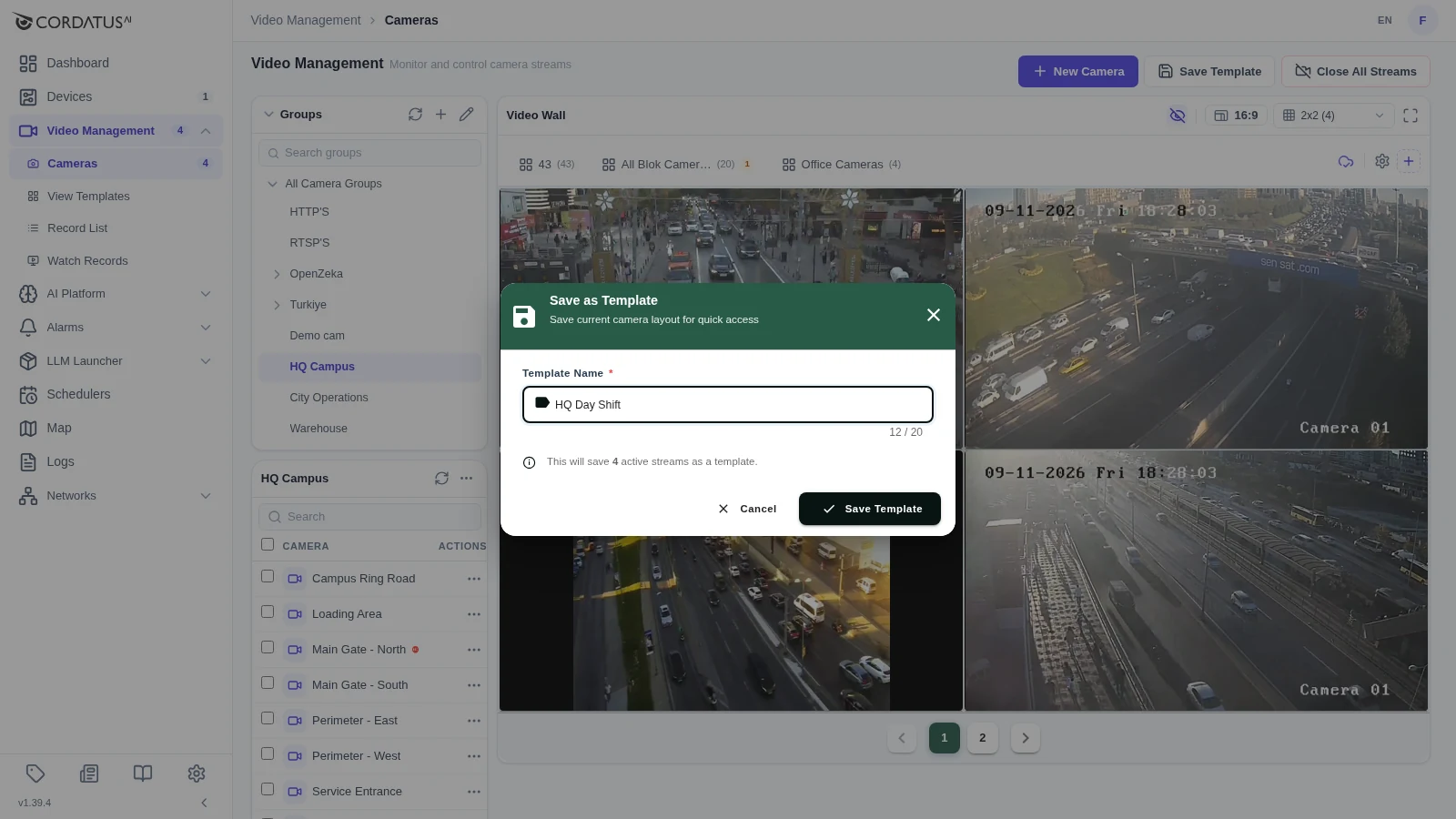
The template immediately appears as a tab above the video wall, next to the templates you already had.
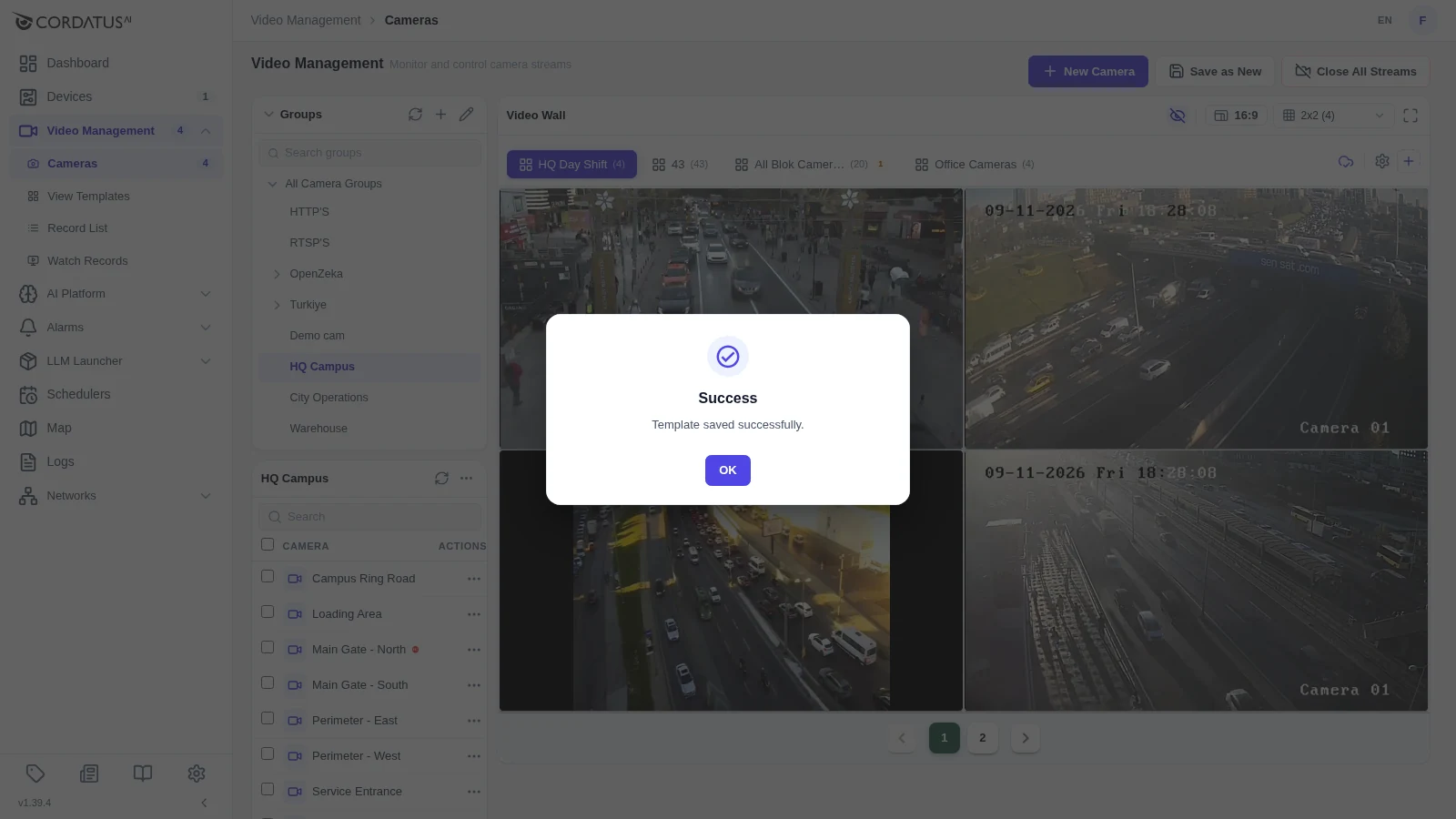
Give templates descriptive names — "Lobby + Parking" tells an operator far more than "Template 1". You have 20 characters; use them for the place and the purpose.
Loading a Template
You can load a saved layout in two ways:
- From the video wall: click the template's tab above the tiles. The wall is rebuilt with the cameras of that template.
- From View Templates: click the play icon on the template's row.
Loading a template replaces what is currently on the wall. Save your current arrangement first if you want to come back to it.
The Template Tab Bar
Above the video wall, next to the template tabs, three controls manage them:
| Control | Purpose |
|---|---|
| Auto-save | When it is ON, changes you make to the wall (adding, moving or resizing tiles) are written back to the active template automatically. Click it to switch auto-save off and keep the saved layout untouched. |
| Template Settings | Options for the active template. |
| Create New Template | Starts a new, empty tab you can fill and save. |
Managing Templates
Video Management → View Templates lists every template of the organization:
| Column | Content |
|---|---|
| Name | The template name. |
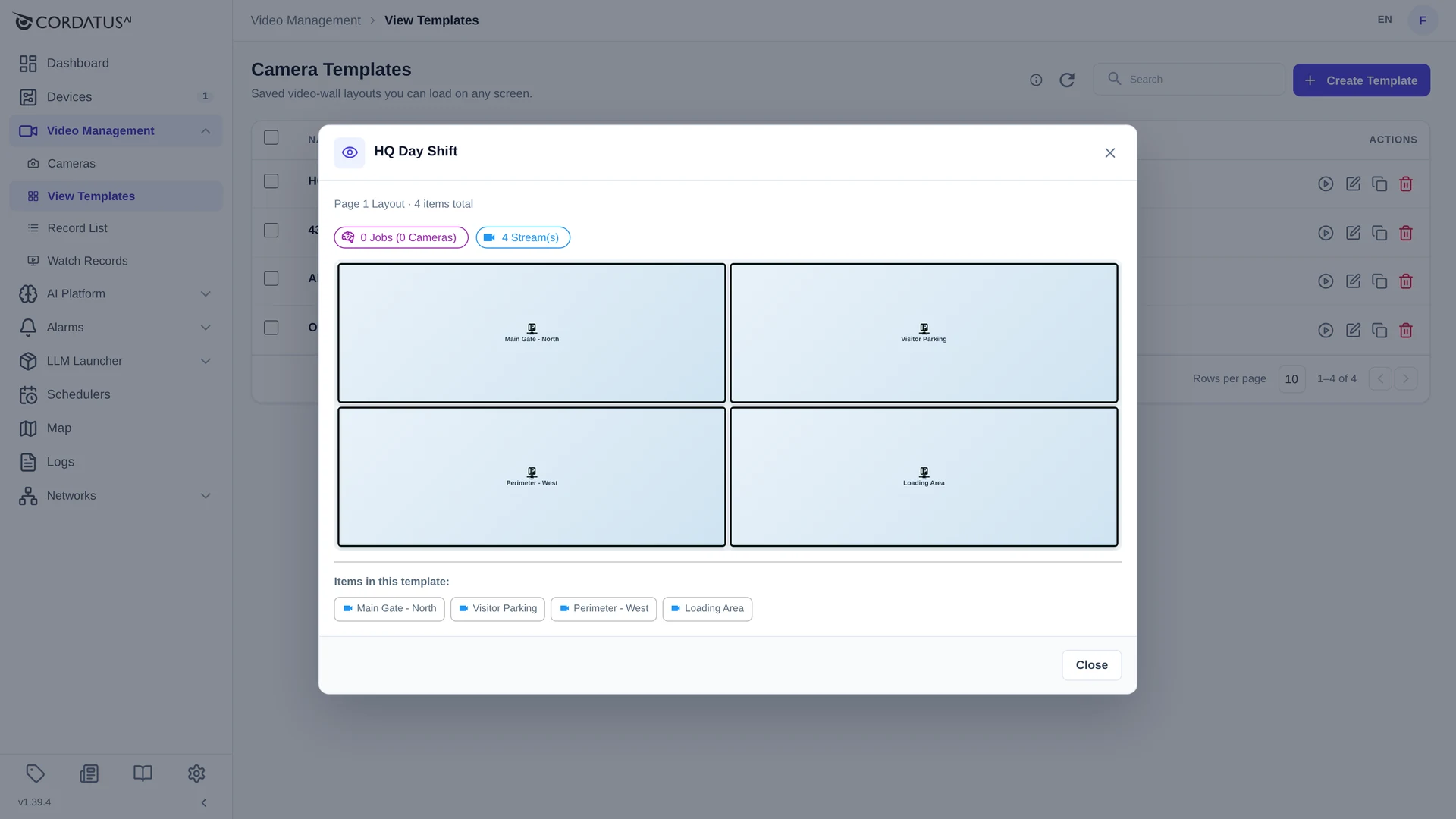
| Simulation | A Preview button that draws the layout without opening any stream. |
| Devices | How many devices the template's cameras belong to. |
| Drafts | Unsaved working copies of the template, if any. |
| Actions | Load, edit, duplicate and delete. |
Previewing a template
Preview shows the grid exactly as it will be restored, the number of streams and jobs it contains, and the list of cameras — without connecting to a single camera.
Editing, duplicating and deleting
The icons at the end of each row let you:
- load the template onto the video wall,
- edit its name and content,
- duplicate it — the fastest way to build a variant of an existing wall,
- delete it.
Deleting a template only removes the saved layout. Cameras, streams and recordings are not affected.
Use Cases
| Scenario | Template setup |
|---|---|
| Security desk | All entrances and exits in one 3×3 wall for daily monitoring |
| Shift change | Separate Day Shift and Night Watch templates |
| Incident review | A template with every camera covering one area, ready for investigations |
| Production line | One template per production stage |
| Multi-site | One template per site, switched from the tab bar |
Tips & Best Practices
- Build templates around monitoring scenarios, not around individual cameras.
- Keep the number of cameras per template sensible — the grid goes up to 8×8, but a wall you can actually watch is usually 9 to 16 tiles.
- Use consistent names, for example Location – Purpose.
- Switch auto-save off for templates that must not change by accident.
- Update templates when cameras are added or renamed.