Watching Recordings
Video Management → Watch Records plays back what your cameras recorded. Several cameras can be watched side by side on a shared timeline, so you can follow one event across every camera that saw it.
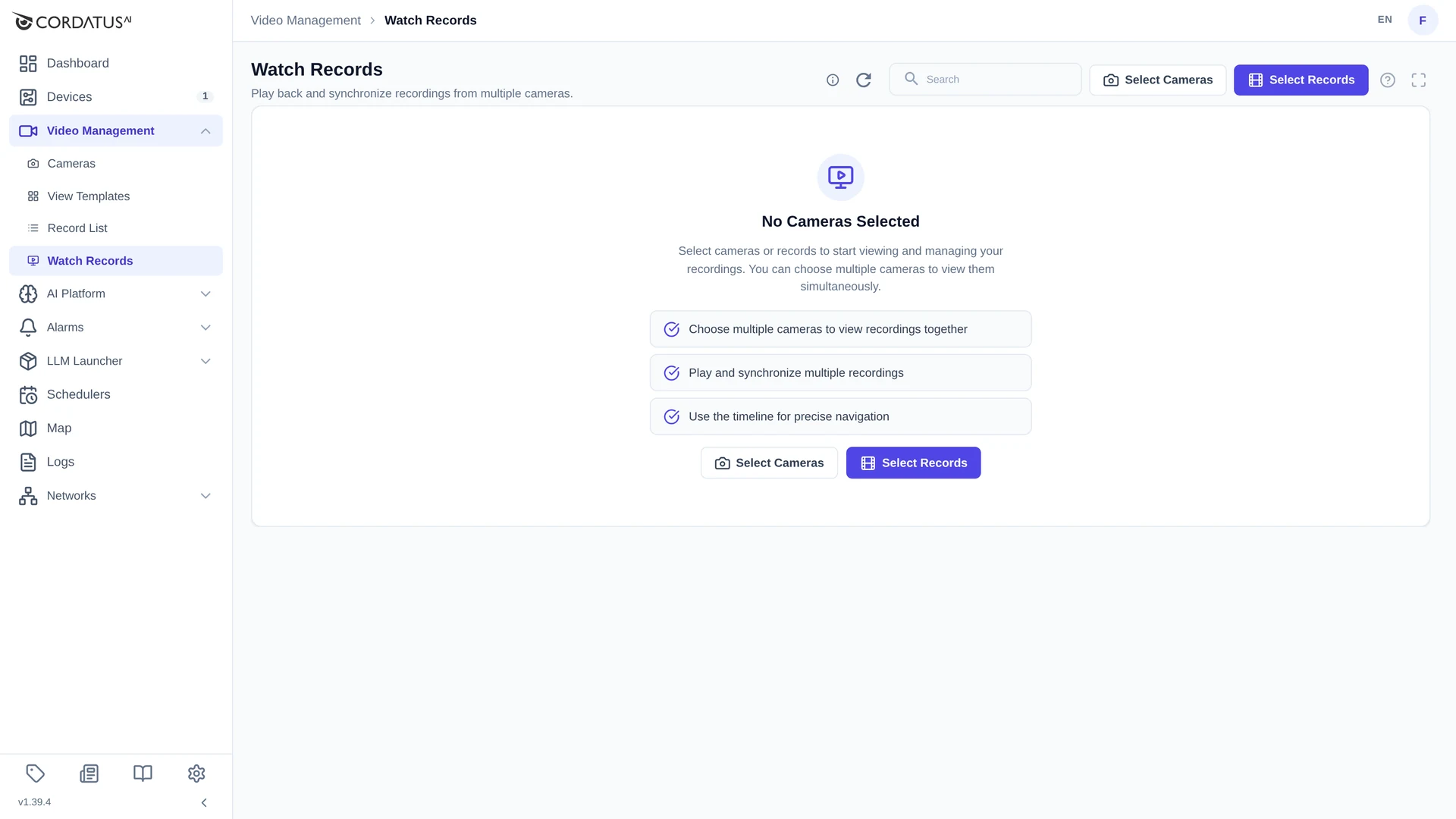
Opening Recordings
The page starts empty and offers two ways in:
| Button | Use it when |
|---|---|
| Select Cameras | You know which cameras you want to review and you want everything they recorded in a period. |
| Select Records | You know which recording you want — pick it by name from the list. |
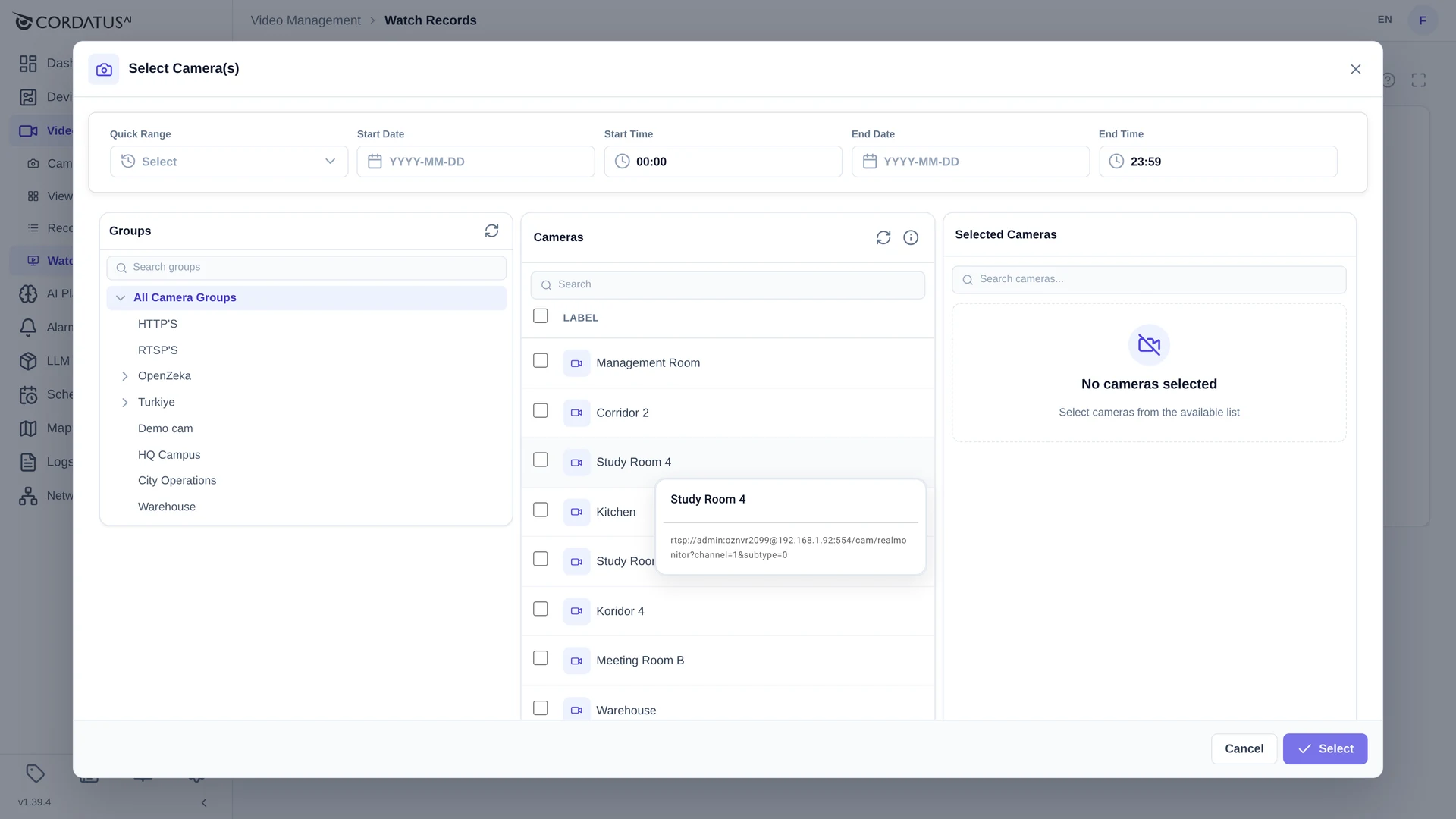
By camera
- Click Select Cameras.
- Choose a Quick Range, or set Start Date / Start Time and End Date / End Time.
- Pick cameras from the middle panel — use the groups on the left or the search box to find them. Selected cameras are collected on the right.
- Click Select.
By recording
- Click Select Records.
- Tick the recordings you want to watch — each row shows its camera, device, start and end.
- Click Select.
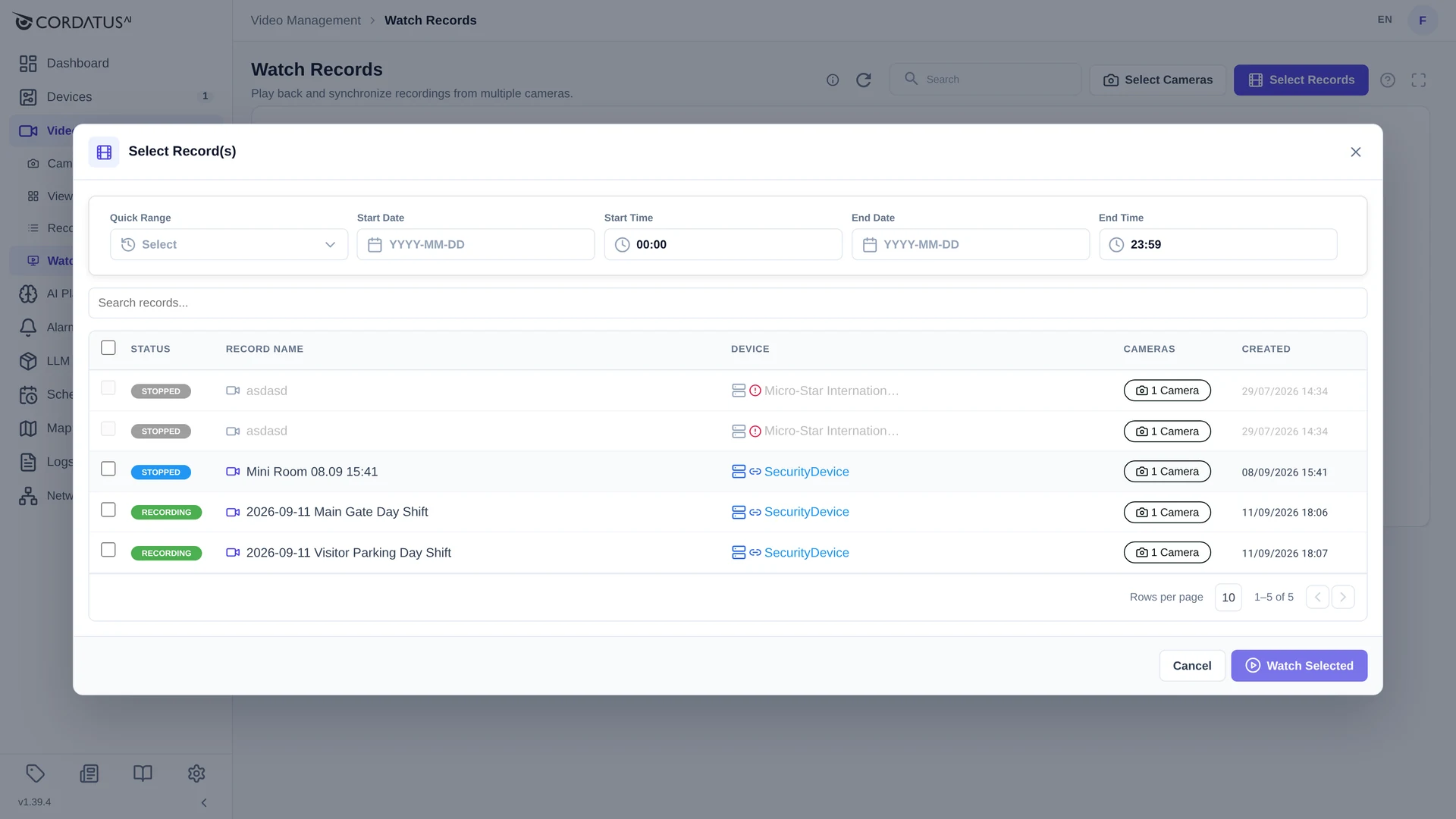
The timeline jumps straight to the period the recordings cover, which is usually the fastest way to find footage you already know about.
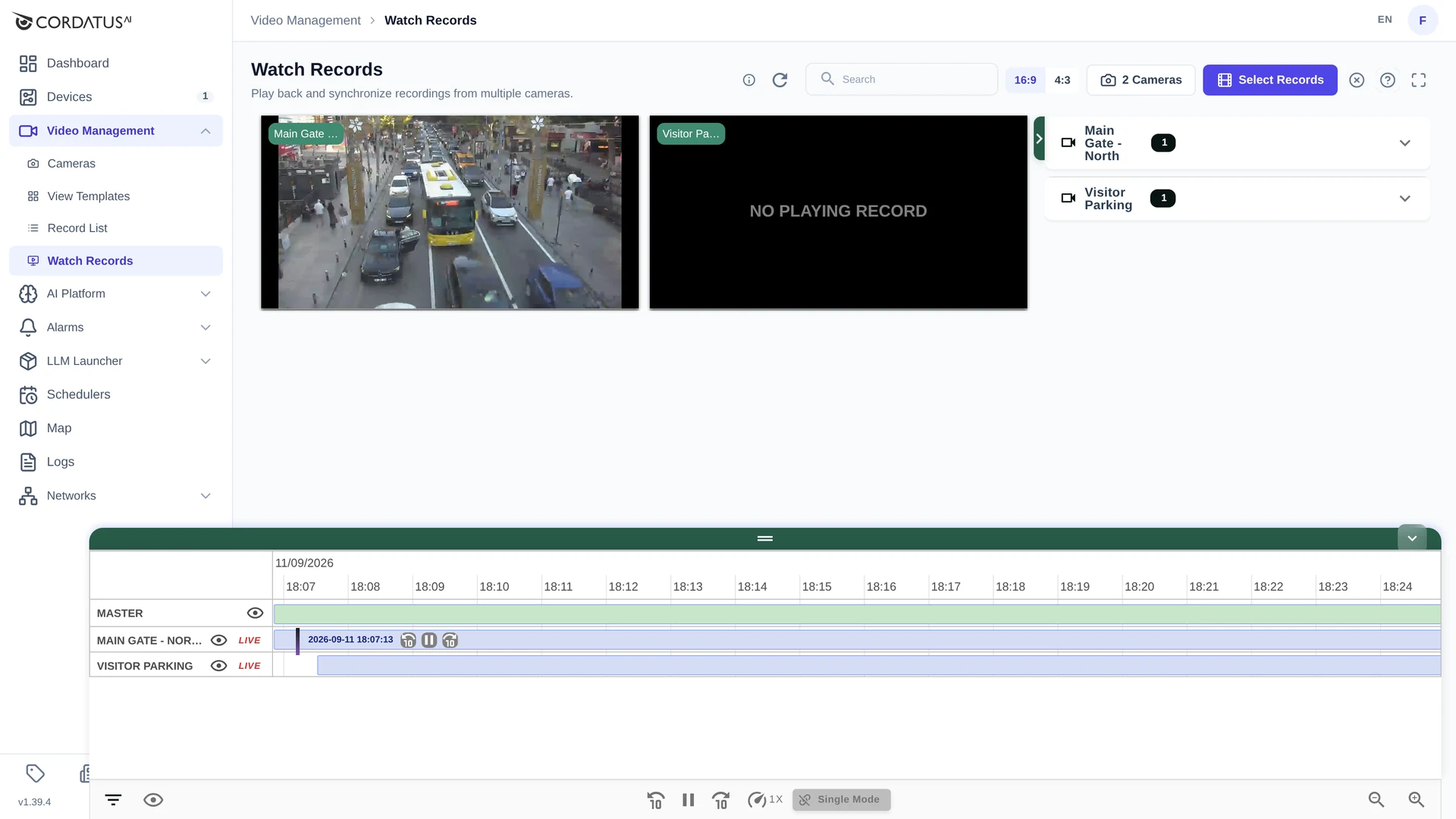
The Screen
| Area | What it holds |
|---|---|
| Player grid (top left) | One player per camera. A player shows NO PLAYING RECORD until you pick a moment. |
| Camera panel (right) | The selected cameras with the number of recordings each one has. Expand a camera to list its recordings with name, device, start, end and duration, and to search inside them. |
| Timeline (bottom) | A MASTER row plus one row per camera; the coloured bars are the recorded periods. |
| Player bar | Play/pause, ±10 seconds, playback speed, Single Mode and timeline zoom. |
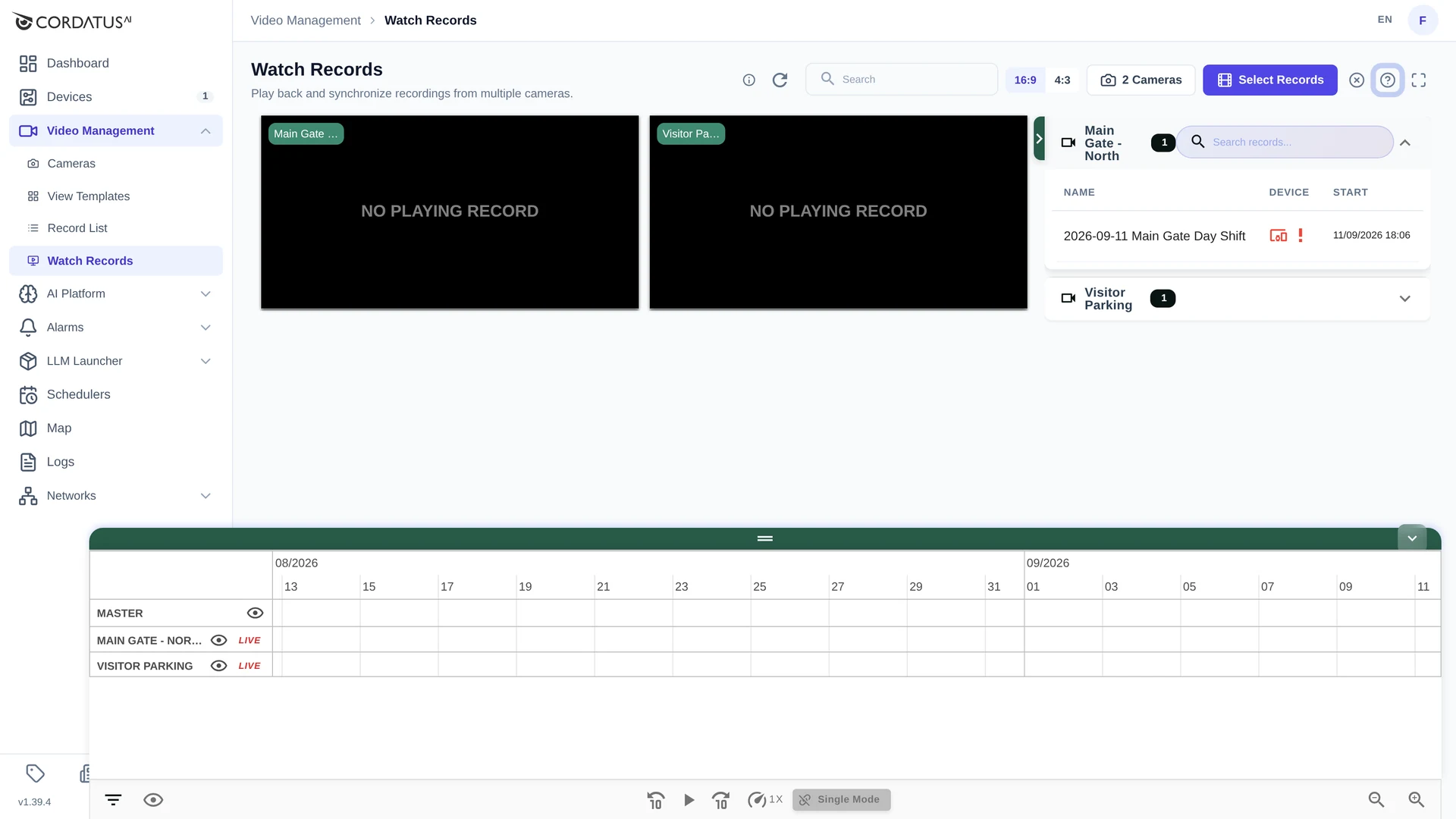
Header controls: Search, the 16:9 / 4:3 aspect switch, N Cameras (reopens camera selection), Select Records, clear, the help button and fullscreen.
Playing and Navigating
- Click a bar on the timeline to play that recording from the point you clicked.
- The marker shows the exact timestamp, with small step back / play-pause / step forward buttons next to it.
- ±10 s jumps inside the current clip, and the speed control slows playback down or speeds it up.
- Zoom the timeline with the zoom buttons at the bottom right (or the mouse wheel) to go from a month-wide overview down to a single minute.
- The eye icon next to a camera hides its row; LIVE jumps back to the live feed of that camera.
Recordings that are still running keep growing on the timeline — the bar simply extends as new footage arrives.
Single Mode and Master Synchronisation
The Single Mode switch decides how many players follow your clicks:
- Single Mode on — only the camera you clicked plays.
- Single Mode off — clicking the MASTER row lines every camera up on the same instant, so one event can be watched from several angles at once.
Any manual control (play/pause, ±10 s) applies to the camera you are working on.
Tips
- Do not load more cameras than you need — fewer cameras means a faster, clearer timeline.
- Prefer Select Records when you know the recording's name; prefer Select Cameras when you are exploring a period.
- Use a narrow zoom level for detailed review and a wide one to find the day something happened.
- Recording playback is served by the device that stored the footage, so that device must be online.